
✅ Create a trip from scratch or from a DMC Template
✅ Save your trip as a proposal for a specific TO
✅ Generate a new client folder linked to the proposal
✅ Send the proposal directly, with automated notifications to the TO
✅ Track all proposals in the “Trips in Progress” section
🚀 Objective: Learn how to build and send a custom trip proposal to a Tour Operator, and manage it efficiently through KOOB's client collaboration flow.
📂 Starting a new trip proposal
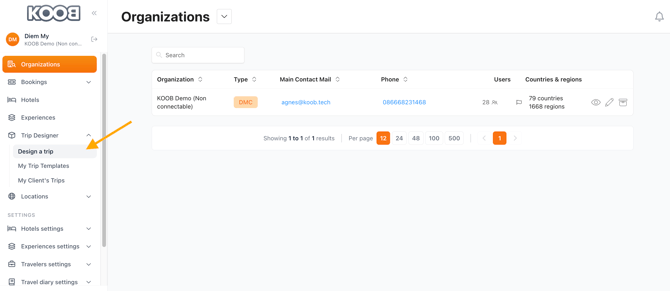
To begin, go to the Trip Designer and click:
- Click on 📂 Trip Designer (left-hand menu)
-
Click 🟠 "Design a Trip" to start a new template
-
In the initial pop-up, fill out:
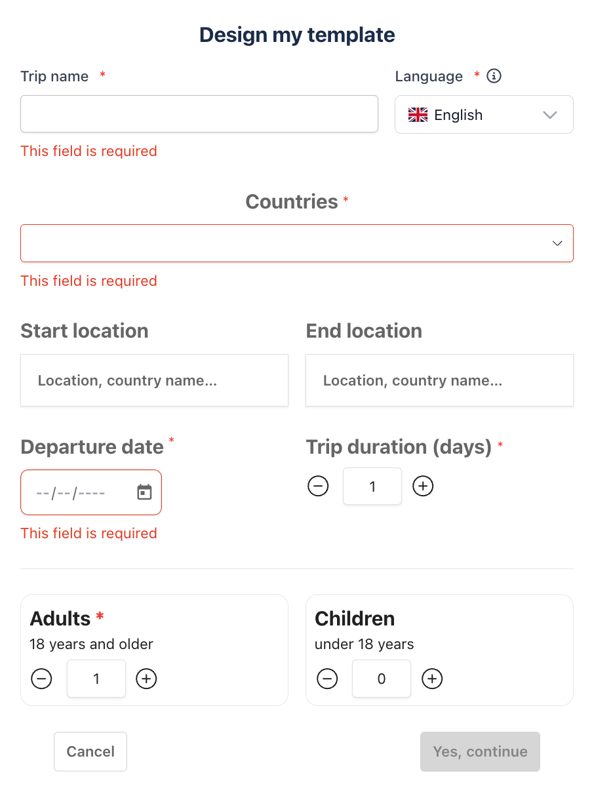
| 🧾 Field | 📌 Description |
|---|---|
| 🏷️ Template Name | Give your itinerary a clear and recognizable name |
| 🗣️ Language | Select the language used to create and display this itinerary |
| 🌍 Country |
Choose the countries for this itinerary
|
| 🏙️ Start Location | First city of the itinerary |
| 🏁 End Location | Last city of the itinerary |
| 📅 Departure Date | First day on-site (used to apply the correct pricing period; international departure date not included) |
| ⏳ Trip Duration | Total duration of the trip (updates automatically if longer modules are added) |
| 👥 Adults | Number of adults (18 years and older), at least 1 adult required |
| 👶 Children | Number of children (under 18 years) |
📌 Note:
Select the itinerary language before adding products.
After a program or hotel is added to the timeline, the language cannot be changed.
Only products available in the selected language will appear in product selection.
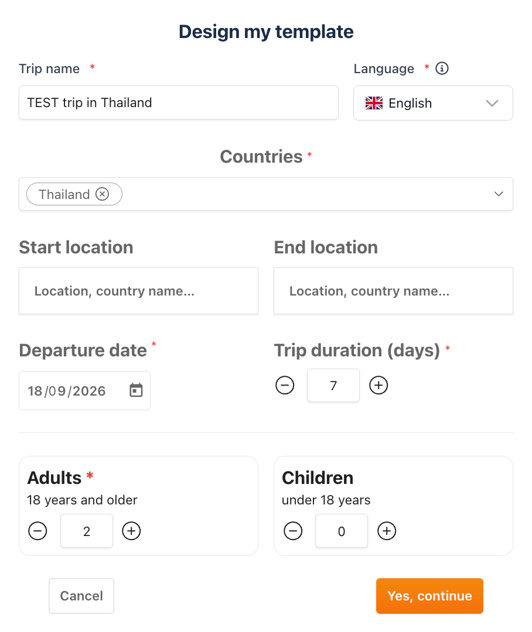
💡 The Trip Designer interface will load with your parameters pre-set.
💡The "Departure Date" is used by KOOB to retrieve correct hotel and experience prices based on TO validity periods and automatically apply your DMC margin.
🧭 Understanding the Trip Designer Interface
-
Left panel: the day-by-day timeline where you build the itinerary
-
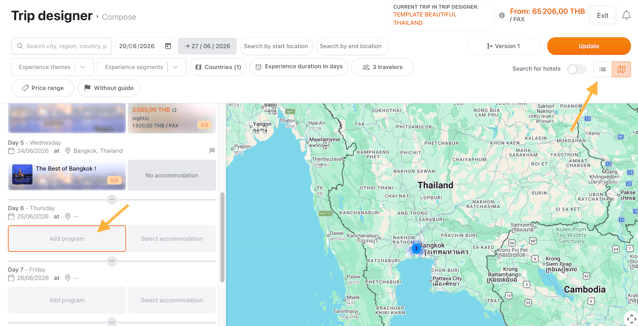
Right panel: an interactive map view and access to experiences
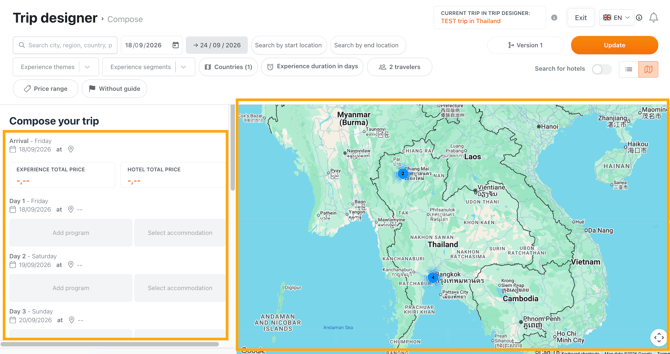
Within the timeline, you’ll see:
-
Daily structure with weekday and date
-
Zones for adding programs and accommodations
-
KOOB auto-adjusts the timeline if you add a module that exceeds the initial trip length
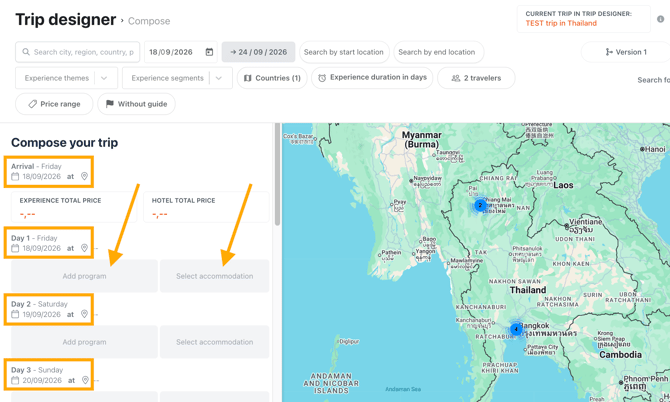
💡 You can always click on a component’s title in the timeline to open its DMC factsheet.
💡 You can add extra days before, after, or between programs by clicking the ➕ buttons. KOOB will update the structure and dates automatically.
💡 Important Recommendation
When designing a trip, follow these steps:
- Add all programs
- Add all options (global, suggested, and secondary)
- Add all hotels
- Review and reselect room types (if needed)
- Save (as draft template / template / proposal)
🧩 Adding Programs
-
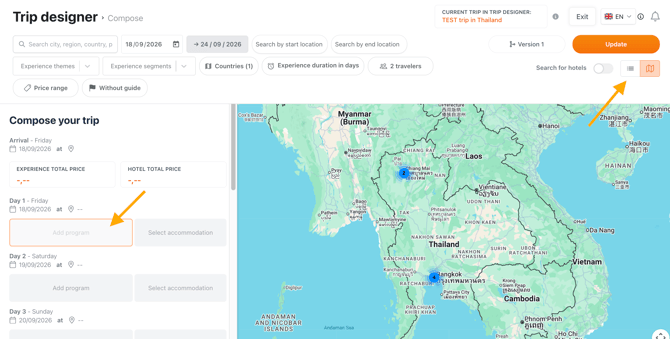
Click on the day slot where you want to add the program
- Switch to the List or Map view (List view is recommended)
-
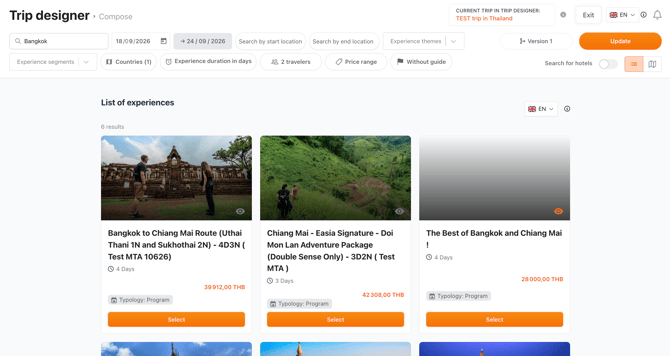
Search for the desired program
💡 Tips
- Use the filter detailed in the previous section to facilitate your search
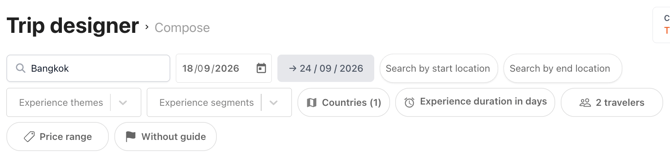
| Filter | Description |
|---|---|
| 🔤 General search | Search by title, region, city, highlights, or itinerary keywords |
| 🏙️ Start/End Location | Filter based on starting and ending city of the program |
| 🌍 Countries |
Countries selected in the “Design my template” pop-up Cannot be modified |
| 🎭 Experience themes | Nature, Culture, Gastronomy, Adventure, etc. |
| 🎯 Segments | Private, Join-in, Leisure, Exclusive, Active, etc. |
| ⏳ Duration | Define min/max duration in days |
| 💰 Price range | Define min/max price range |
| 👤 With/Without guide | Display guided or non-guided experiences |
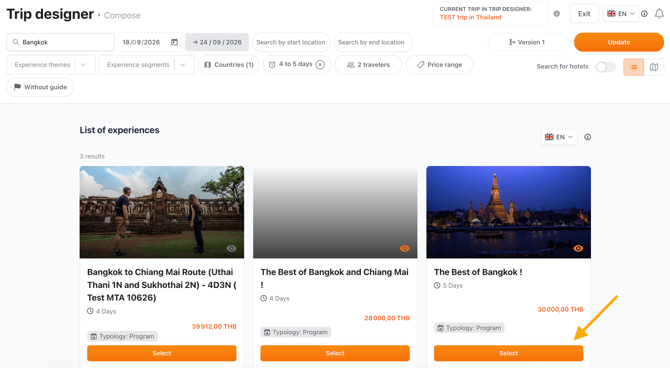
💡 Results update instantly. Each thumbnail shows themes, segment, duration, location, and DMC.
- Click “Select” to add it to your itinerary
-
You will be redirected to the timeline.
KOOB will:
- Insert the program into the timeline
- Automatically adjust the number of days if needed
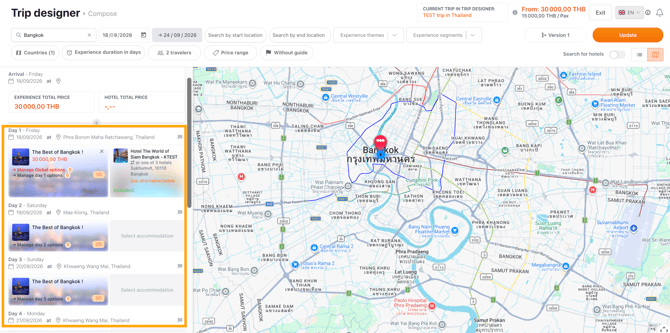
📌 Example: You select a 5-day trek in Northern Vietnam but your timeline is set up on only 2 days duration. KOOB will auto-extend the itinerary by 3 more days if necessary.
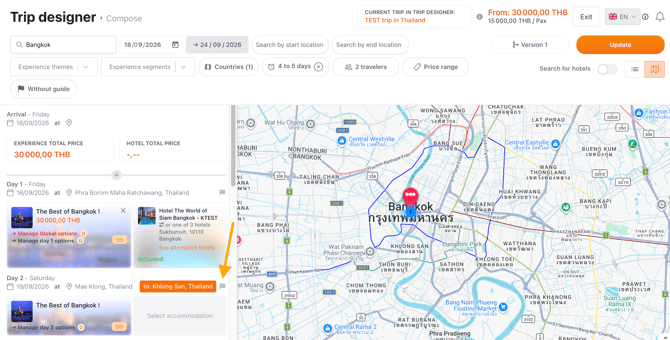
- A tooltip displaying the end location of the day appears when you hover over the small flag:
➕ Managing experience options
KOOB supports three types of options to customize your trip:
| Type | Description |
|---|---|
| 🧭 Global options | Applied to the entire trip (e.g., private guide for the full program) |
| 📅 Day-specific options | Applied to a specific day (e.g., massage on Day 3, cooking class on Day 4) |
| 🌐 Cascading options | Secondary options that depend on a primary option being selected (e.g., select "City Tour" → then choose between “Bike” or “Walking”) |
To add or manage options:
-
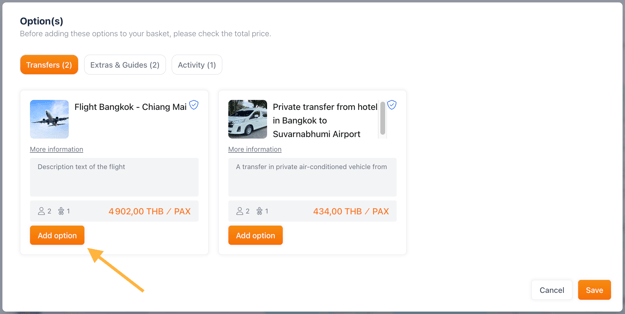
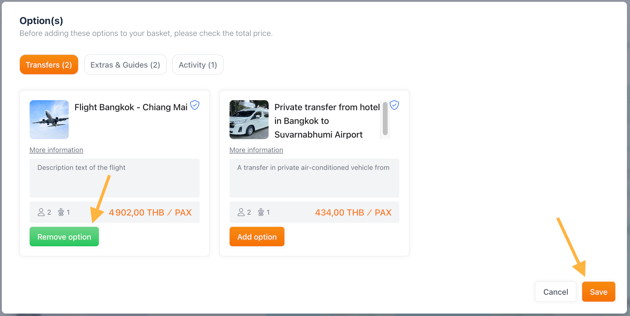
Click “Manage Global Options”
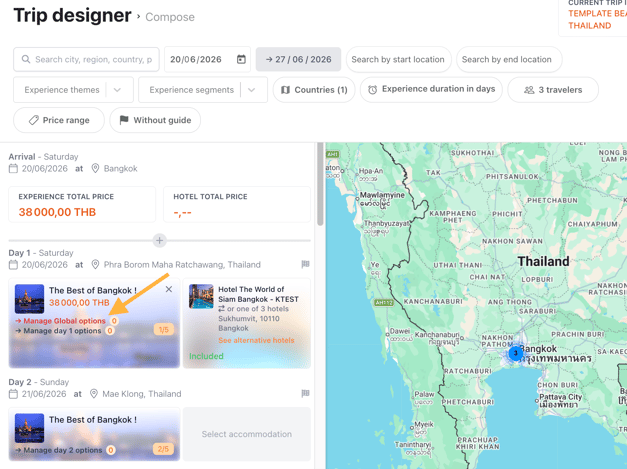
- Options are categorized by typology.
- Click "Add option" on the desired option and "Save"
-
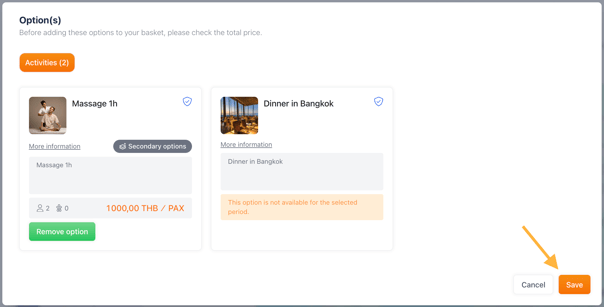
To add Day Options, click “Manage Day X Options” in the timeline
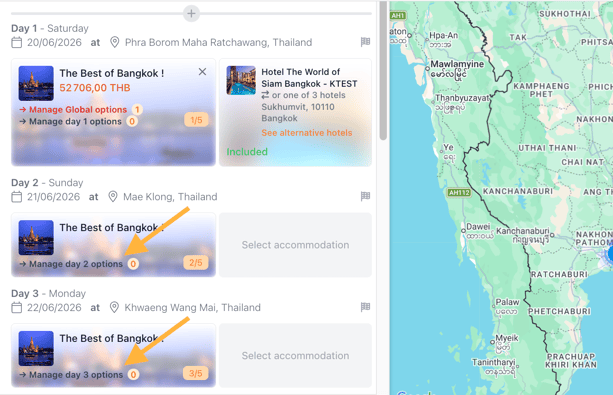
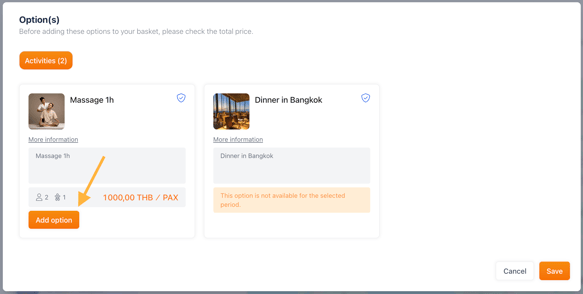
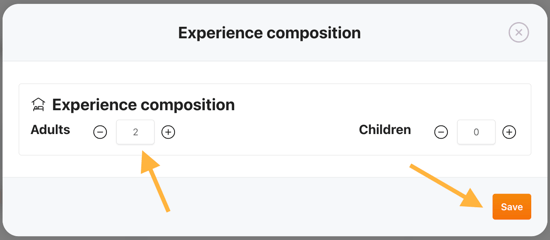
A pop-up opens to select:
-
Available options
-
-
Quantity (e.g., 2 seats, 4 massages)
-
-
Click Save to confirm
🏨 Adding accommodations
Types of accommodations in a program
| Accommodation Type | Description |
|---|---|
| ✅ Hotel Included | The accommodation is included by default in the program and its price. The TO cannot deselect it. |
| ❌ Hotel Excluded | The program does not include the hotel, but the DMC can still suggest default hotels to guide the TO. |
| 🚢 Night on Board | The accommodation is onboard a transport (e.g., sleeper train, cruise, boat cabin) and auto-filled. |
| 🚫 No Accommodation | No accommodation is needed or possible on this day (e.g., overnight transport, or early airport transfer). |
| 🆓 Free Accommodation | The TO is free to choose any hotel from the KOOB Marketplace. No default hotel is set by the DMC. |
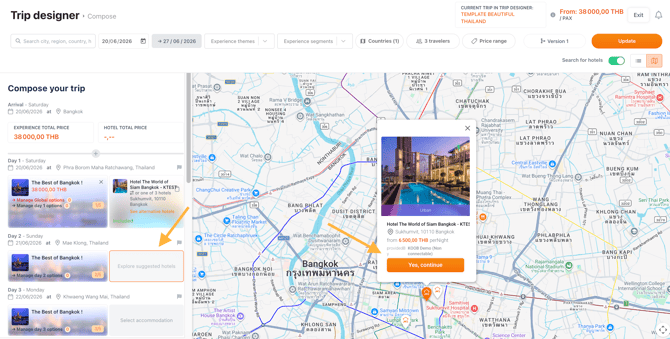
You can add a hotel by:
-
Clicking “Select accommodation” in the daily timeline
-
The system shows default hotel suggestions from the experience settings (pop up)
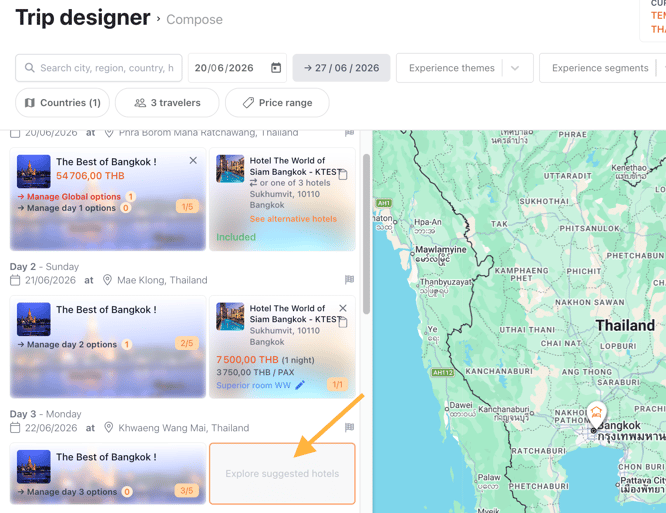
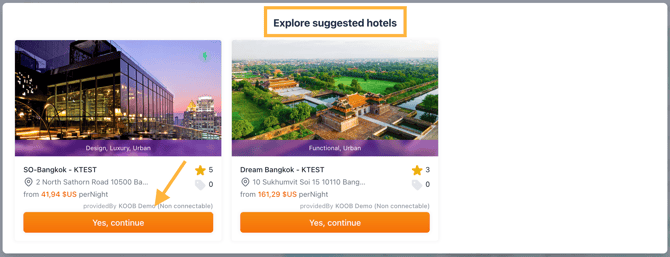
- Click "Yes, Continue" to confirm the suggestion from the Map
- Once you have selected a hotel, the lowest available price and its corresponding room type are displayed for each day in the itinerary.
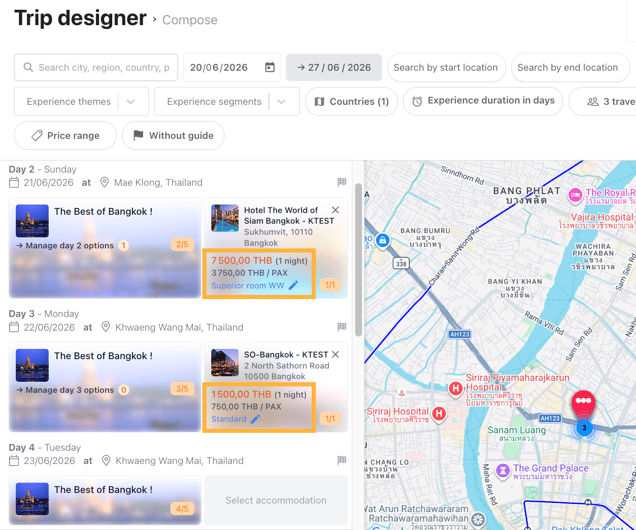
-
You can change the room type by clicking the room name with the pencil icon:
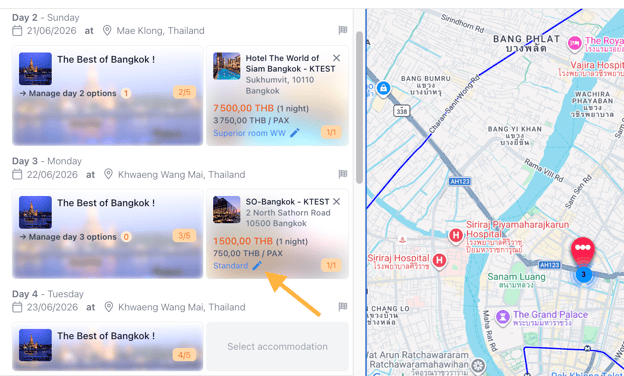
- A room selection pop-up will appear, allowing you to select another room type and confirm:
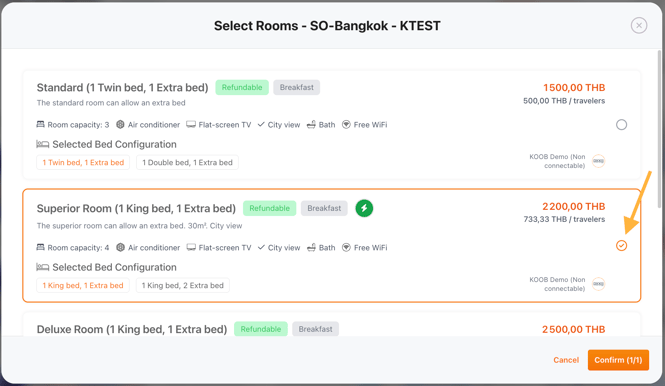
To select a different hotel:
-
Click "Search hotels" in the top-right of the banner

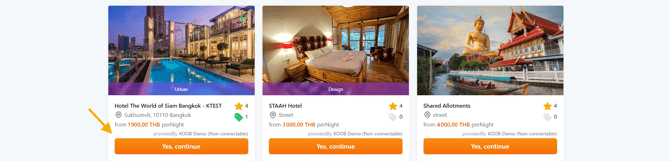
- Or click "Yes, Continue" to confirm the suggestion from the List
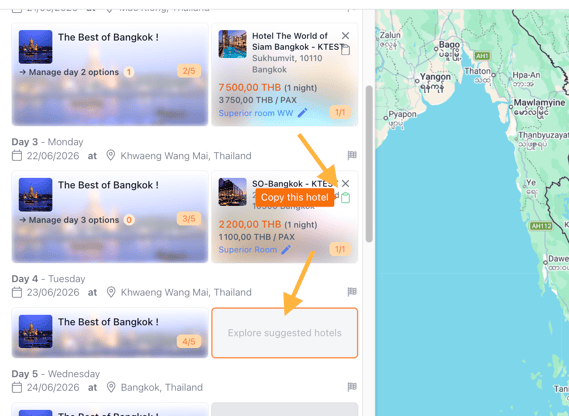
💡 You can copy/paste a hotel into the next day using the copy icon in the timeline — useful for multi-night stays.
🔄 KOOB Compatibility Technology
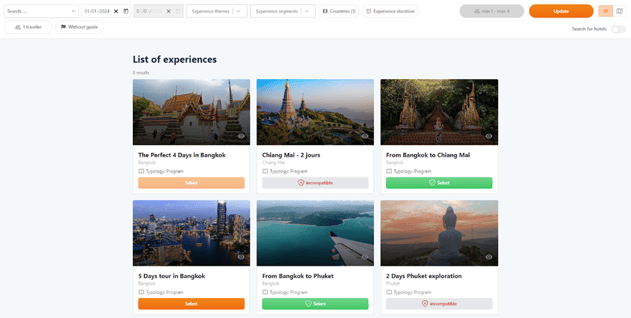
KOOB automatically highlights the best experience combinations based on your previous selections:
| Color | Meaning |
|---|---|
| 🟢 Green | Best matches – highly recommended for operational flow |
| 🟠 Orange | Compatible – works, but not optimal (Required options may apply) |
| 🔴 Red | Incompatible – blocked due to time/location conflicts |
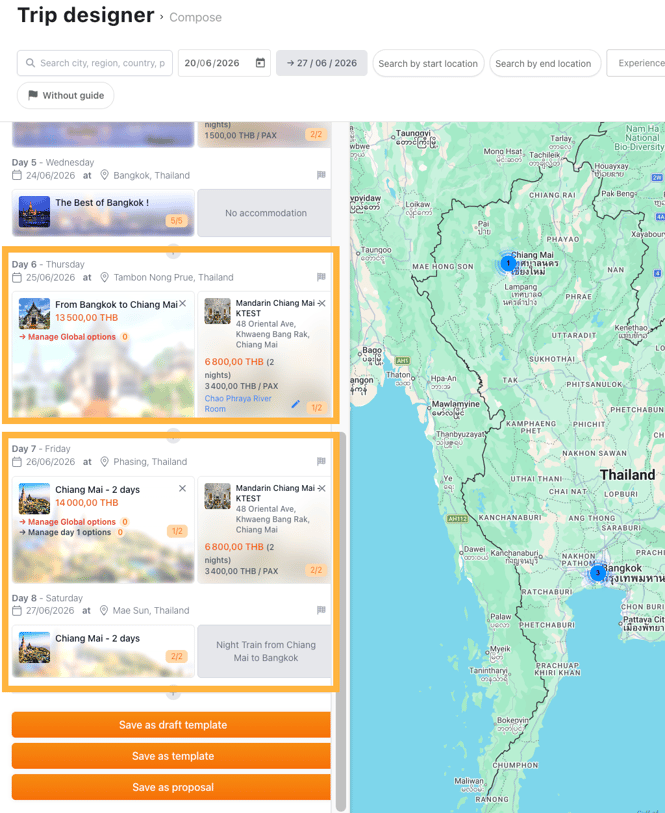
💡 Compatibility updates in real-time as you build, helping you make the best choices for flow and logistics.
💰 Reviewing pricing
KOOB calculates trip pricing dynamically:
| Element | Description |
|---|---|
| 💸 Experience total | Sum of all experience modules added |
| 🏨 Hotel total | Sum of all accommodations selected |
| 📊 Final price per pax | Auto-calculated based on base category rooms and applied margins |
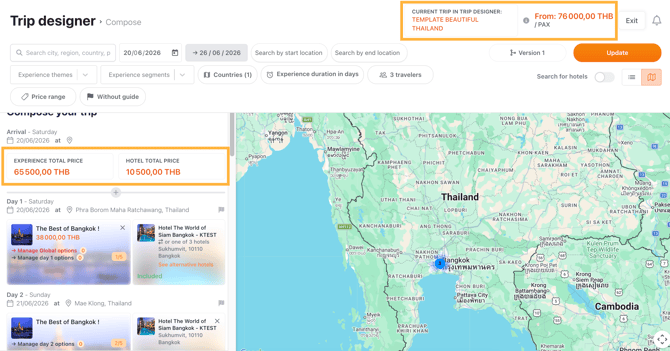
📌 Displayed in the top-right of the Trip Designer ("Price From") based on the lowest room category. The final price may vary depending on TO room selections during booking.
💾 Saving and sending as a proposal
Once your trip is ready:
-
Review the itinerary for accuracy
- Click "Save as Proposal"
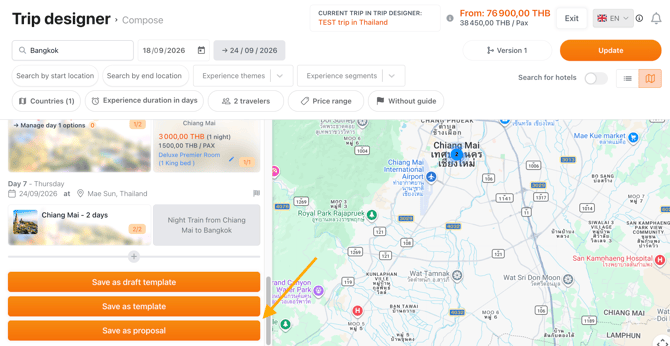
A two-step process begins
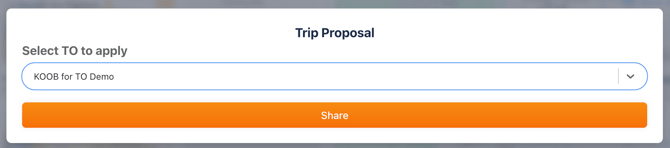
Select your Tour Operator
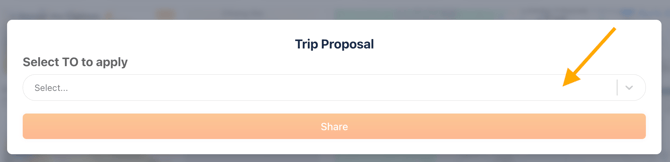
A second pop-up appears:
-
Select the TO from the dropdown (only connected TOs appear)
-
Click Share
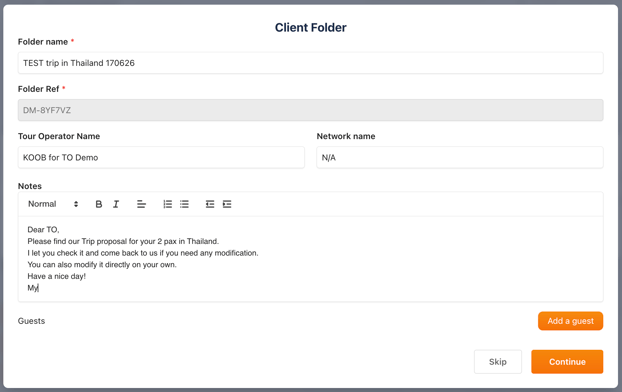
Create the Client Folder
A pop-up opens where you must enter:
- 🆔 Client Folder information
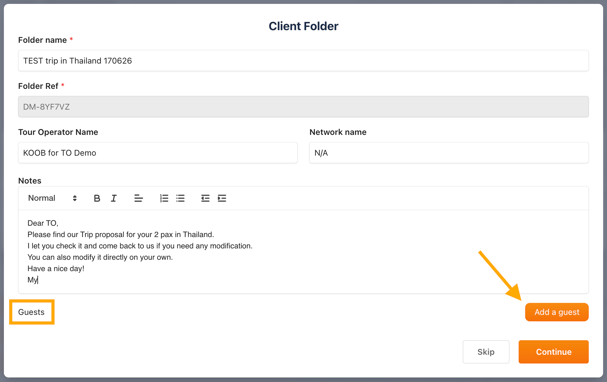
- 🧑💼 Guest(s) informations
- Click "Add"
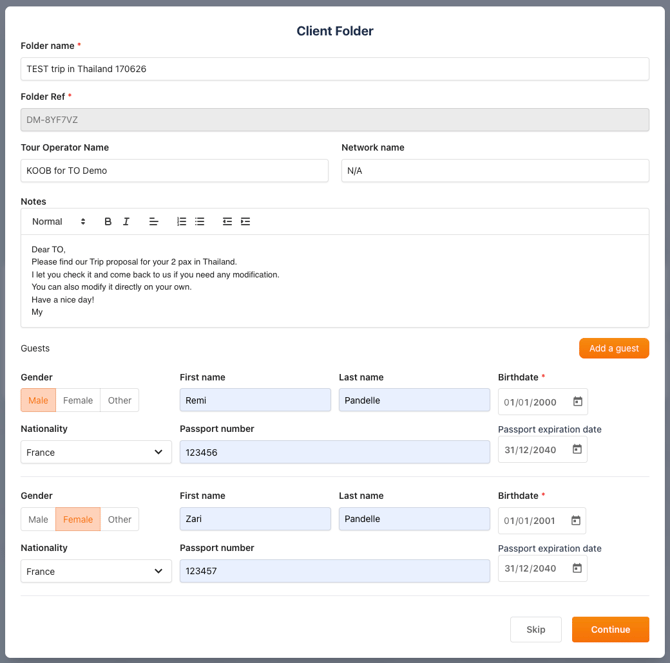
- Click Continue
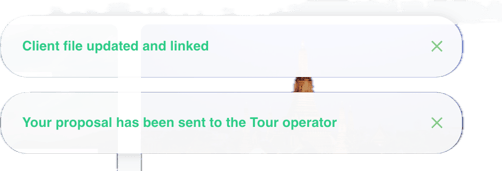
✅ A green confirmation appears: "Your proposal has been sent to the Tour Operator!"
📌 If you don't have the TO's guests details, enter “Guest ONE” with a date of birth of 01/01/2000. The Tour Operator will be able to edit this information on its own when the client folder is opened.
📩 What happens next?
🟢 On the Tour Operator side
-
The TO receives:
-
An in-app notification: “You have received a new proposal”
-
An automatic email with a direct link to the proposal
-
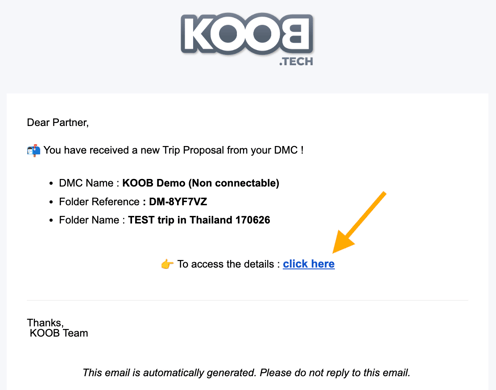
-
The proposal appears in their Client Folder, under the DRAFT tab
💡 The TO can now open your proposal, modify, ask questions, and start the co-construction process if needed.
📁 On the DMC side: Tracking proposals
To find all proposals you've sent:
-
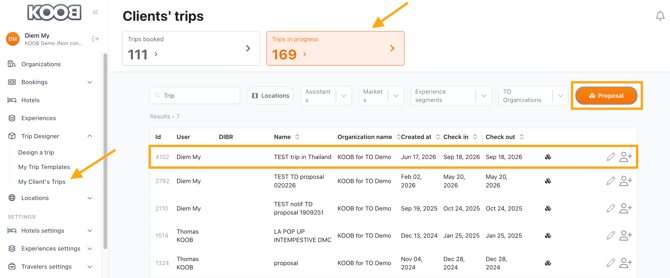
Go to My Client’s Trips
-
Click "Trips in Progress" above the table
-
Use the Proposal filter to display only proposals
-
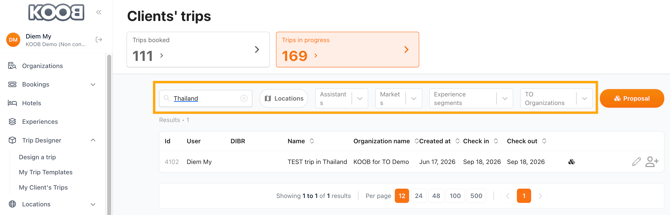
Combine it with other filters (TO, date, destination…)
Takeaways
✅ Use “Save as Proposal” to initiate a proactive sales flow with TOs
✅ Create a client folder and assign the trip to a connected TO in just a few clicks
✅ The proposal appears in the TO's app as a draft – ready to review and adjust
✅ You can track all proposals in “Trips in Progress” and filter by status
✅ The History tab gives you a full audit of every draft version and action taken
✅ Co-construction features (chat, versioning, documents) are fully enabled after sending
FAQ
Q: Can I send a proposal to any TO?
📤 Only to Tour Operators you are already connected with on KOOB.
Q: Can I retrieve and edit a sent proposal?
✏️ Yes, you can reopen and modify the draft at any time. The TO sees every update.
Q: Where do I find my sent proposals?
📁 Go to "My Client's Trips > Trips in Progress", and use the Proposal filter.
Q: What if my proposal includes options?
🧩 TOs will see all pre-selected options and can keep, remove or change them as needed.
Q: Will TOs get notified?
🔔 Yes – they receive both an in-app message and an automatic email with your proposal.
Related articles
- How to create a new trip template ?
- How to duplicate a trip template?
- How to organize my templates in My Library?
- How to measure TO partners' performance?
- How to track the most booked hotels and experiences?
📌 Need help? Visit the KOOB Knowledge Base or contact KOOB Support 🚀