
✅ Modify traveler details, options, or accommodations
✅ Keep all changes logged in the booking history
✅ Maintain centralized management via the Client Folder
✅ Ensure instant communication with DMC for validation
🚀 Objective: Learn how to efficiently update an experience booking from your Client Folder and ensure a smooth process for all stakeholders.
Accessing the experience booking to modify
-
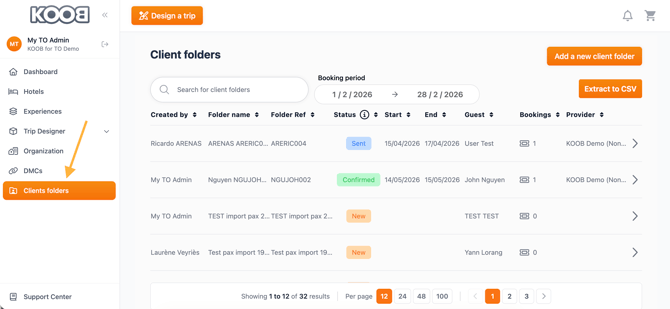
Go to Client Folders from the left-hand menu
-
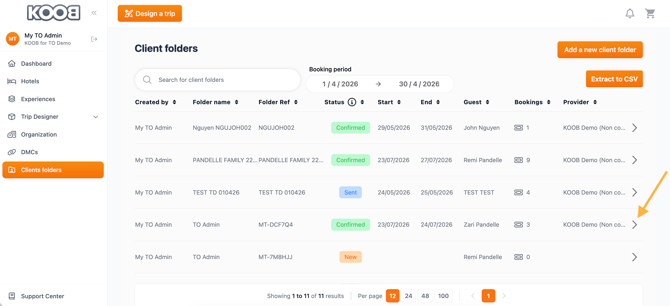
Search to locate the relevant folder and click on the arrow to open it
-
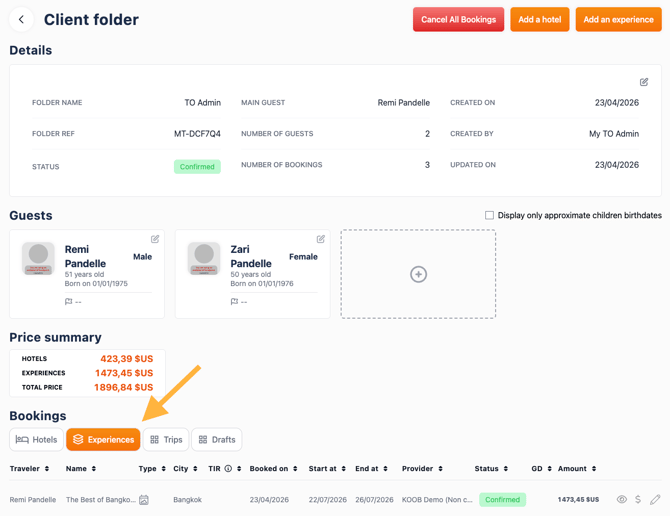
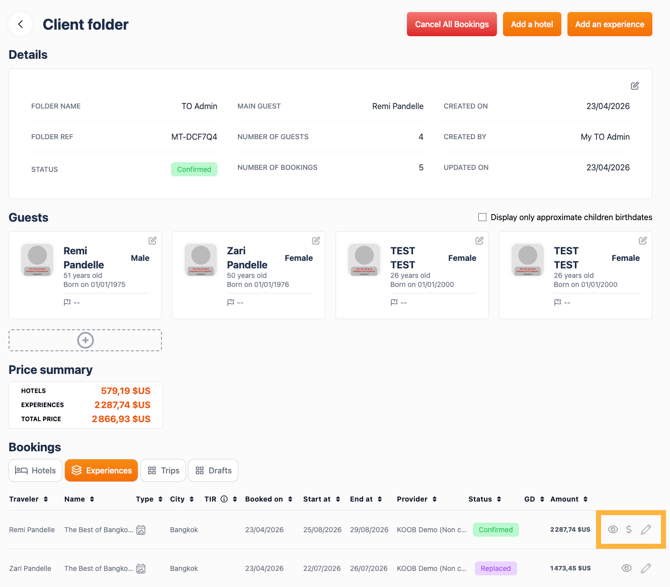
In the Experiences tab, find the booking you wish to update
-
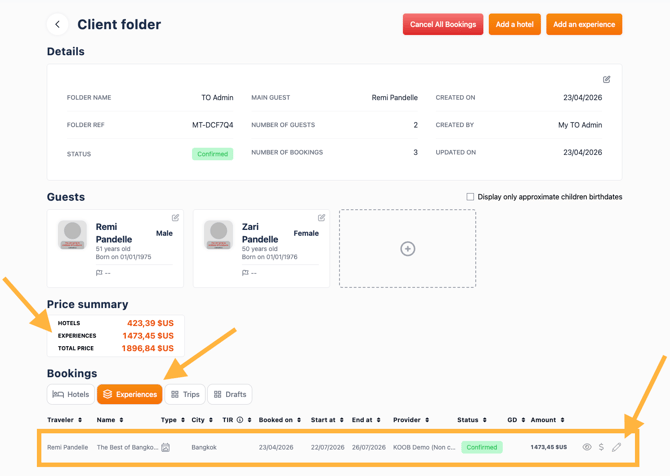
Use the 📝 pencil icon to edit or the 👁 eye icon to view details
- If you want to add more travelers to an experience booking, first add them to the Client Folder so their PAX information is linked.
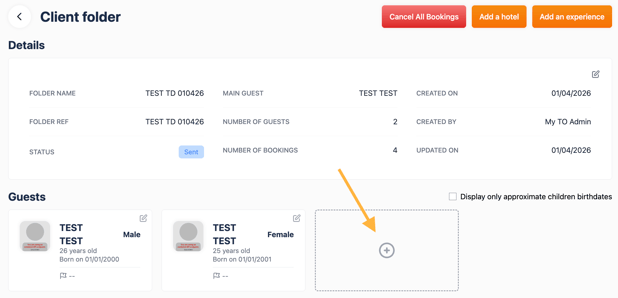
💡 Use keywords to locate the correct Client Folder faster.
Modifying the experience
-
Access the booking details
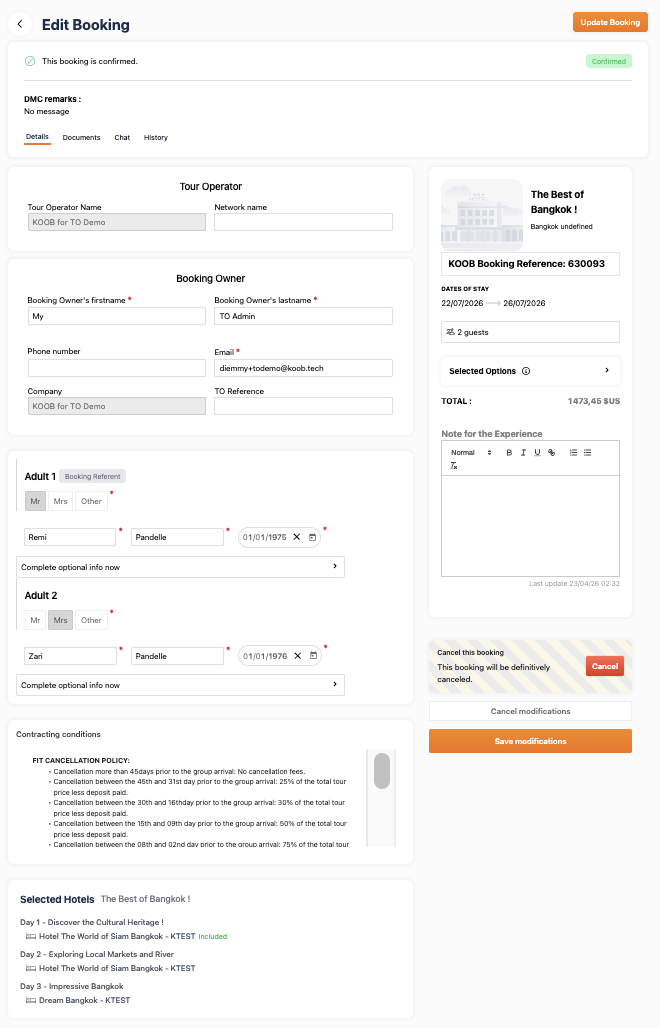
- Click “Update Booking”
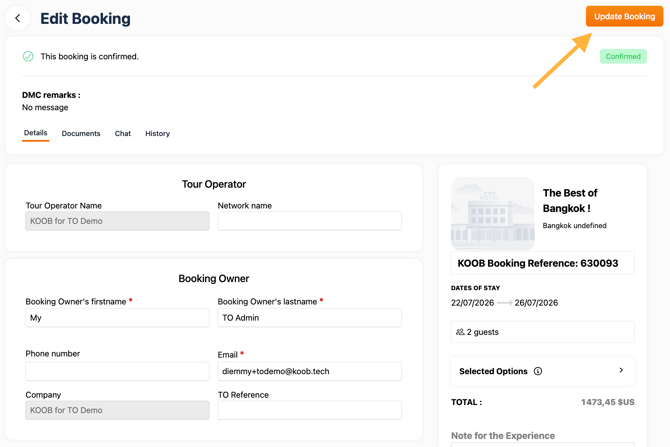
-
You are redirected to the KOOB Experience Booking Engine
- You can change:
-
👥 Pax count
- Here, I add 3 pax instead of 2.
-
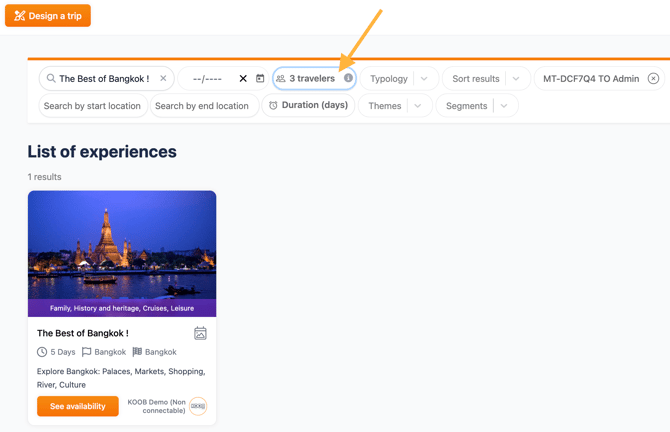
The booking is now fully editable — the Client Folder reference is automatically included in the search bar to ensure proper linkage
-
-
📅 Dates
- I change the dates from July to August:
-
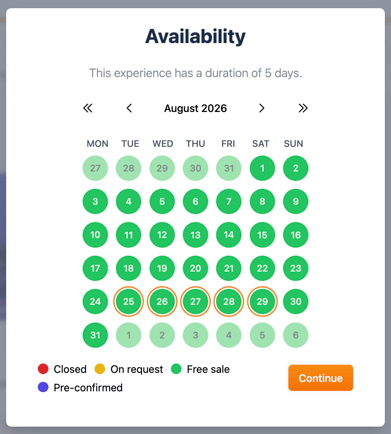
💡 Color codes help determine availability:
🟢 Free Sale → instantly confirmable🟠 On Request → needs DMC confirmation
🔴 Closed → not bookable
🟣 Pre-confirmed → fixed guaranteed departures
📌 Example: The “Best of Bangkok” is marked as 🟢 Free Sales, so it can be booked instantly.
- You return to the Factsheet page of the experience
-
-
➕ Options
- Here, I change the options on specific days
- Here, I change the options on specific days
-
Daily Options (SIMPLE) -> as add-ons like lunch, transfers, or local activities applicable to a specific day.
-
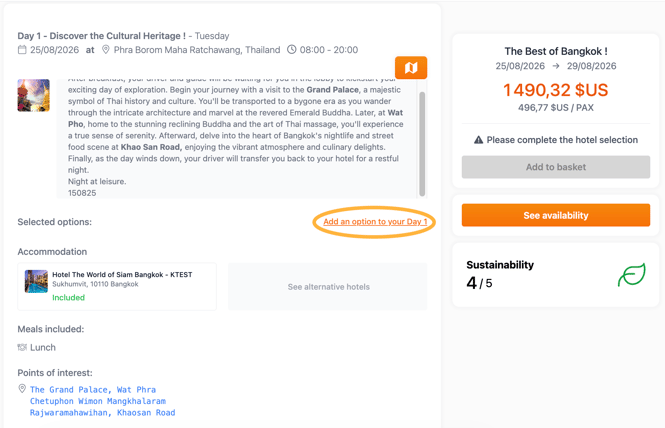
- If any daily option is available for this experience, click on “Add an option do your Day X”
-
-
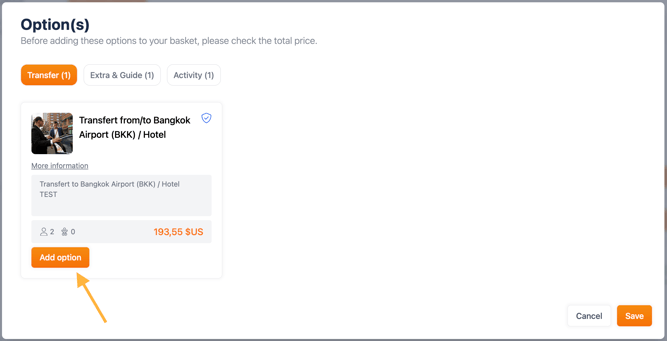
- A popup will open, allowing you to select the desired option. Options are grouped by typology.
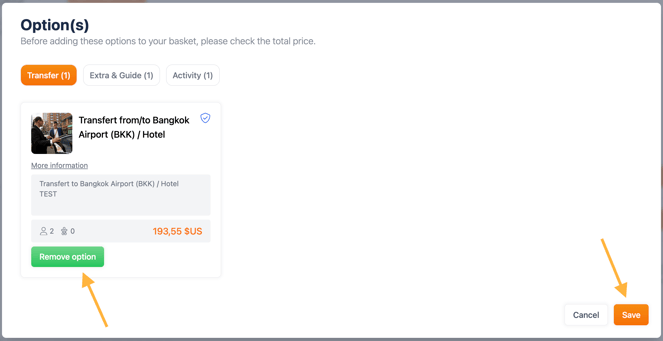
- Click “Add option” for the selected item, then click “Save” to confirm.
-
-
-
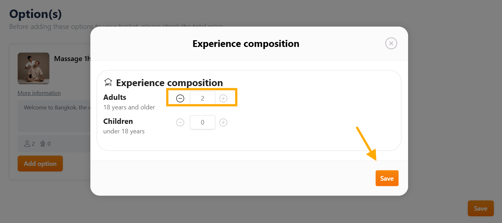
- Select the number of participants and click on Save.
-
-
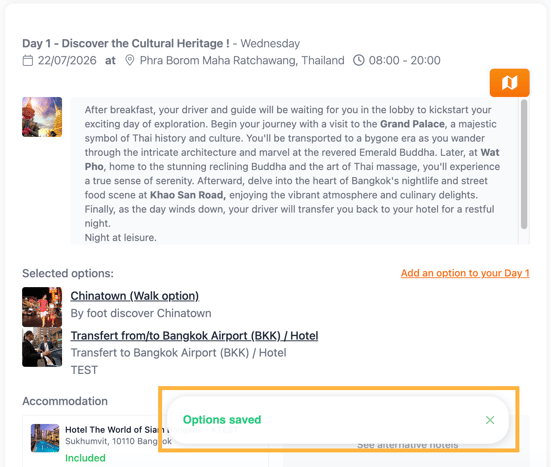
- The option is added to the basket
Daily Options (Cascading)
-
- If any day option is available for this experience:
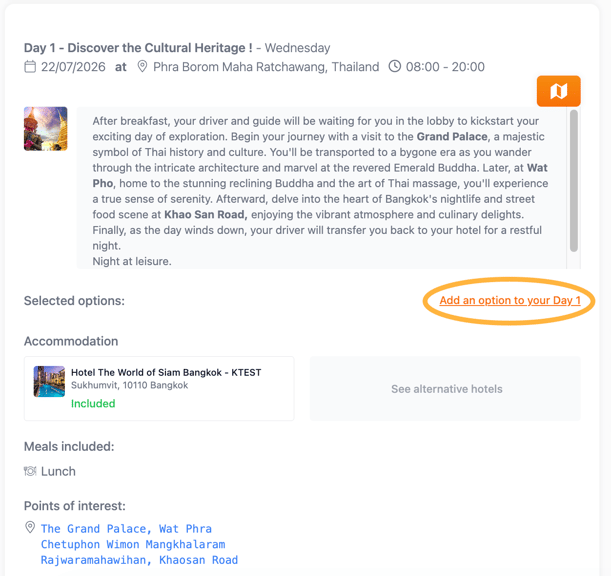
- Click “Add an option to your Day X”
- If any day option is available for this experience:
-
-
-
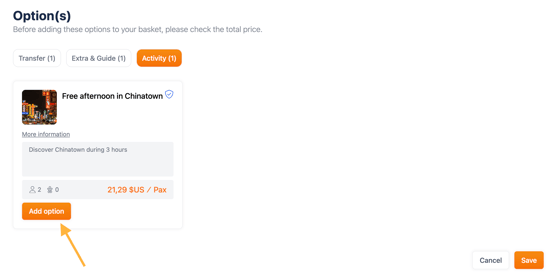
Add a desired option:
-
-
-
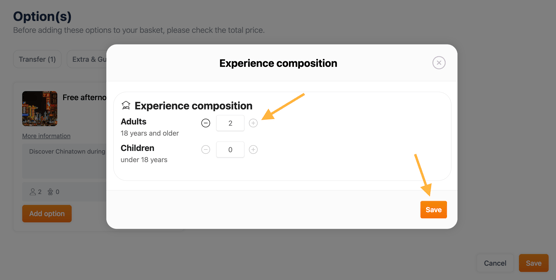
- Select the number of participants, then click “Save”
- Select the number of participants, then click “Save”
-
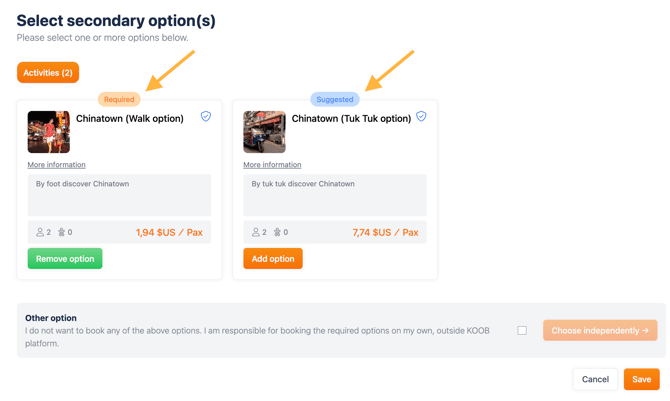
- After selecting a primary option, KOOB may display secondary options in a second pop-up:
-
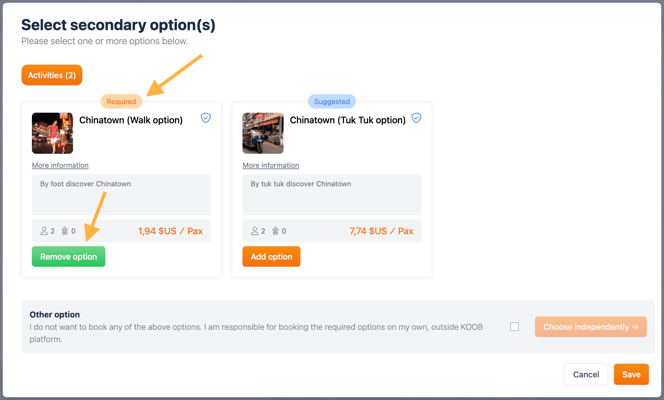
Required option → Must be selected to proceed
-
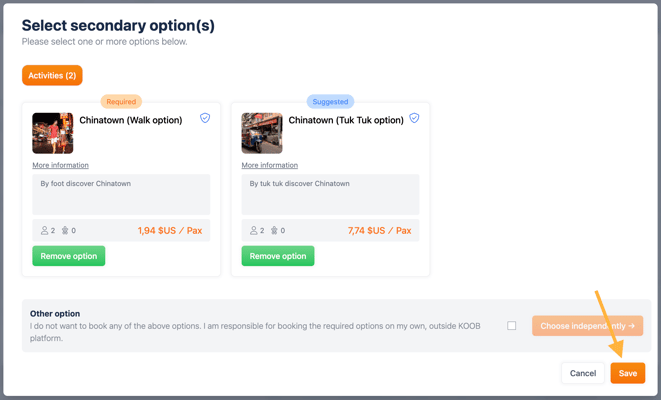
Suggested option → Recommended but optional
-
- After selecting a primary option, KOOB may display secondary options in a second pop-up:
-
- Select the required option to continue
-
- You can choose to accept (✅) or skip the suggested options.
-
-
📌 Example: For “Free afternoon in Chinatown”, KOOB shows:
- Required: Chinatown (Walk Option)
- Suggested: Chinatown (Tuk Tuk option)
-
-
-
If you don’t want to select any of the suggested options:
- Tick the checkbox "I do not want to book any of the above options".
- Then click "Choose independently" to bypass the system’s suggestions.
-
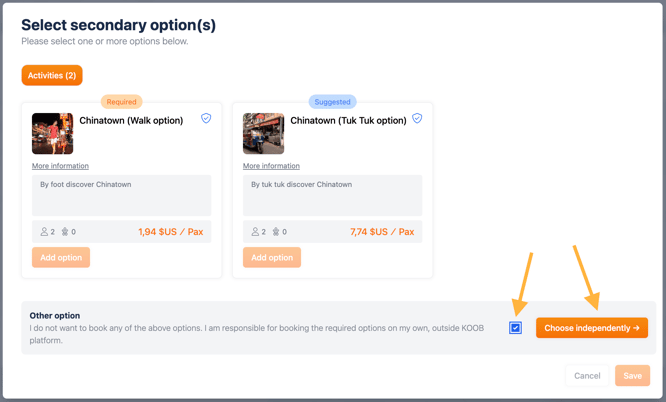
📌 You must select the Required option to be able to add the suggested option
💡 We strongly recommend following DMC suggestions to ensure a smooth experience for your clients
-
-
🏨 Hotel selection
-
Suggested Accommodation
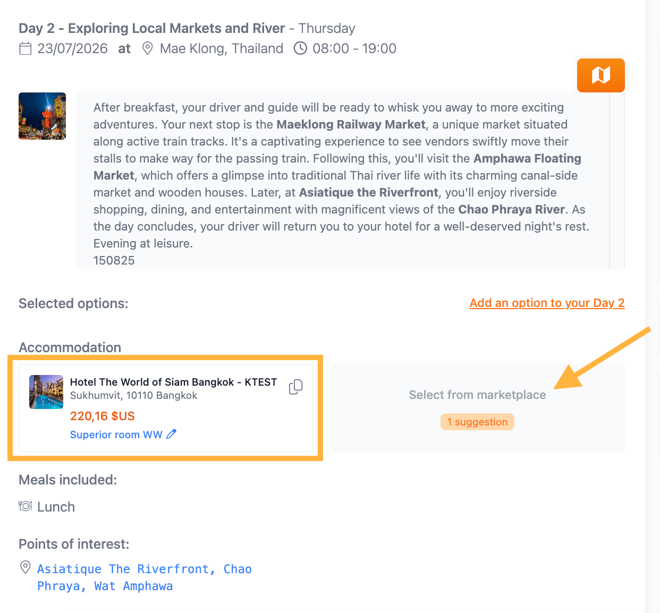
🏨 A hotel is suggested by the DMC (label: “Suggested by your DMC”)
Your DMC has indicated a suggested hotel, the World of Siam Hotel in Bangkok, but you can also access other suggested hotels on this day (in this example, 4 suggestions).
- To do so, click "Select from marketplace"
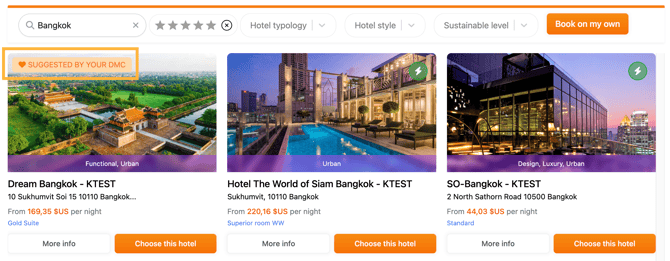
- A pop-up window will open, displaying other hotels suggested by the DMC for that day.
- For each hotel, you will see the lowest available price along with the corresponding room type.
- To select a hotel, click “Choose this hotel”
- Once you have selected a hotel, the lowest available price and its corresponding room type are displayed for each day in the itinerary.
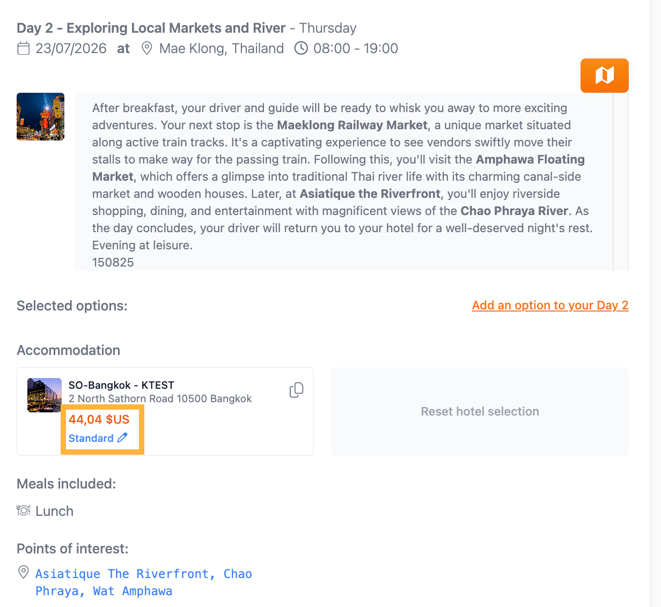
- You can change the room type by clicking the room name with the pencil icon:
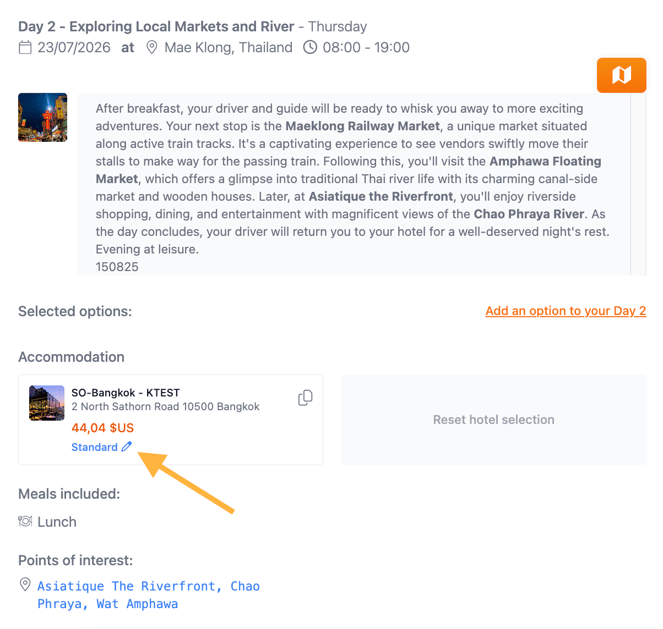
- A room selection pop-up will appear, allowing you to select another room type and confirm:

Free Accommodation
- If the DMC has not suggested or included any hotel for that day, click “Select from Marketplace” to browse KOOB’s full hotel database.
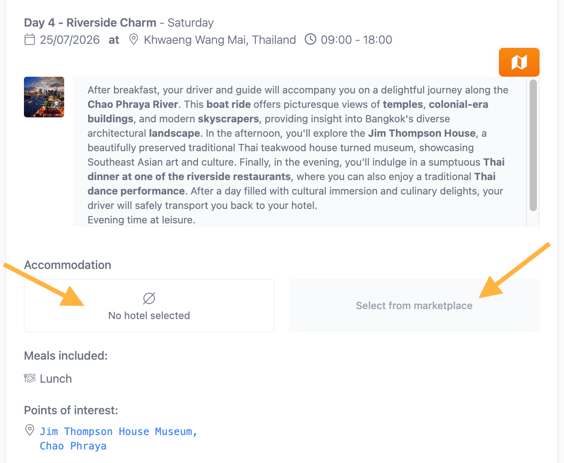
- After clicking “Select from Marketplace”, a pop-up window opens with the day’s end location automatically prefilled, helping you avoid selecting hotels in the wrong destination.
- You can use the available filters to refine your search and find the most suitable hotel.
- The “From” rate, displayed in orange on each thumbnail, corresponds to the cheapest available room for the selected date.
- The “Instant availability” icon
 indicates that the hotel can be booked instantly (via DMC allotment or Live Inventory Channel Manager).
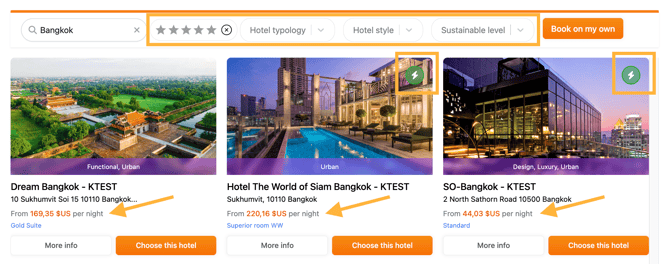
- Click “Choose this hotel” to select it
Book on my own Accommodation
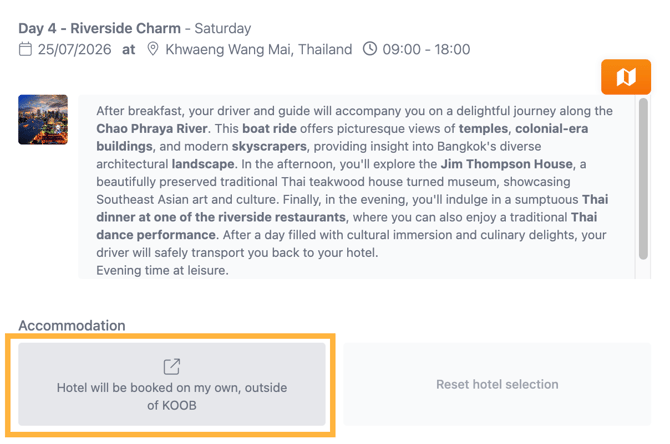
- You can also select “Book on My Own” if you plan to arrange the accommodation outside KOOB
⚠️ In this case, the DMC will not be liable If you choose this option:- You take full responsibility for booking the hotel outside KOOB
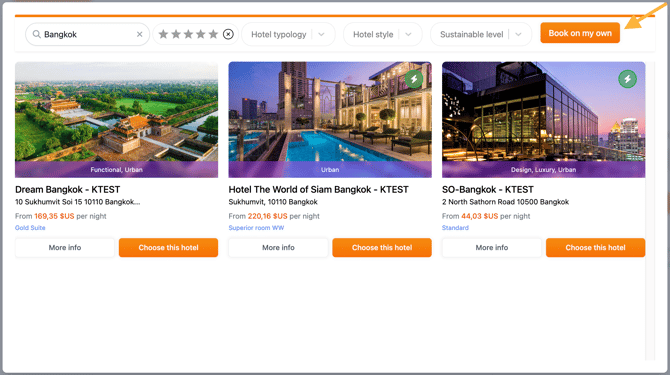
- The itinerary will still display a placeholder for that night
-
- The DMC will not be responsible for any logistics or issues related to this external booking.
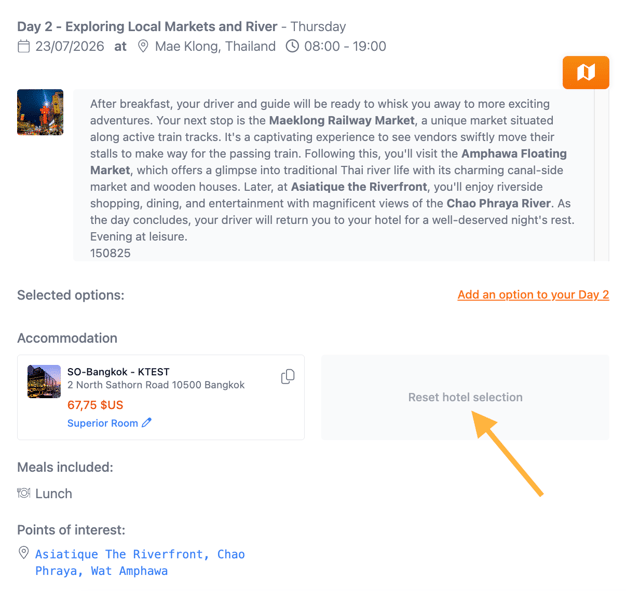
- At any time, if you want to modify the hotel selection, you can click on “Reset hotel selection”
Included and Alternative Accommodation
- If the DMC has included a hotel in the program and its rate, it will be marked as “Included” in green.
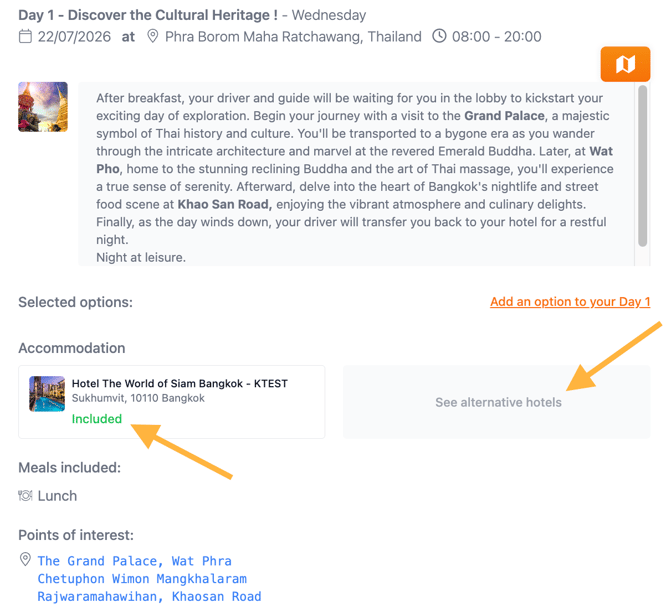
- The DMC may also define alternative (equivalent) hotels that do not affect the price.
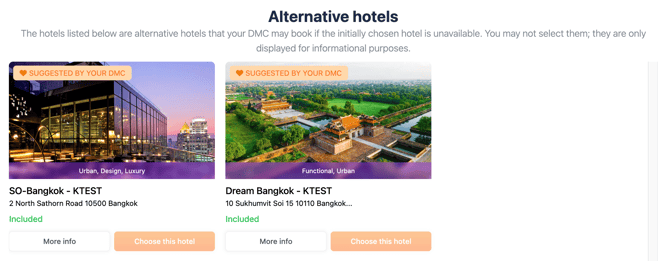
"The hotels listed below are alternative hotels that your DMC may book if the initially chosen hotel is unavailable. You may not select them; they are only displayed for informational purposes."
Adding the experience to the cart and checkout
- Once you have completed selecting your day-by-day options and accommodation, click “Add to basket”.
- Global Options: These options apply to the entire experience, not just a specific day (e.g., private guide, Wi-Fi router, VIP access).
📌 Example: Options can be per pax and options can be applied to the Global trip. For example here, the guide is per group, the private transfer is per pax.
💡 Options help tailor experiences to your clients and increase booking value.
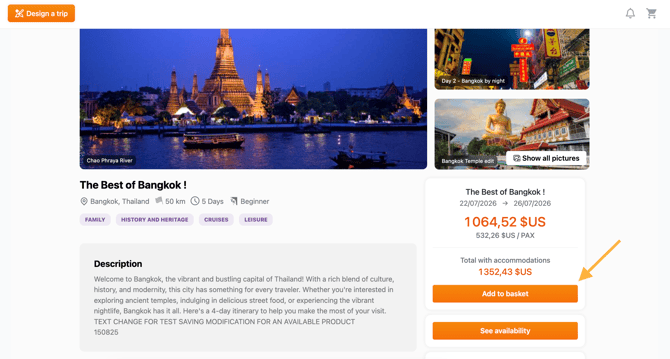
- If global options are available, a pop-up window will appear, allowing you to add them to your basket before confirming.
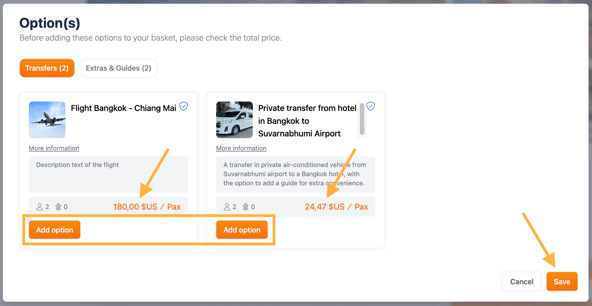
- Select the desired options and click “Save.”
- If you do not wish to add any global options, simply click “Save” to continue.
Proceeding to checkout
-
Click the 🛒 cart icon (top right), then Checkout
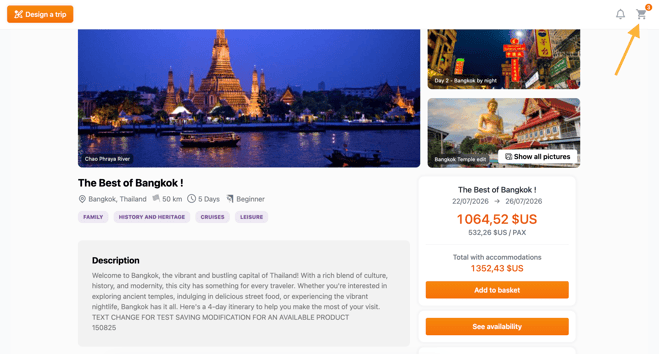
-
Review all selected services (programs, options, hotels) in your basket:
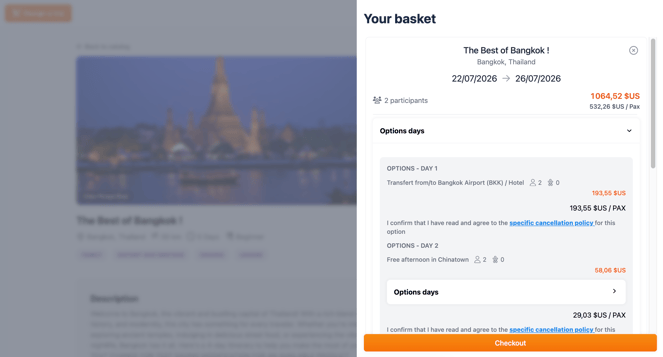
- Click “Checkout”
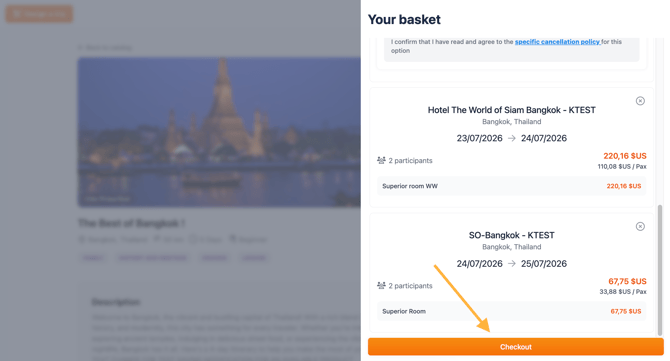
-
Once all options and hotels are selected, you will reach the final summary page before confirming the booking.
What you'll see on this screen:
-
🧍♂️ Booking owner → Information about the main contact for the trip.
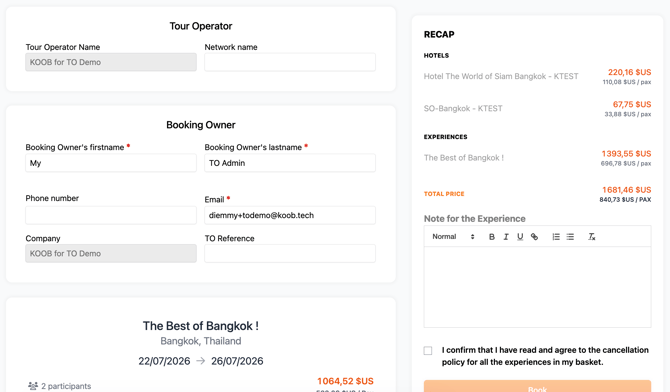
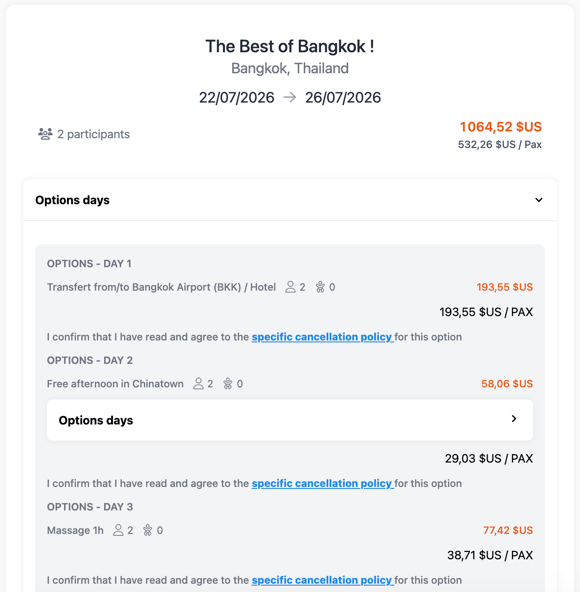
- 🗺️ Tour summary and options → Itinerary recap, including day-by-day details.
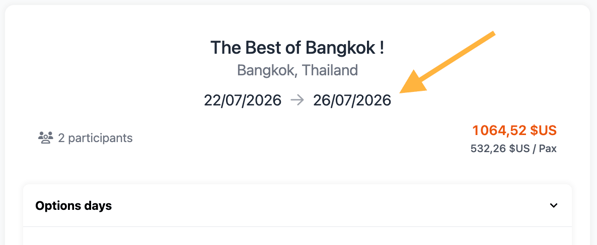
- 📅 Dates Experiences → Start and end date of the experience.
- 📅 Dates Hotels → Start and end date of the hotel stay(s).
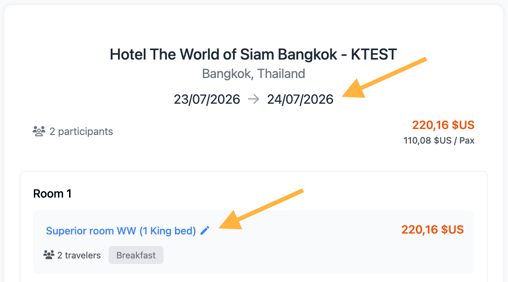
- 👥 Number of participants → Based on the room and experience composition.
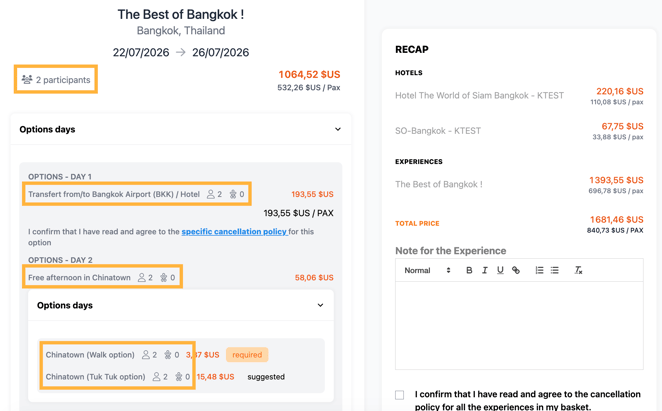
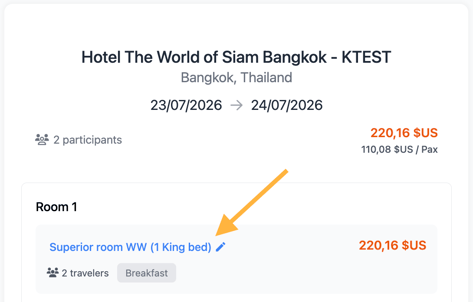
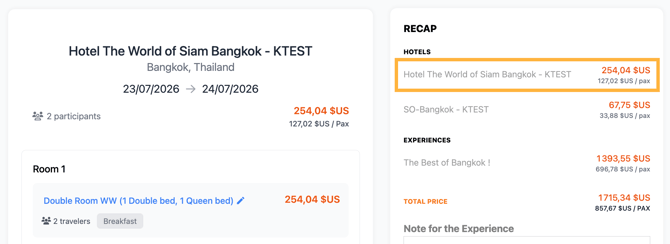
- At this stage, you can review and adjust your room selections:
- Click a room name to open the selection pop-up
-
- Choose your preferred room category
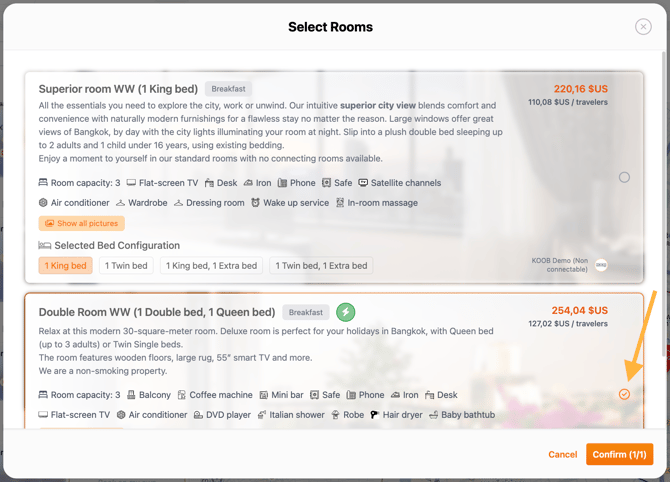
-
- Then click on Confirm to validate the room.
- The 💰 price updates instantly in the Recap.
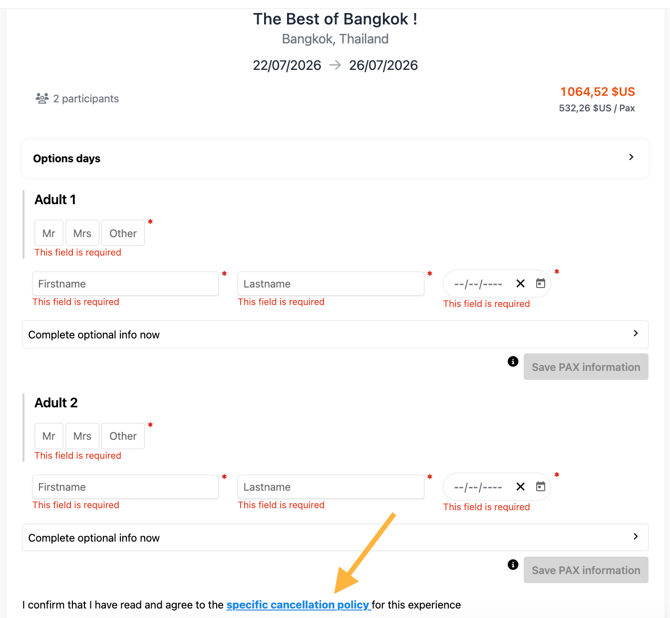
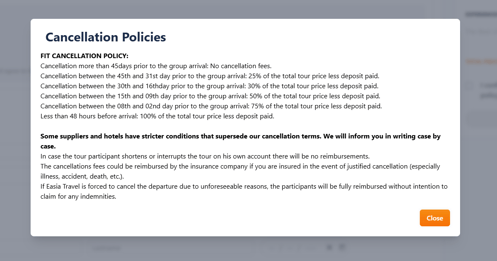
- ✅ Access cancellation conditions via clickable links for each service
- 📌 Top-right price recap → Always visible, automatically updated when you change rooms, add options, or apply discounts.
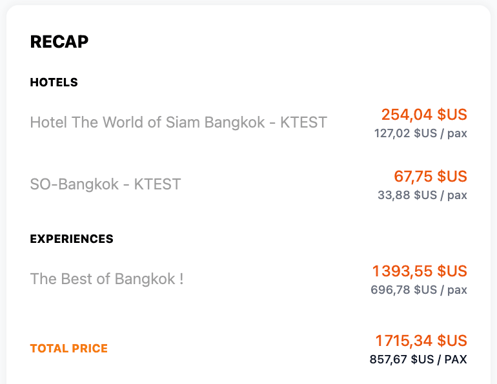
💡 Notes: Carefully check all selected services and pricing before proceeding. Use the scrollable recap on the right to verify totals.
- Confirm guest information
- Fields required:
- Gender (dropdown)
- First Name & Last Name
- Date of Birth 📅
- Fields required:
-
- Optional (but recommended) fields:
- 🛂 Passport number
- 📆 Passport expiration date
- 🌍 Nationality
- Optional (but recommended) fields:
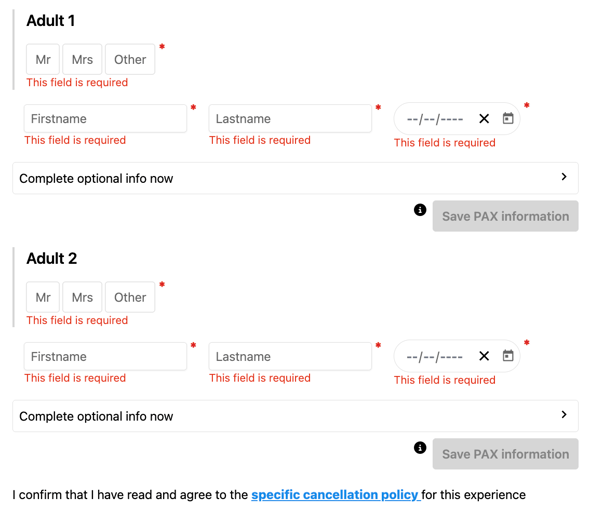
📌 Note: If the booking is launched from a Client Folder, most guest data will be automatically retrieved and pre-filled from the folder.
- Validate the cancellation policies by ticking the checkbox
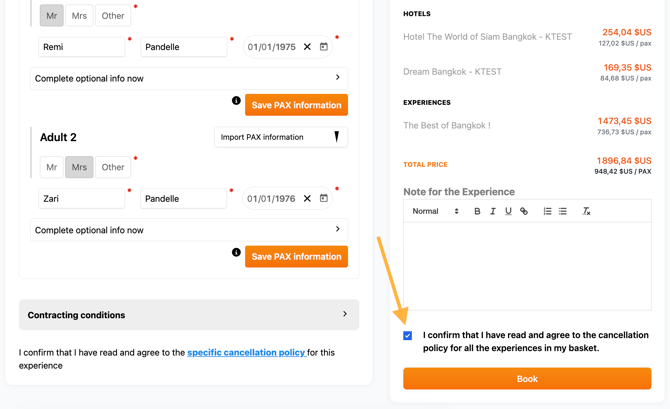
- Click Book to finalize
- You will see this page to review the status of all your bookings:
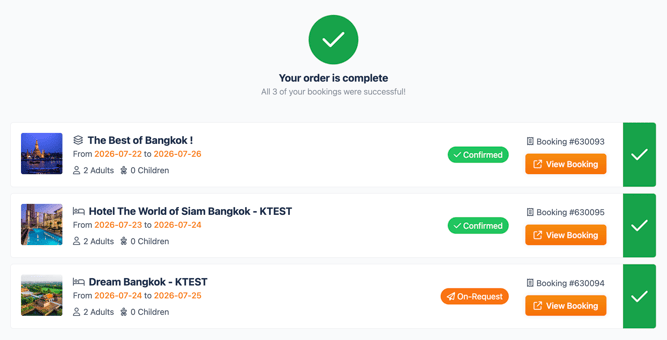
The experience is now listed under the Experiences tab of the client folder:
More information : How to add an experience booking to a client folder?
⚠️ If there is a significant change in dates, number of pax, options/extra or even hotels and room types, the DMC and hotel(s) receive notification emails.
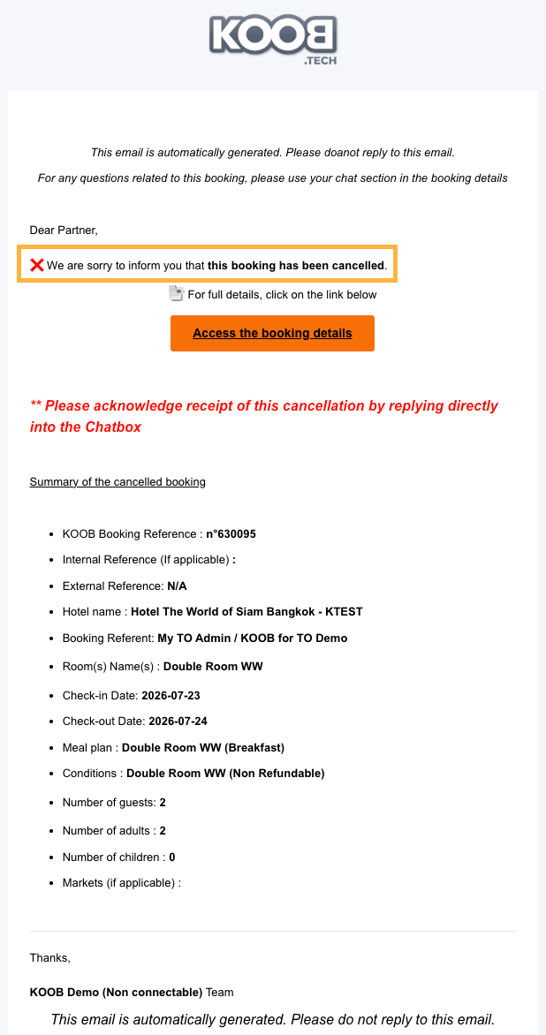
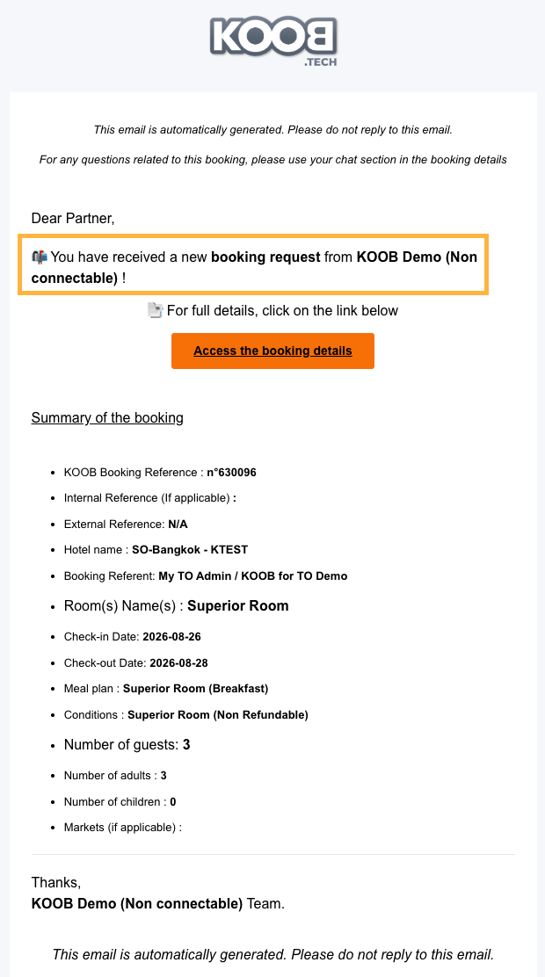
Please note that if you change hotels, the cancellation emails go to hotel A to send a request or confirmation (instant availability) to hotel B.
DMC notification BOOKING UPDATE email (Experience)
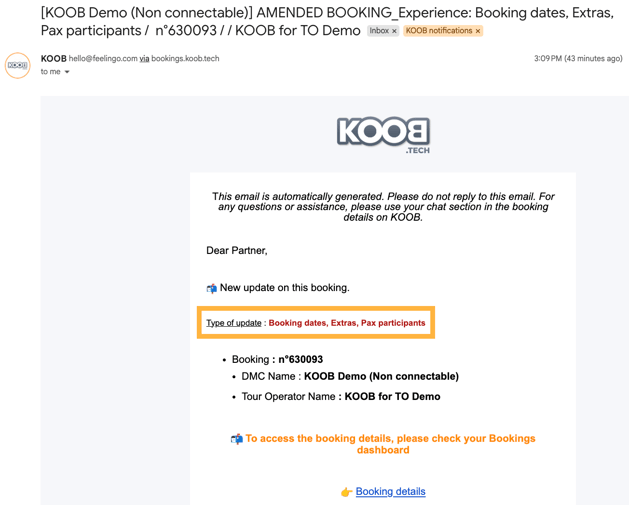
Hotel A notification CANCELLATION email
Hotel B notification BOOKING REQUEST email
-
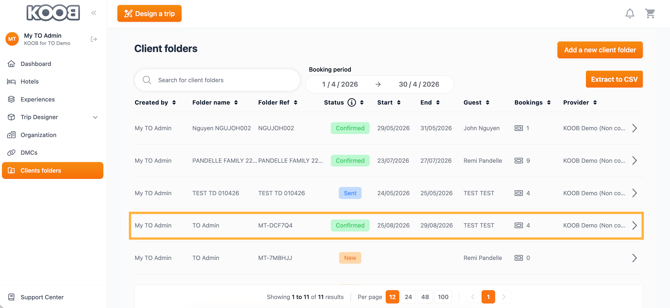
Go to the Client Folder
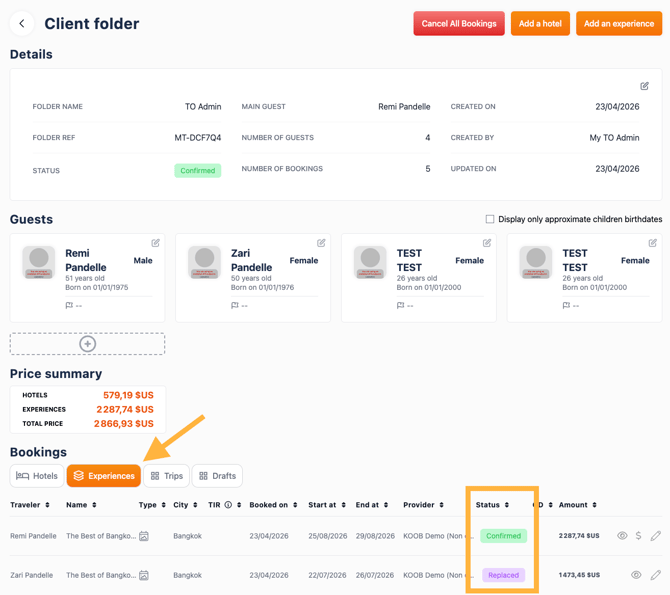
- Click on the “Experiences” tab
-
Use the 📝 pencil icon to edit or the 👁 eye icon to view details
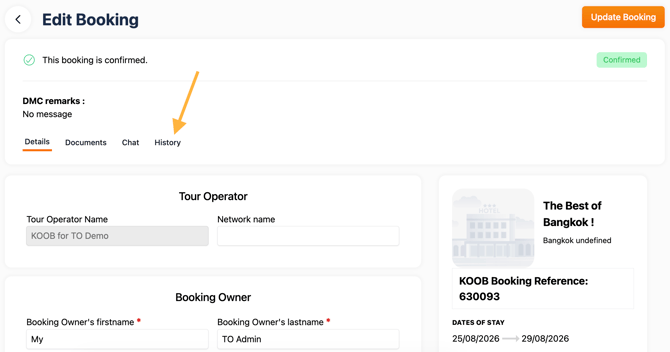
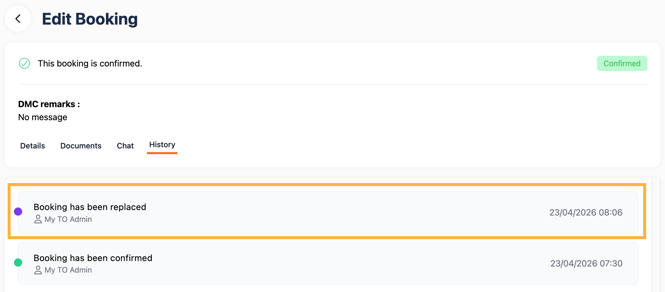
- All modifications are saved in the History tab
❌ Canceling instead of updating?
If you need to change to a different experience entirely:
-
Go to the Client Folder
-
Click on the “Experiences” tab
-
Use the 📝 pencil icon to edit or the 👁 eye icon to view details
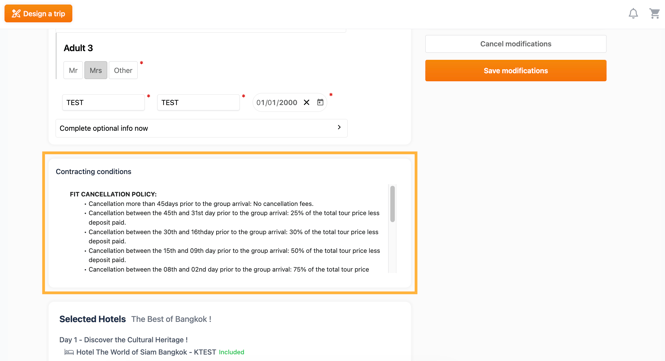
- ⚠️ Review cancellation policies first
-
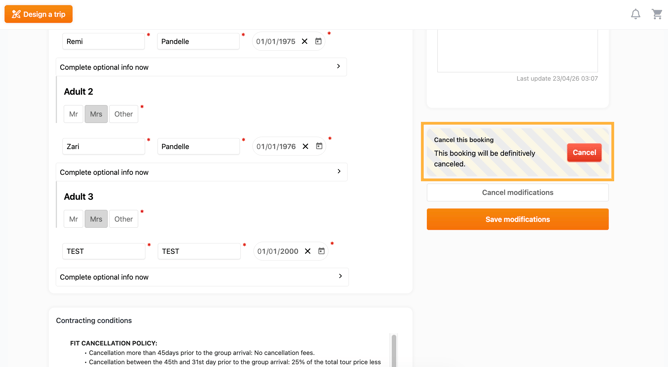
In "Experiences", click “Cancel Booking”
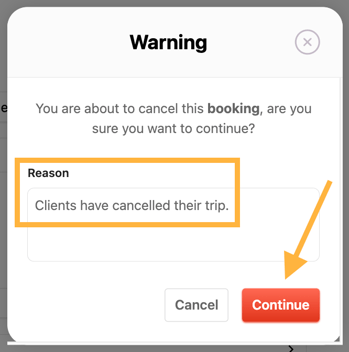
- Enter a reason for the DMC, click on Continue
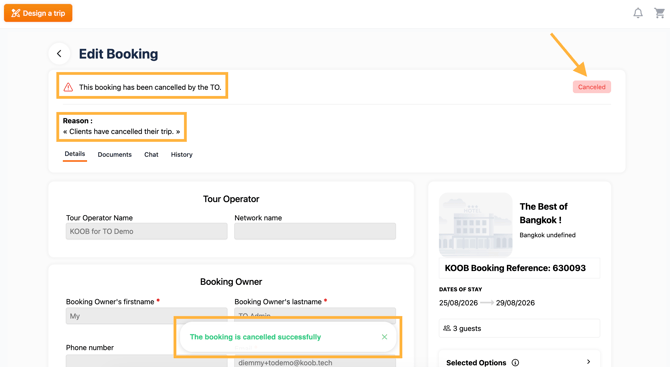
- The booking is successfully cancelled.
-
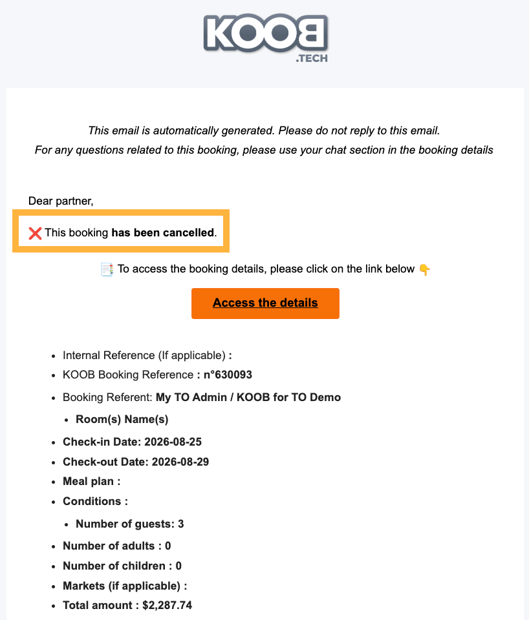
KOOB notifies the DMC per mail
💡 Always review the cancellation policy to avoid penalties
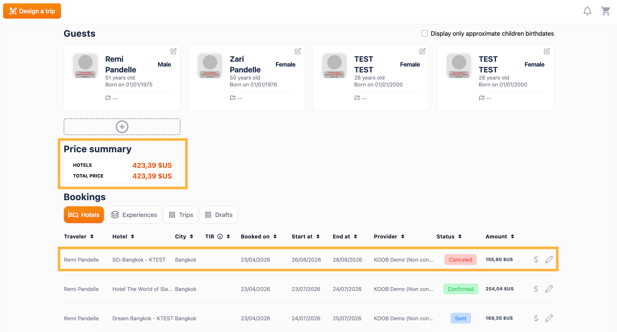
⚠️You have cancelled the booking Experience with the DMC.
- In the Price Summary, the Experience line has automatically disappeared.
- If any hotels were included in the cancelled program, don't forget to cancel them too in the hotel section of the Customer Folder.
- More information : How to cancel a Hotel booking?
Communicating with the DMC
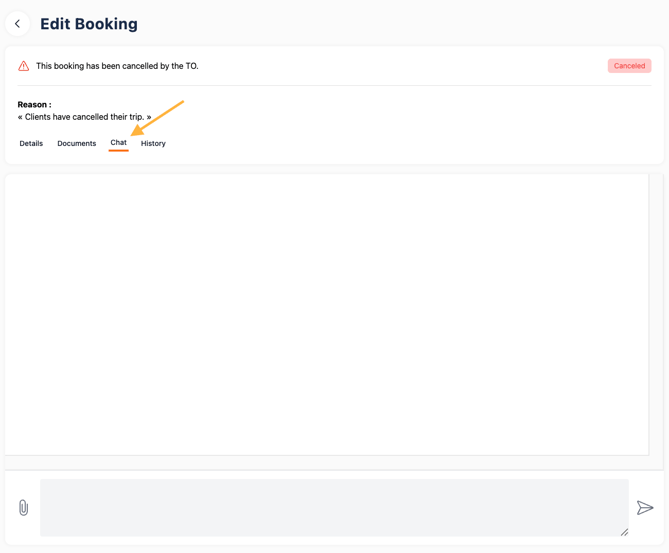
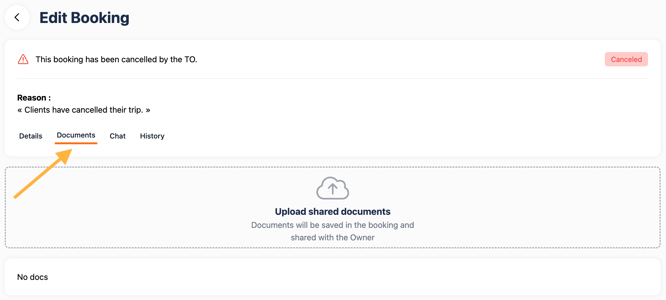
Use KOOB’s built-in tools:
-
💬 Chat tab – Send direct messages to the DMC
-
📎 Documents tab – Upload PDFs, guest info, or preferences
-
🕒 History tab – Track booking changes / status.
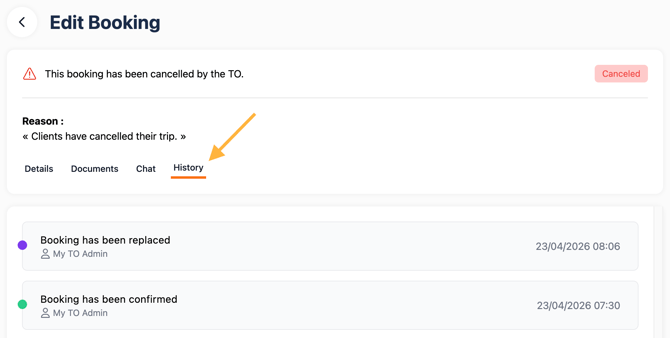
💡 The DMC is instantly notified of any chat message, document or booking update. Stay reactive!
Takeaways
✅ Experience bookings can be updated directly without canceling
✅ KOOB logs every change for full transparency
✅ Booking status updates are clearly indicated (e.g. Replaced, On Request, Cancelled)
✅ DMCs are notified instantly when updates require validation
✅ Options, hotels, and traveler info are possible via the Update Booking button as long as the Experience booked remains the same.
FAQ
Q: Can I switch to another experience entirely?
🔄 No. You must cancel the current booking and create a new one.
Q: Can I update options, participants and dates without cancelling the original booking?
🛏️ Yes. KOOB allows editing all non-core elements, triggering DMC validation if needed.
Q: Can I access the update log later?
🕒 Yes, in the History tab of the booking details. All changes are timestamped and tracked.
Related articles
- How to add an extra guest to an existing client folder?
- How to add an experience booking to a client folder?
- How to create a new client folder ?
- How to add a hotel booking to an existing client folder?
📌 Need help? Visit the KOOB Knowledge Base or contact KOOB Support 🚀