
✅ Easily search and filter experiences by location, themes, and availability 🔍
✅ Customize bookings (accommodation, extras, traveler details) 🎨
✅ View real-time availability statuses 🟢🟠🔴🟣
✅ Finalize bookings with clear price breakdowns and cancellation policies 📄
🚀 Objective: Efficiently book experiences from scratch.
📌 Disclaimer : We strongly recommend creating all new experience bookings directly from an existing Client Folder.
Doing so ensures:
-
✅ Automatic linking to the correct client itinerary.
-
✅ Pre-filled traveler information, saving you time and reducing errors.
-
✅ Centralized tracking, making management easier and more efficient.
🔎 Accessing the Experience Marketplace
Begin booking a new experience easily:
-
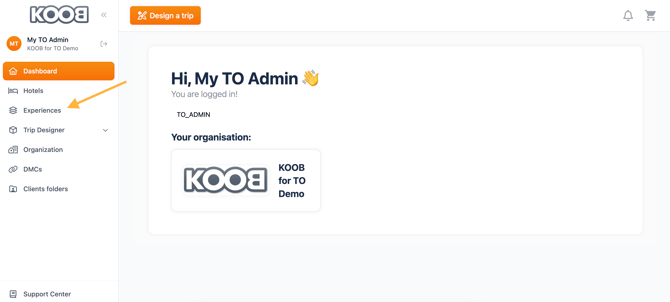
Click "Experiences" from the KOOB left-side menu.
-
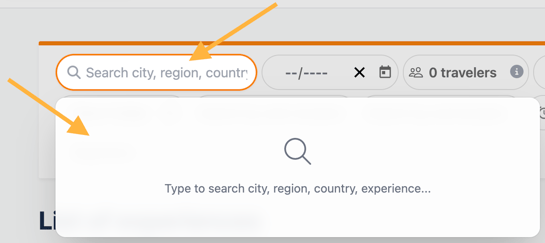
Use the search bar to type:
-
🔍 Experience name or keyword → You can search by experience title or keywords like “temple”, “floating market”, “kayaking”, etc.
- 📍 City, region, or country
-
- Refine your results with advanced filters:
-
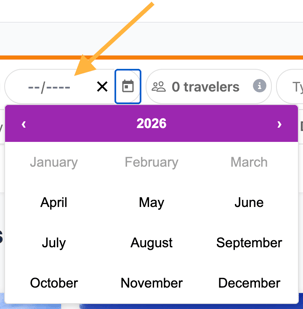
📅 Month of departure (check-in/check-out range)
-
-
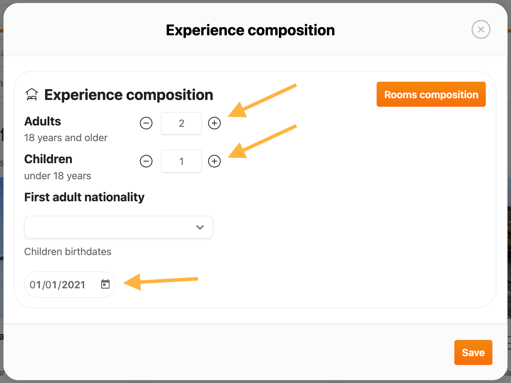
- 👥 Number of travelers → Add adult/children breakdown
-
- 🛏️ Room composition :
-
-
-
A pop-up window appears asking you to define the Experience Composition:
-
-
Number of travelers
-
Adult/child breakdown
-
Rooming configuration (if applicable for Programs)
-
-
-
-
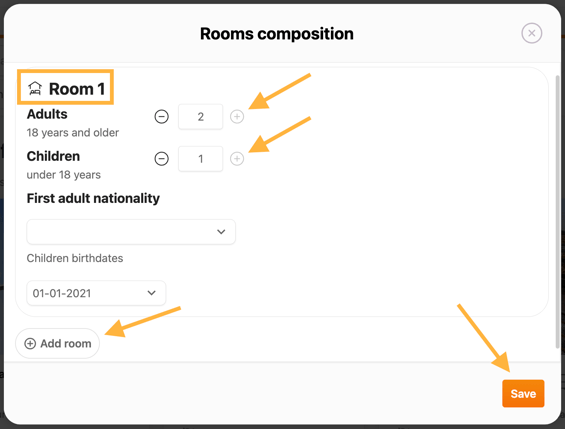
💡 Tip: For experiences that include accommodation (Programs), this step determines the hotel availability and rates.
-
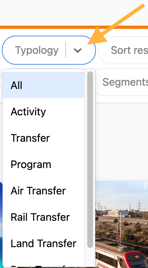
- 🧳 Typology: Activities, Transfers, or Programs
-
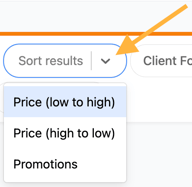
- 🔽 Sort results by:
-
-
-
Price (low to high / high to low)
-
Promotions first
-
-
-
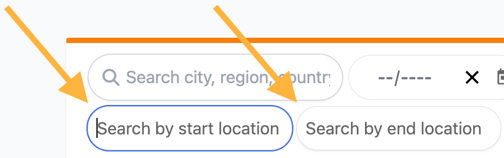
- 🧭 Start and end location → Filter by starting or ending point of the experience
-
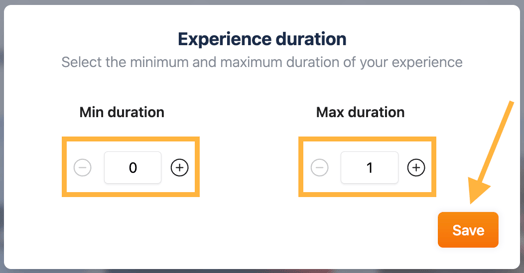
- 🕒 Duration (min/max days) → Narrow your search to specific trip lengths
-
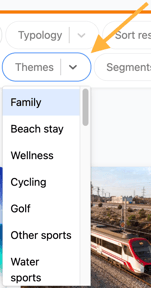
- 💡 Themes: Adventure, Culture, Wellness, etc.
- 🧩 Segments: SIC (Shared), FIT (Private), Luxury, Active…
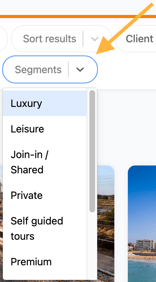
📌 Example: Searching "Bangkok" under "Cultural & Heritage" displays relevant cultural tours.
Map view vs. list view
KOOB allows you to choose between two viewing modes to enhance your search experience:

-
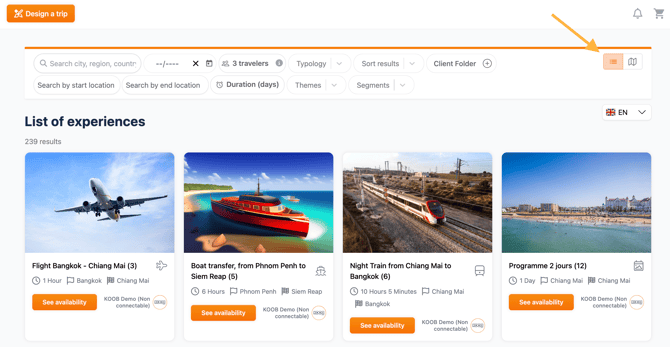
🗂️ List View (default): See all results vertically, with thumbnails and tags (Free Sale, Promotions, etc.)
-
🗺️ Map View: Visualize exactly where experiences take place on the map — ideal for geographic planning
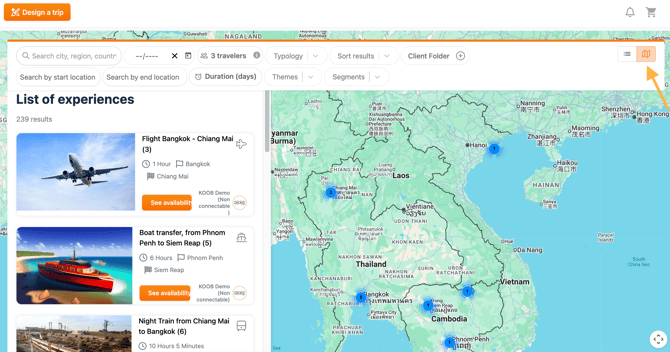
📌 Example: You're organizing a Vietnam trip and want to space out experiences between Hanoi and Hoi An. You switch to Map View to check location clusters and avoid redundant travel.
💡 Tip: Use Map View when booking regionally concentrated experiences to optimize logistics.
Checking experience availability
Each experience has a real-time status indicator:
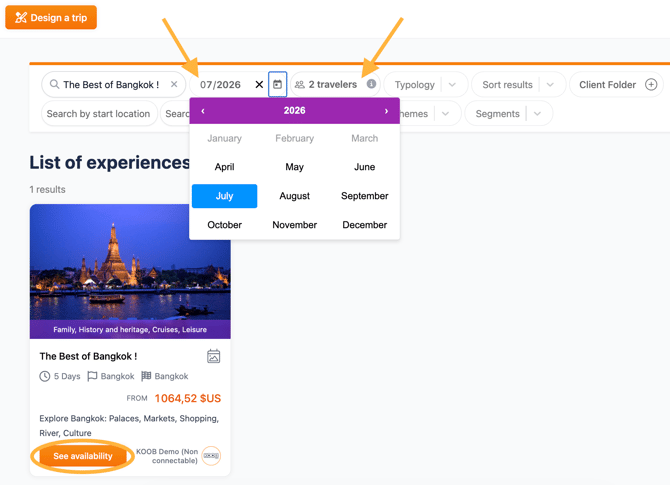
- Enter the number of participants → Add adult/children breakdown
- Room composition : A pop-up window appears asking you to define the Experience Composition:
- Number of travelers
- Adult/child breakdown
- Rooming configuration (if applicable for Programs)
- Eventually, select a month for departure
- Click "See availability" on the thumbnail :
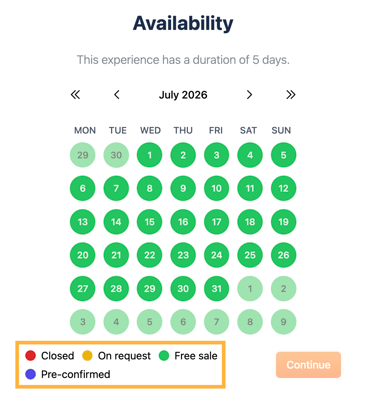
| Status | Meaning |
|---|---|
| 🟢 Free Sales | Instantly confirmable |
| 🟠 On Request | Awaiting DMC validation |
| 🔴 Closed | Unavailable for booking |
| 🟣 Pre-Confirmed | Guaranteed departures |
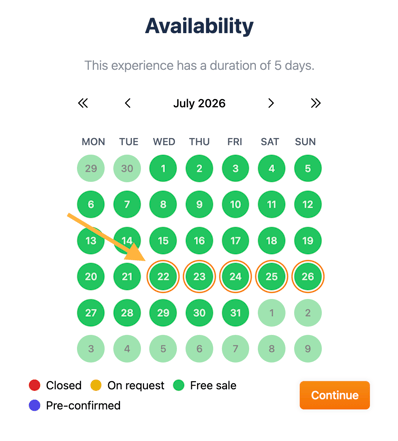
- Select the desired departure date. KOOB will automatically select the duration corresponding to the activity to help you.
- Click on "Continue".
📌 Example: The “Best of Bangkok” is marked as 🟢 Free Sales, so it can be booked instantly.
💡 Prefer Free Sales when booking last-minute or urgent experiences.
Reviewing the experience factsheet
You return to the experience Factsheet, which includes:
- Day-by-day itinerary
- Inclusions and exclusions
- Accommodation suggestions (for Programs)
- Cancellation conditions
- Promotions and optional supplements
- Labels for sustainability and segment
More information : How to access the details of an Experience?
💡 Important Recommendation
When booking an experience, follow these steps:
- Add day options (suggested and secondary)
- Add all hotels
- Review and update room types (if needed)
- Add global options when adding the experience to the basket
- Finalize the booking
Choosing Options (Transfers, Activities, Programs)
Adding options to the experience
-
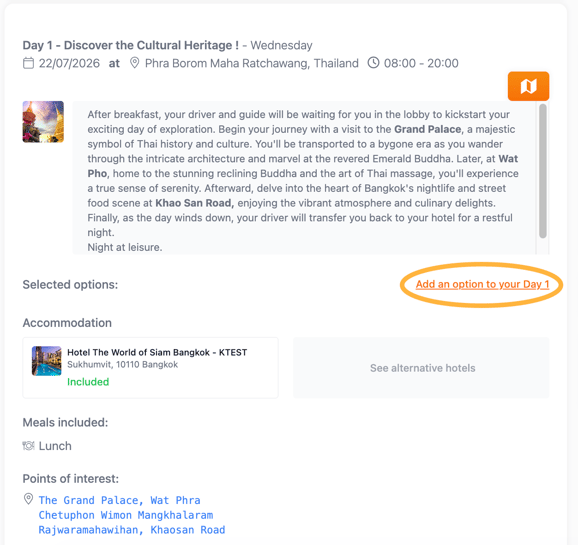
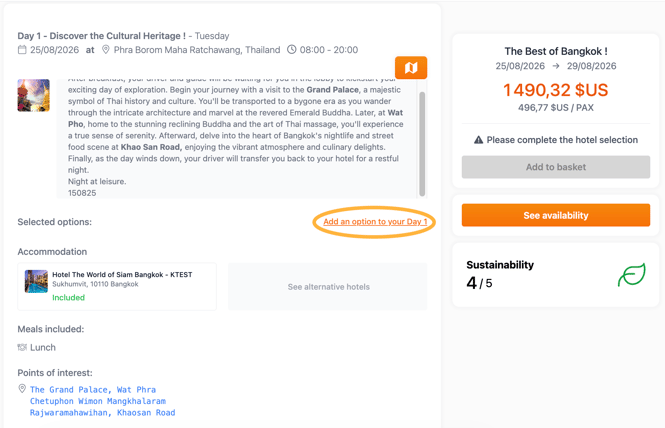
Day Options (SIMPLE)
- These are add-ons such as lunch, transfers, or local activities that apply to a specific day.
- If daily options are available for an experience:
- Click “Add an option to your Day X”
-
-
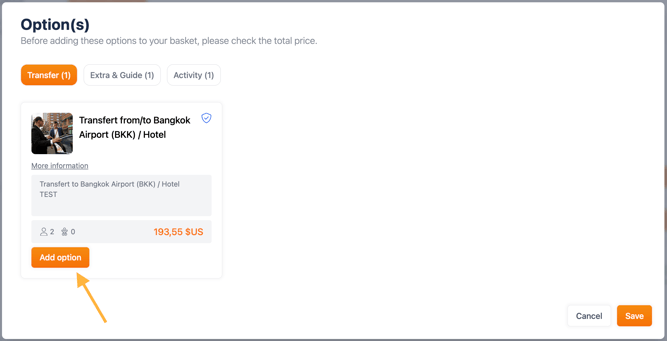
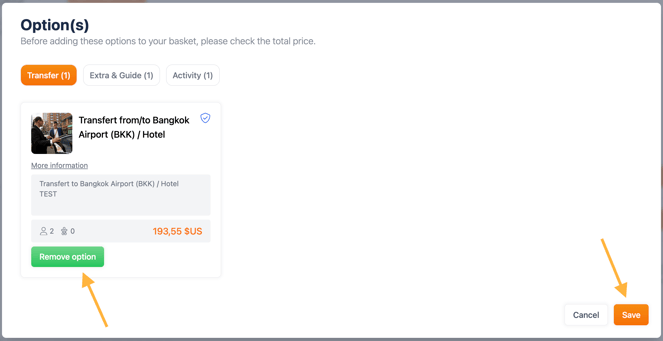
- A pop-up will open, allowing you to select the desired option. Options are grouped by typology.
- Click “Add option” for the selected item, then click “Save” to confirm.
-
-
-
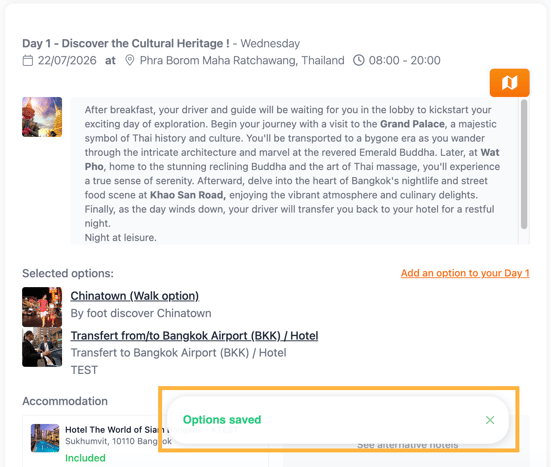
- The option is added to the basket
-
- Cascading Options
-
If any day option is available for this experience:
- Click “Add an option to your Day X”
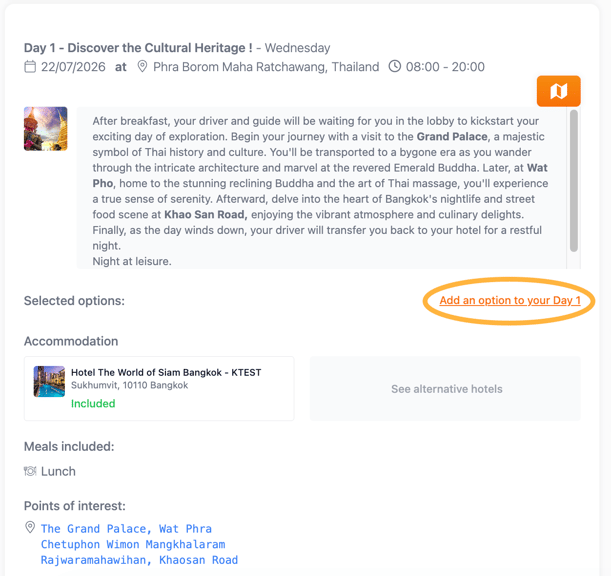
- Add a desired option:
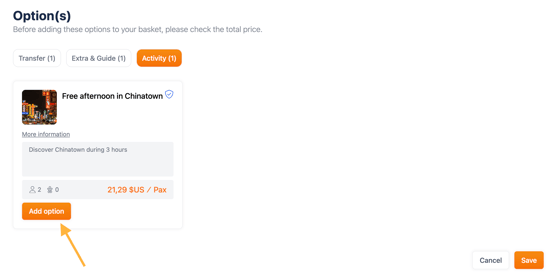
- Select the number of participants, then click “Save”
-
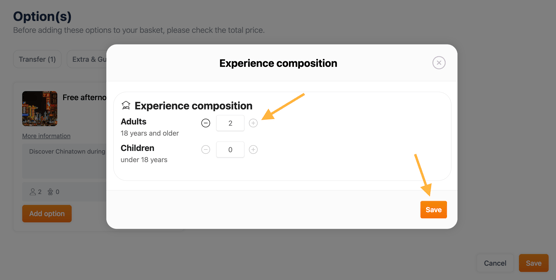
-
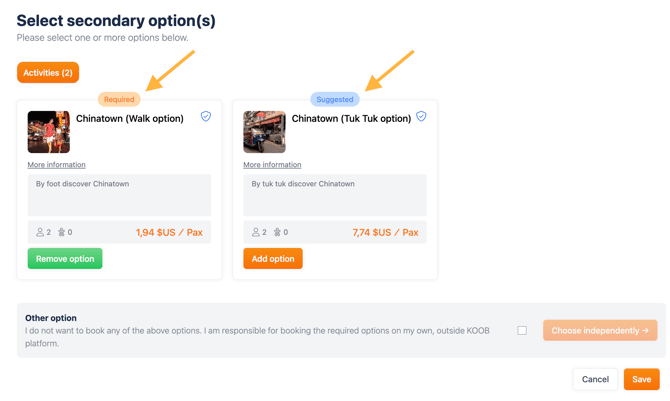
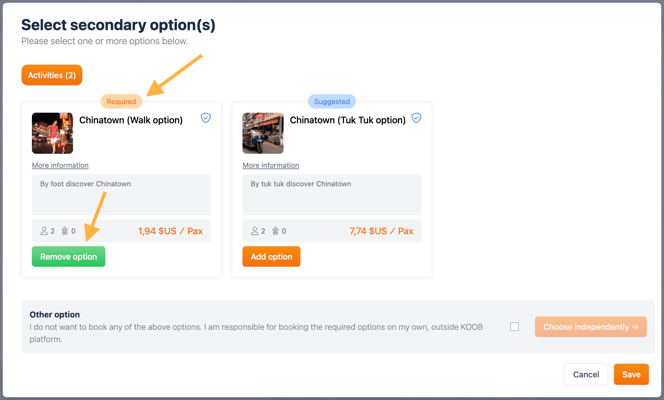
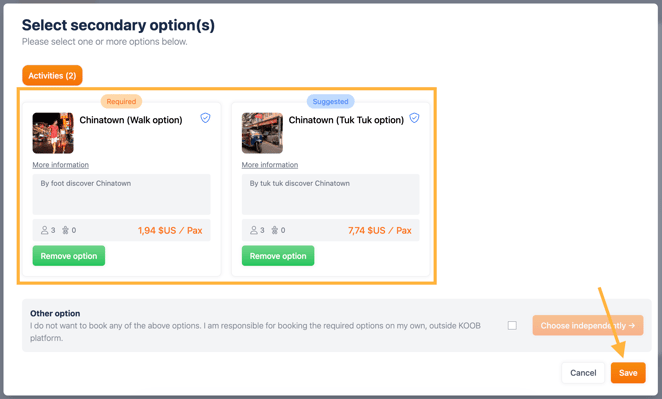
- After selecting a primary option, KOOB may display secondary options in a second pop-up:
-
Required option → Must be selected to proceed
-
Suggested option → Recommended but optional
-
- After selecting a primary option, KOOB may display secondary options in a second pop-up:
-
-
Select the required option to continue
-
-
-
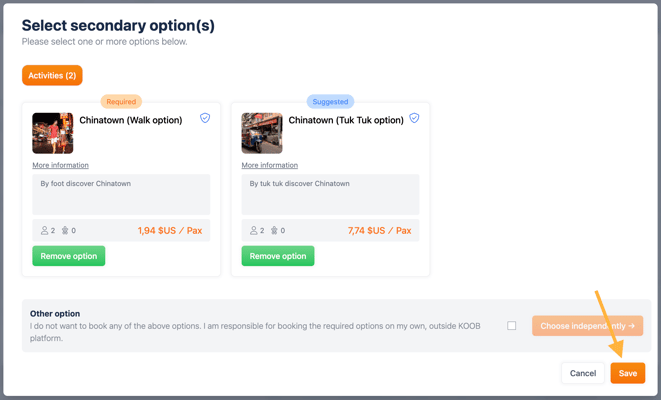
You can choose to accept (✅) or skip the suggested options.
-
-
-
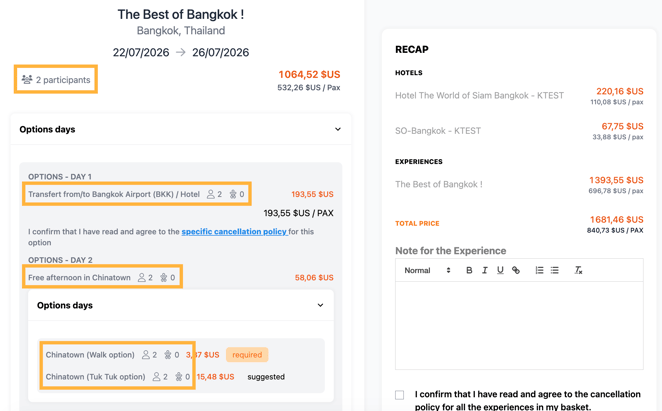
📌 Example: For “Free afternoon in Chinatown”, KOOB shows:
-
Required: Chinatown (Walk Option)
-
Suggested: Chinatown (Tuk Tuk option)
-
-
If you don’t want to select any of the suggested options:
-
Tick the checkbox "I do not want to book any of the above options".
-
Then click "Choose independently" to bypass the system’s suggestions.
-
-
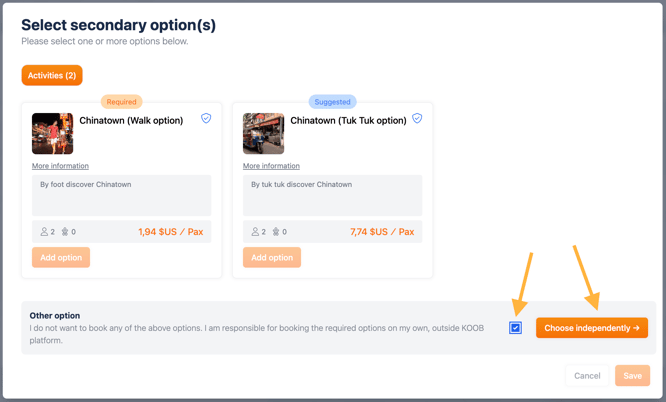
📌 You must select the Required option to be able to add the suggested option
- 💡 We strongly recommend following DMC suggestions to ensure a smooth experience for your clients
Choosing accommodations (for Programs)
In the Experience sheet, you can see different types of accommodation.
Suggested Accommodation
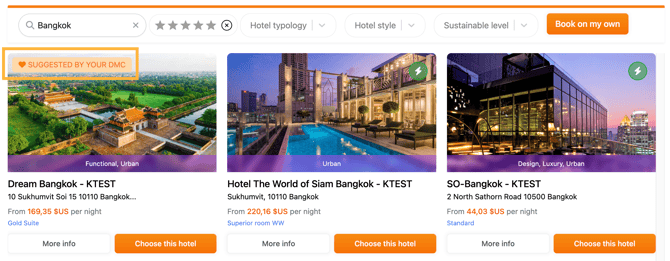
🏨 A hotel is suggested by the DMC (label: “Suggested by your DMC”)
Your DMC has indicated a suggested hotel, the World of Siam Hotel in Bangkok, but you can also access other suggested hotels on this day (in this example, 4 suggestions).
- To do so, click "Select from marketplace"
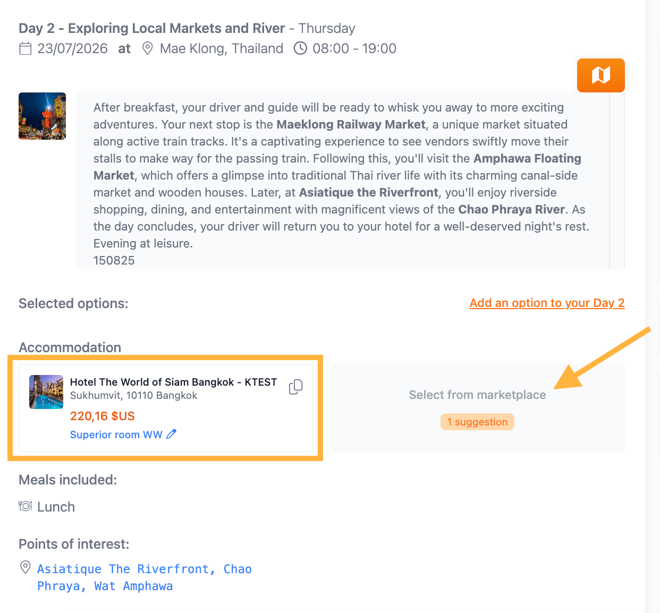
- A pop-up window will open, displaying other hotels suggested by the DMC for that day.
- For each hotel, you will see the lowest available price along with the corresponding room type.
- To select a hotel, click “Choose this hotel”
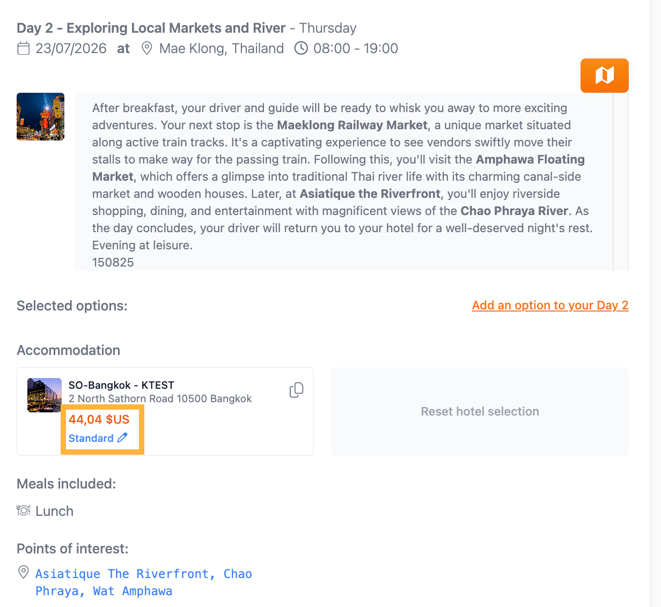
- Once you have selected a hotel, the lowest available price and its corresponding room type are displayed for each day in the itinerary.
-
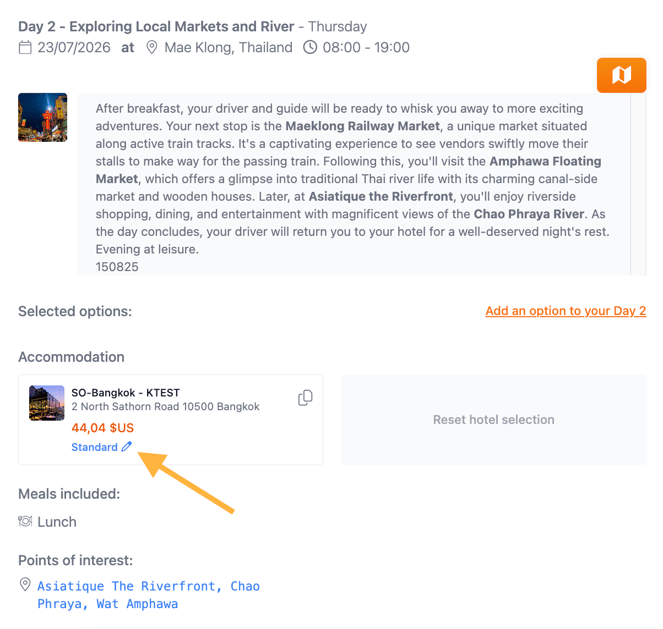
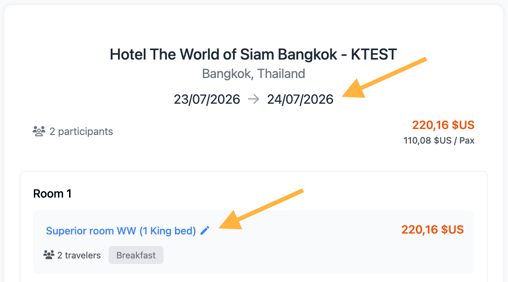
You can change the room type by clicking the room name with the pencil icon:
-
A room selection pop-up will appear, allowing you to select another room type and confirm:

Free Accommodation
- If the DMC has not suggested or included any hotel for that day, click “Select from Marketplace” to browse KOOB’s full hotel database.
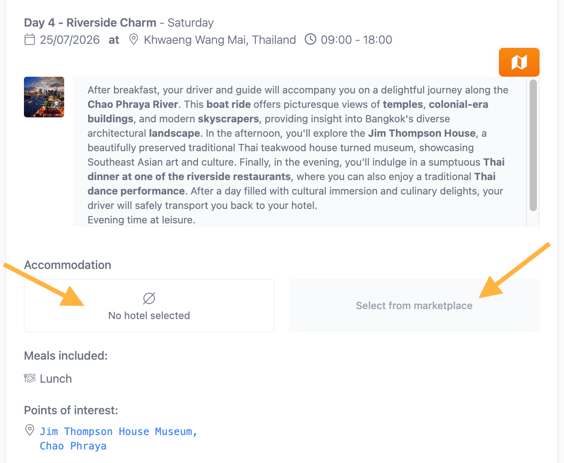
- After clicking “Select from Marketplace”, a pop-up window opens with the day’s end location automatically prefilled, helping you avoid selecting hotels in the wrong destination.
- You can use the available filters to refine your search and find the most suitable hotel.
- The “From” rate, displayed in orange on each thumbnail, corresponds to the cheapest available room for the selected date.
- The “Instant availability” icon
 indicates that the hotel can be booked instantly (via DMC allotment or Live Inventory Channel Manager).
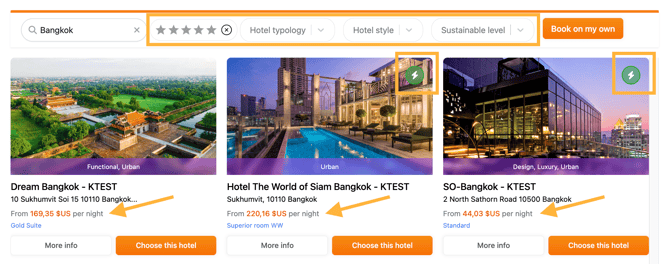
- Click “Choose this hotel” to select it
Book on my own Accommodation
-
You can also select “Book on My Own” if you plan to arrange the accommodation outside KOOB
⚠️ In this case, the DMC will not be liableIf you choose this option:
- You take full responsibility for booking the hotel outside KOOB
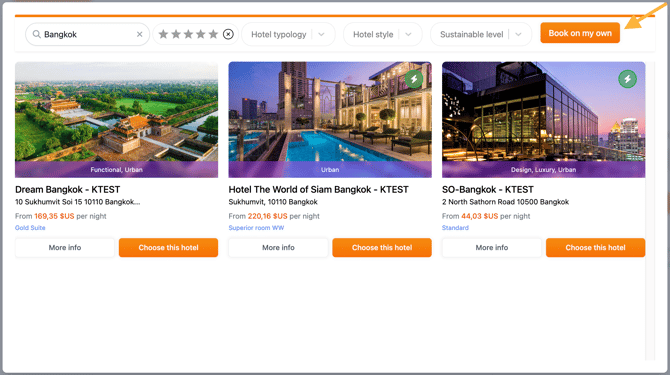
- The itinerary will still display a placeholder for that night
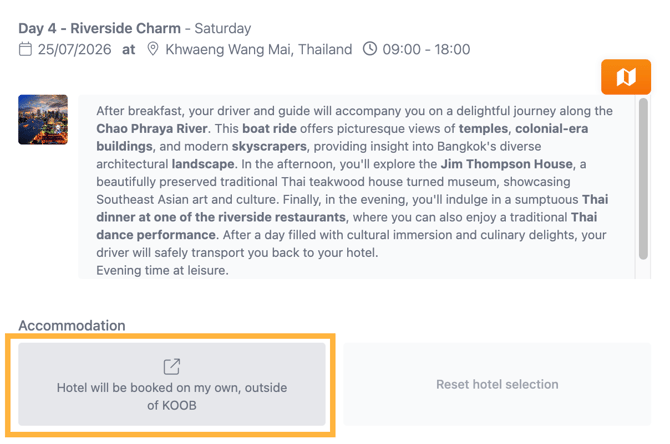
-
- The DMC will not be responsible for any logistics or issues related to this external booking.
-
At any time, if you want to modify the hotel selection, you can click on “Reset hotel selection”
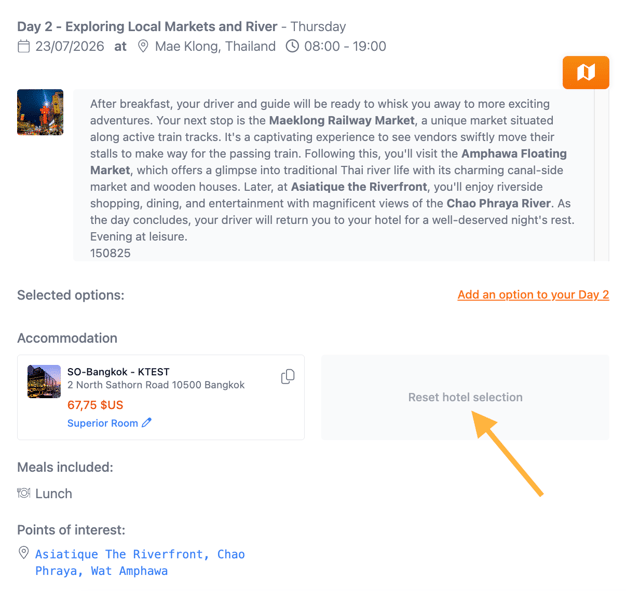
Included and Alternative Accommodation
- If the DMC has included a hotel in the program and its rate, it will be marked as “Included” in green.
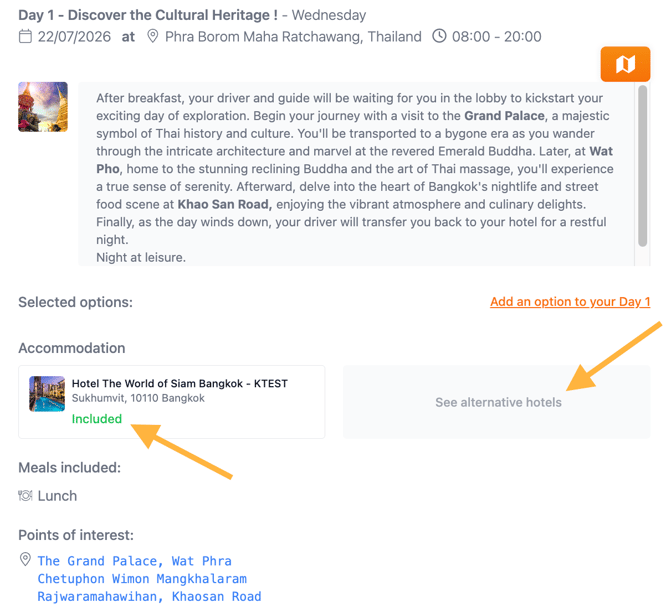
- The DMC may also define alternative (equivalent) hotels that do not affect the price.
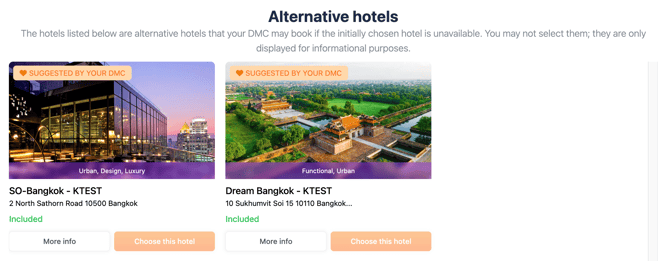
"The hotels listed below are alternative hotels that your DMC may book if the initially chosen hotel is unavailable. You may not select them; they are only displayed for informational purposes."
Adding the experience to the cart and checkout
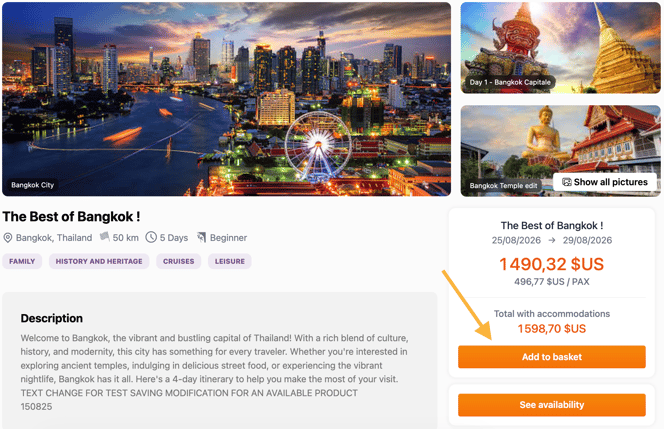
- Once you have completed selecting your day-by-day options and accommodation, click “Add to basket”.
-
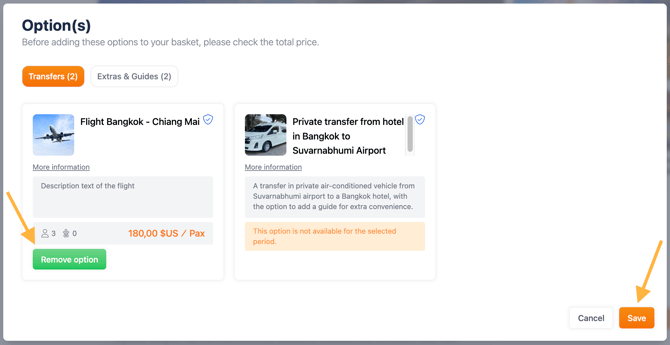
Global Options: These options apply to the entire experience, not just a specific day (e.g., private guide, Wi-Fi router, VIP access).
📌 Example: Options can be per pax and options can be applied to the Global trip. For example here, the guide is per group, the private transfer is per pax.
💡 Options help tailor experiences to your clients and increase booking value.
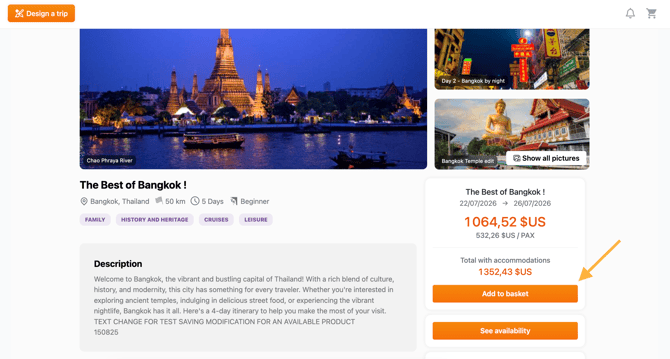
- If global options are available, a pop-up window will appear, allowing you to add them to your basket before confirming.
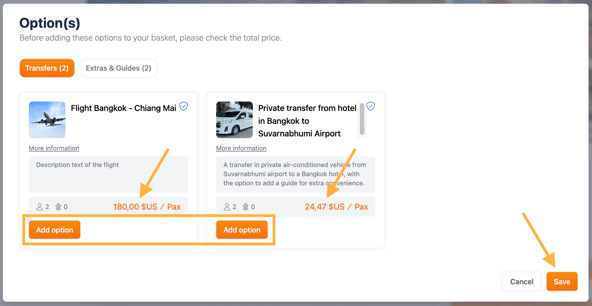
- Select the desired options and click “Save.”
- If you do not wish to add any global options, simply click “Save” to continue.
Proceeding to checkout
-
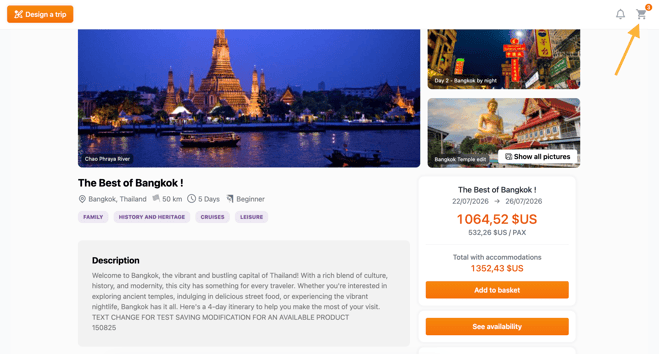
Click the 🛒 cart icon (top right)
-
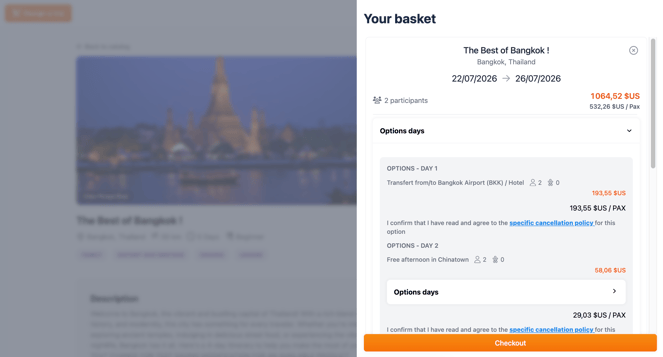
Review all selected services (programs, options, hotels) in your basket:
-
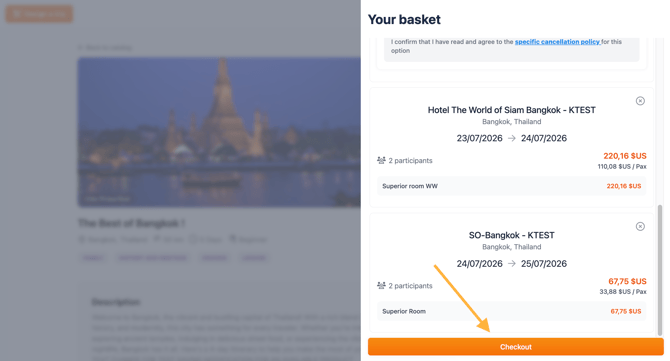
Click “Checkout”
Once all options and hotels are selected, you will reach the final summary page before confirming the booking.
What you'll see on this screen:
-
🧍♂️ Booking owner → Information about the main contact for the trip.
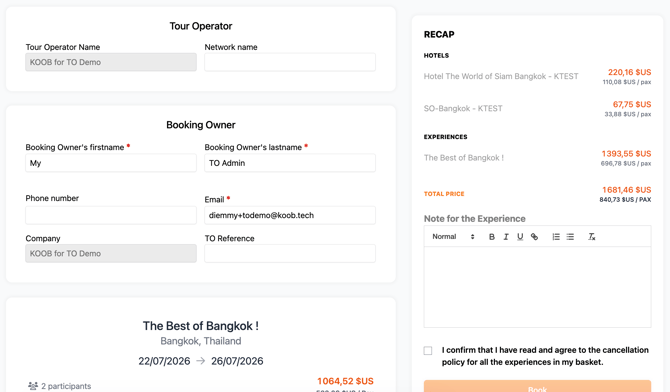
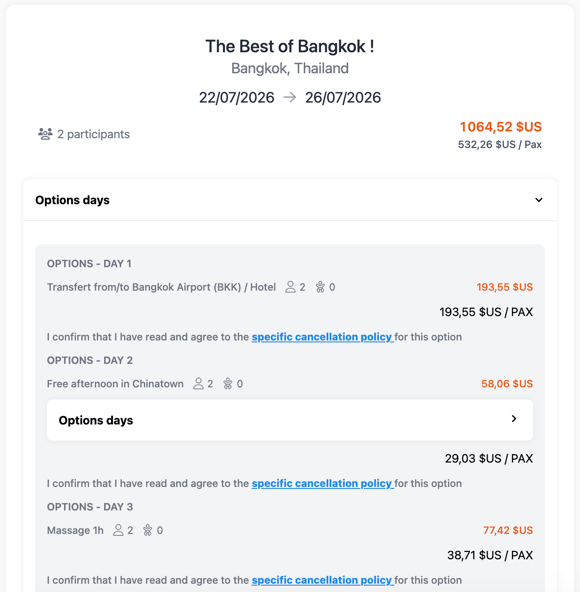
- 🗺️ Tour summary and options → Itinerary recap, including day-by-day details.
-
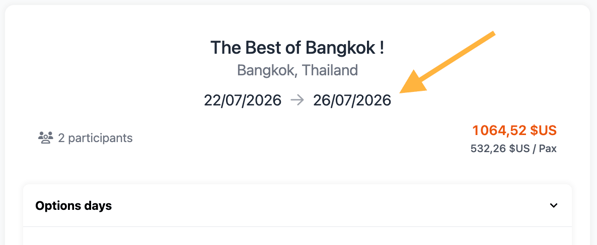
📅 Dates Experiences → Start and end date of the experience.
- 📅 Dates Hotels → Start and end date of the hotel stay(s).
-
👥 Number of participants → Based on the room and experience composition.
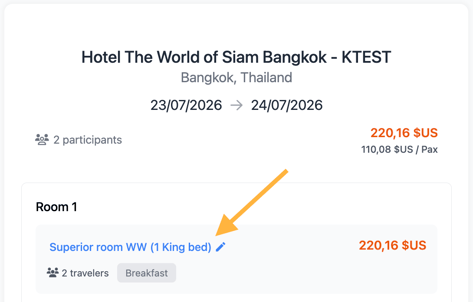
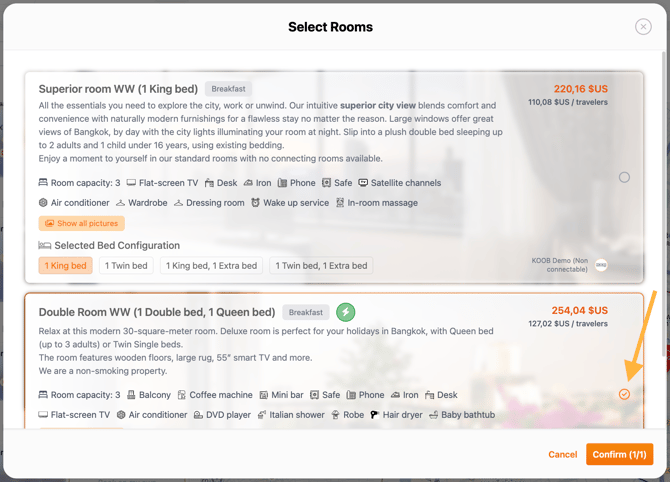
- At this stage, you can review and adjust your room selections:
- Click a room name to open the selection pop-up
-
- Choose your preferred room category
-
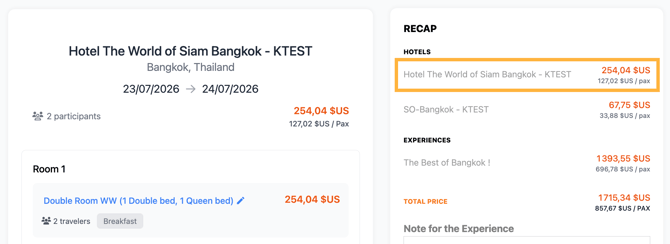
- Then click on Confirm to validate the room.
- The 💰 price updates instantly in the Recap.
-
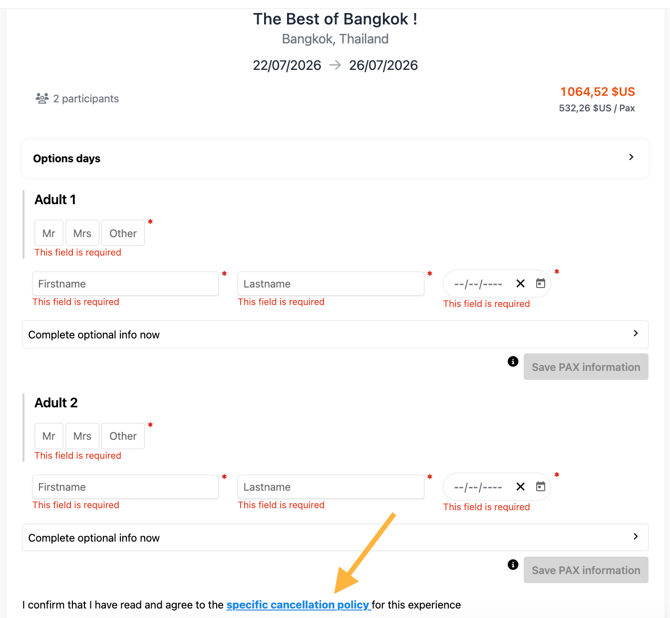
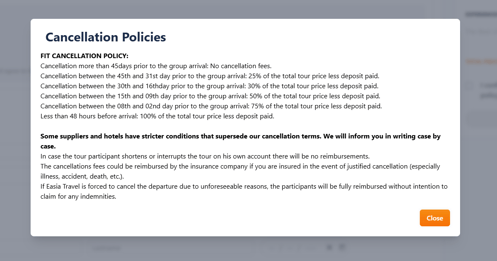
✅ Access cancellation conditions via clickable links for each service
-
📌 Top-right price recap → Always visible, automatically updated when you change rooms, add options, or apply discounts.
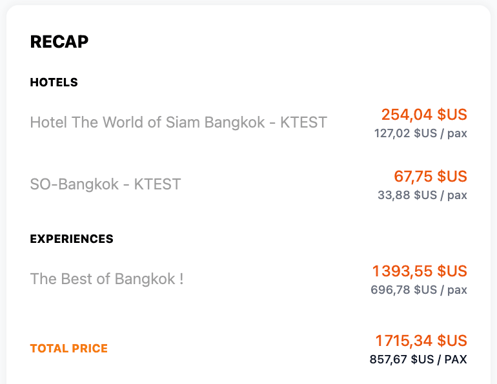
💡 Tip: Carefully check all selected services and pricing before proceeding. Use the scrollable recap on the right to verify totals.
-
Confirm guest information
- Fields required:
- Gender (dropdown)
- First Name & Last Name
- Date of Birth 📅
- Fields required:
-
- Optional (but recommended) fields:
-
🛂 Passport number
-
📆 Passport expiration date
-
🌍 Nationality
-
- Optional (but recommended) fields:
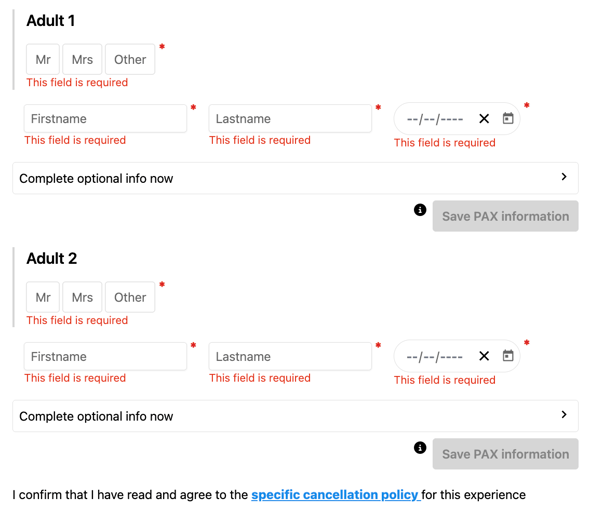
📌 Note: If the booking is launched from a Client Folder, most guest data will be automatically retrieved and pre-filled from the folder.
💡 Tip:
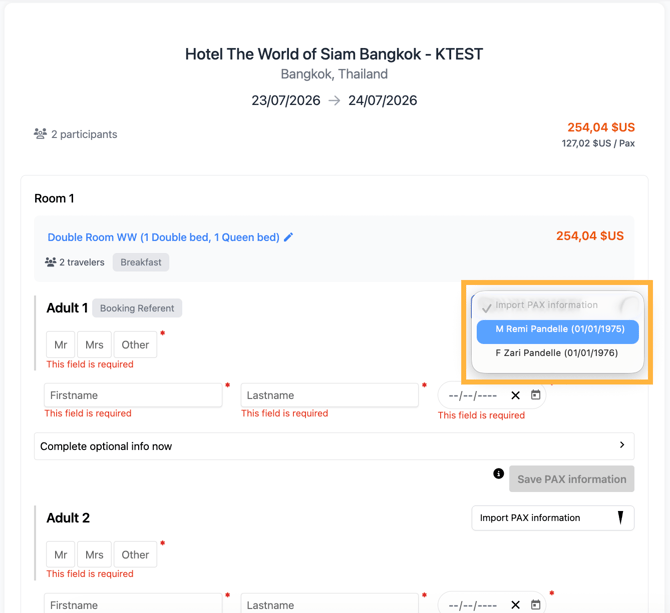
- If you are not starting from a Client Folder, you can use “Save PAX information” and “Import PAX information” to save time and avoid manual entry:
- On the summary page, start with the first service
- Hover over the (i) icon to see the tooltip: "The PAX information will be automatically save in a new client folder. You can then user the Import PAX information menu to avoid manual entry."
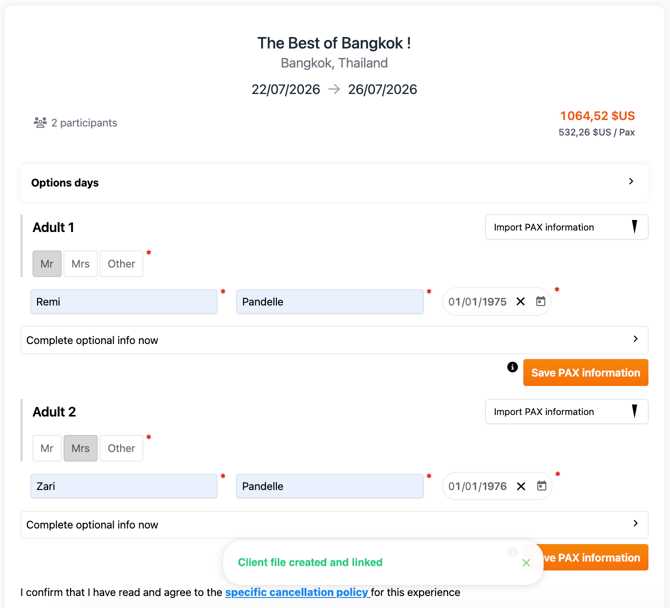
- After entering the mandatory details for each PAX, the “Save PAX information” button becomes available.
- Click “Save PAX information” to store the data
- ⚠️ Important:
- Save only once per PAX to avoid duplicate entries
- Once saved, KOOB will display a confirmation message
- For the next services (e.g., hotels) on the summary page:
- Use the “Import PAX information” dropdown
- Select the saved PAX instead of re-entering details manually
-
Always double-check the guest list when booking for multiple travelers, especially for visa-sensitive destinations or family groups with minors.
- Validate the cancellation policies by ticking the checkbox
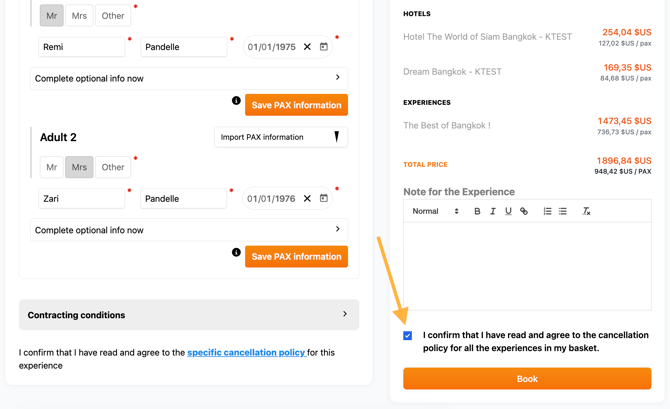
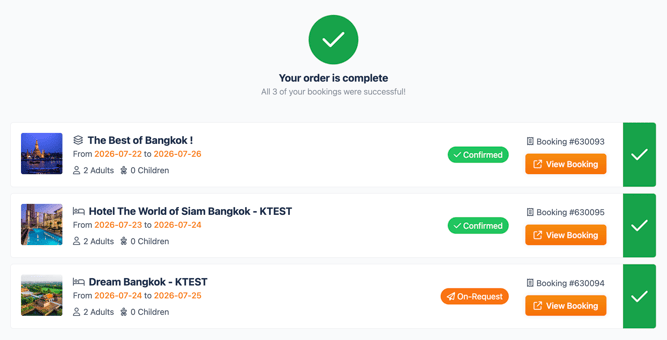
- Click Book to finalize
- You will see this page to review the status of all your bookings:
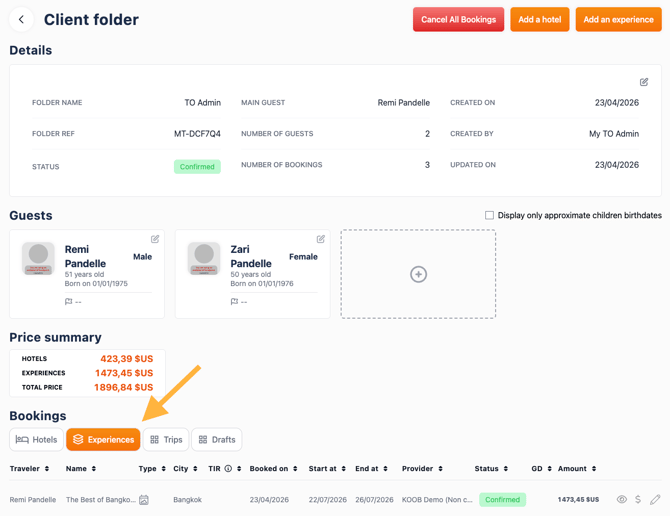
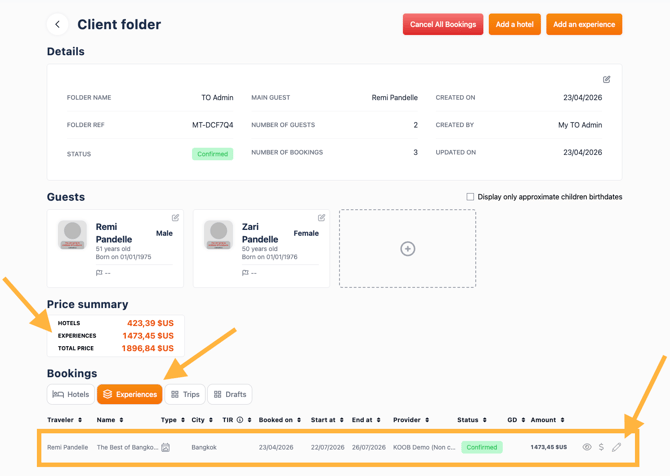
The experience is now listed under the Experiences tab of the client folder:
Post-booking: review, manage & communicate
Viewing the booking
-
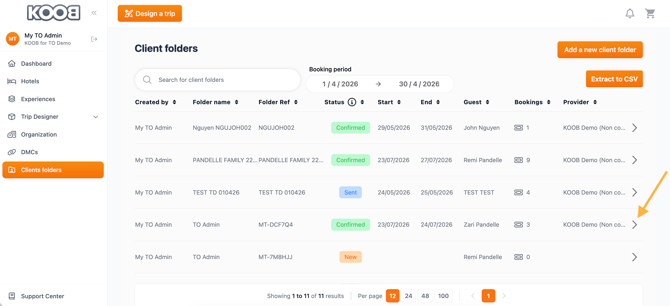
Go to the Client Folder
- Click on the “Experiences” tab
-
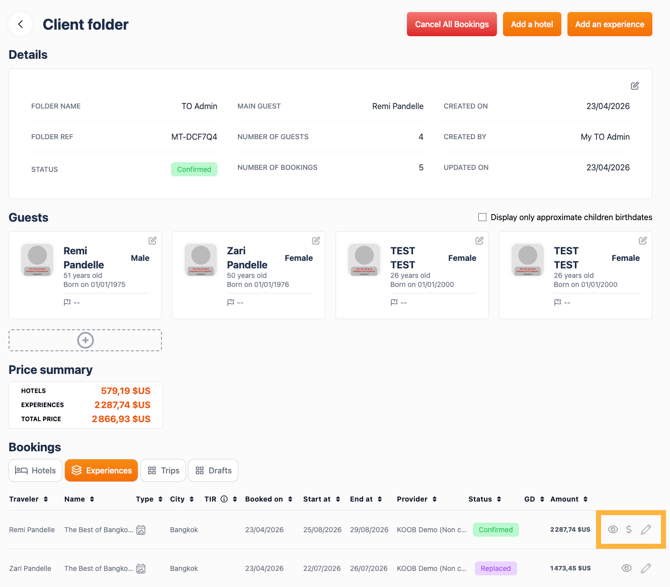
Use the 📝 pencil icon to edit or the 👁 eye icon to view details
Modifying the Experience
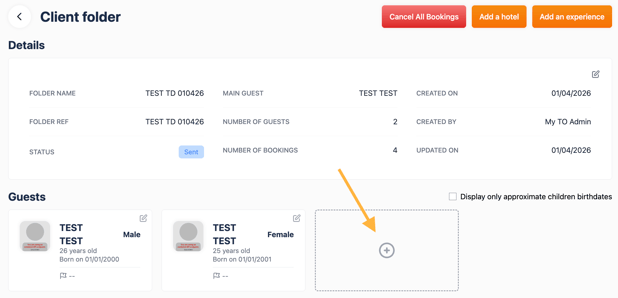
- If you want to add more travelers to an experience booking, first add them to the Client Folder so their PAX information is linked.
-
Then, from the Client Folder, access the booking details to proceed with the modification.
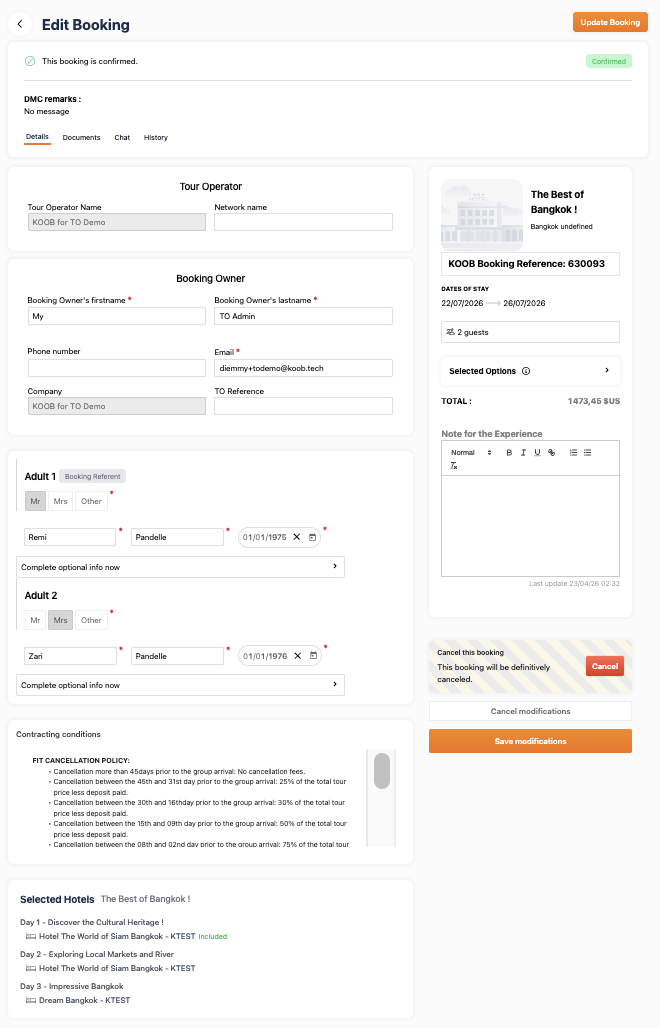
- Click “Update Booking”
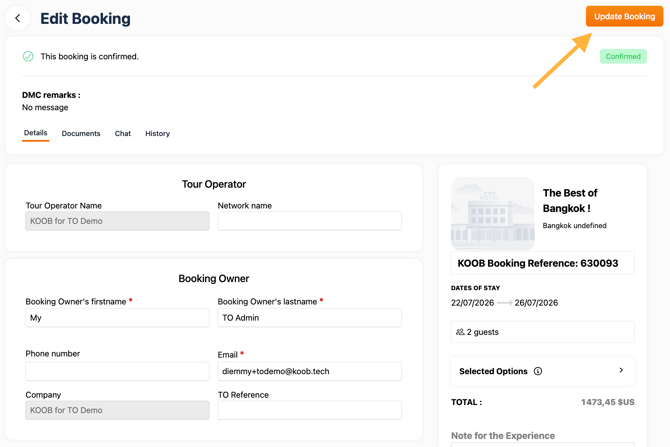
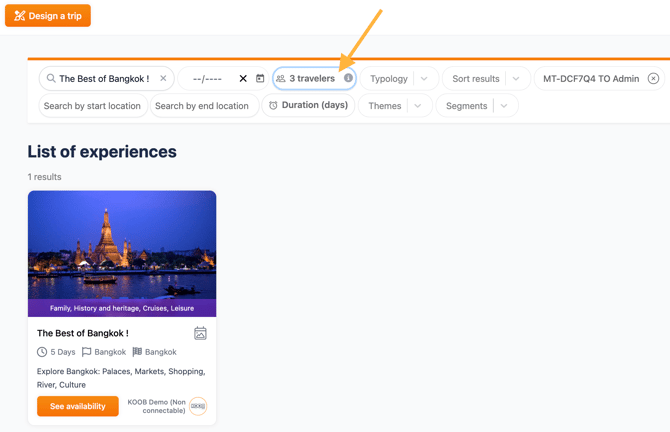
- You can change:
-
👥 Pax count
- Here, I add 3 pax instead of 2:
-
-
- 📅 Dates
- I change the dates from July to August:
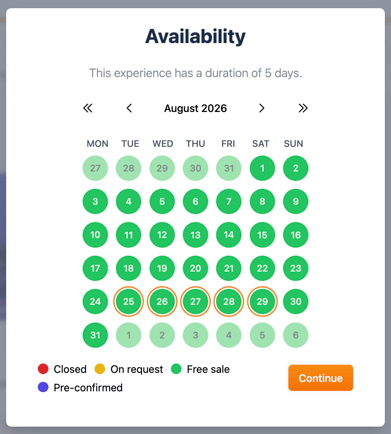
- I change the dates from July to August:
- 📅 Dates
-
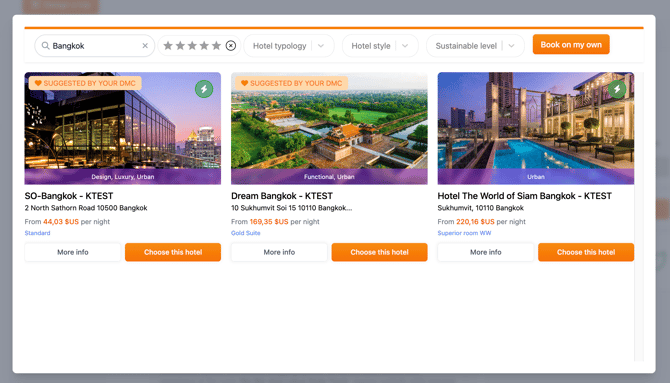
- 🏨 Hotel selection
- I change some hotels on specific days:
- 🏨 Hotel selection
-
-
➕ Options
- I change the options on specific days:
-
- Click Add to Basket
- Select the Global option(s) if you wish and click on Save
- If you do not wish to select Global Options, just click Save.
- Click the 🛒 cart icon (top right), then Checkout
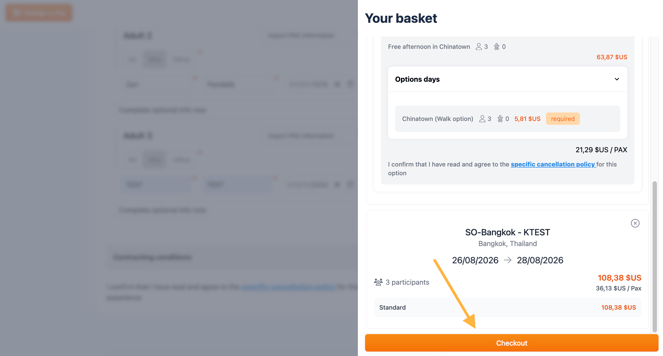
- Restart the full process, selection Accommodation, options (global, daily, cascading)
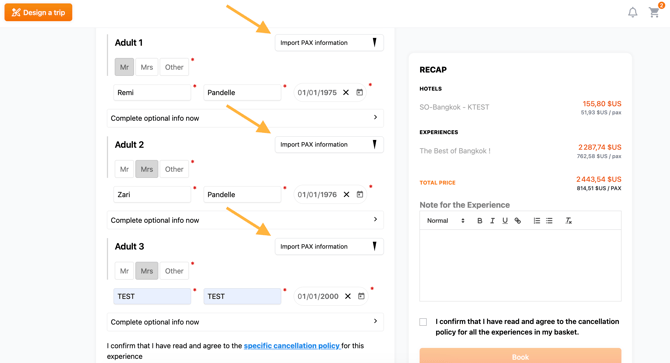
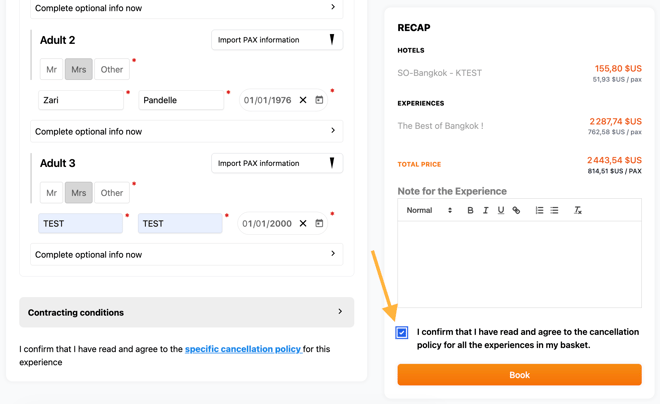
- Validate the cancellation policies by ticking the checkbox
- Click "Book" to finalize
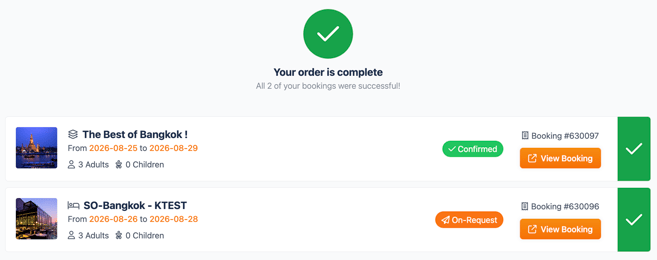
- IMPORTANT: KOOB does not auto-cancel previous hotel bookings. Please review and cancel them manually in the Client Folder.
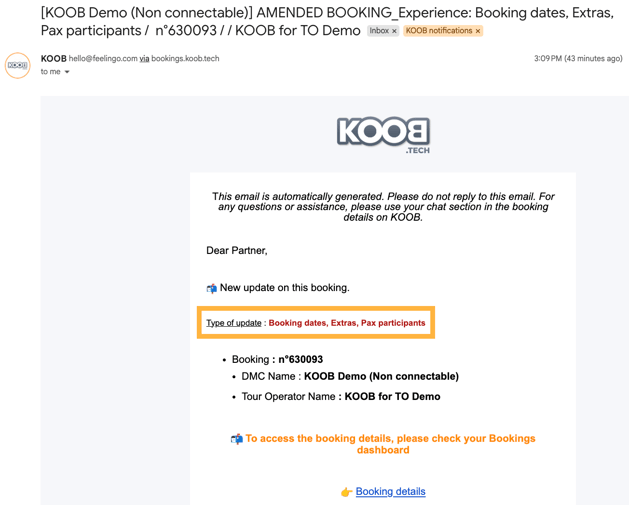
⚠️ If there is a significant change in dates, number of pax, options/extra or even hotels and room types, the DMC and hotel(s) receive notification emails.
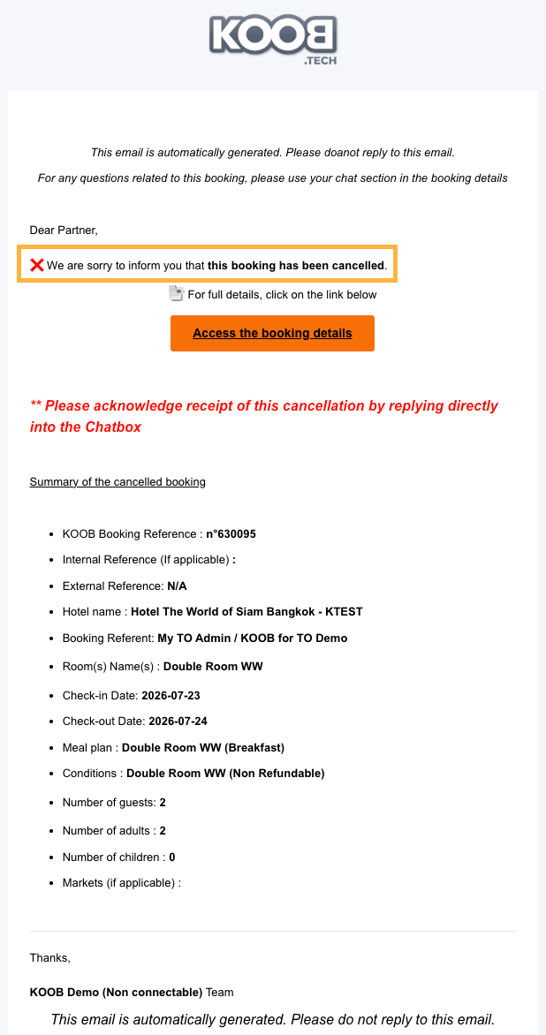
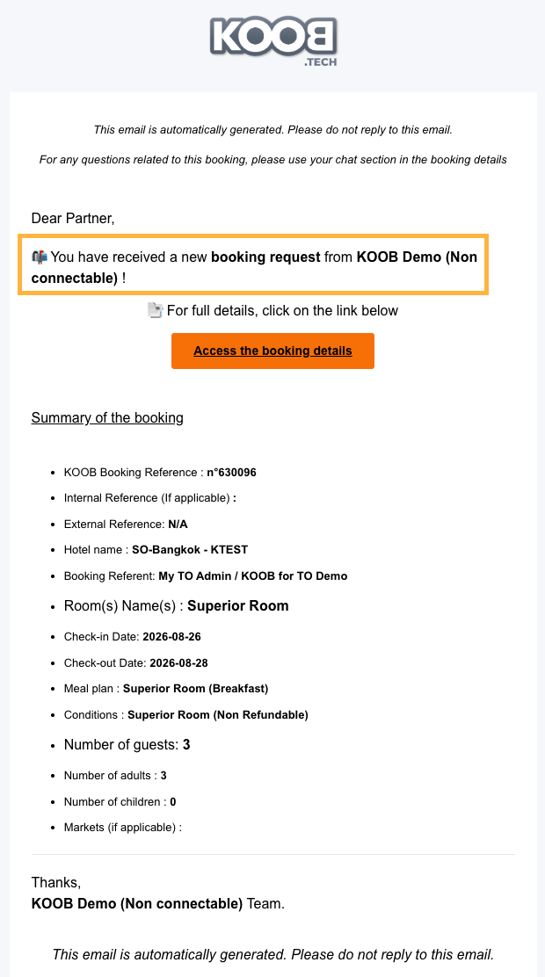
Please note that if you change hotels, the cancellation emails go to hotel A to send a request or confirmation (instant availability) to hotel B.
DMC notification BOOKING UPDATE email (Experience)
Hotel A notification CANCELLATION email
Hotel B notification BOOKING REQUEST email
⚠️ The TO and DMC also receive an email acknowledgement of hotel changes (cancellation, on request, confirmation), ensuring complete three-way transparency.
-
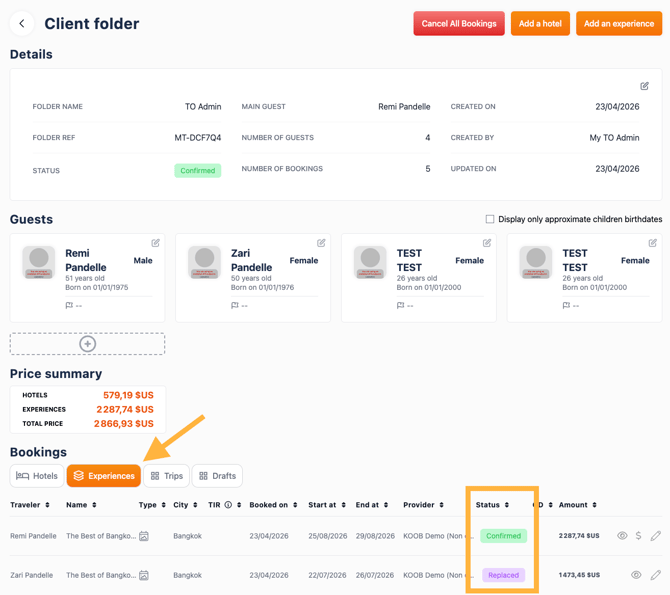
Go to the Client Folder
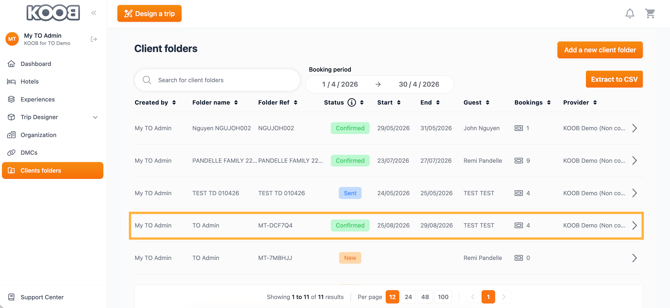
- Click on the “Experiences” tab. You will see that the previous booking status is “Replaced”, along with the status of the new booking:
-
Use the 📝 pencil icon to edit or the 👁 eye icon to view details
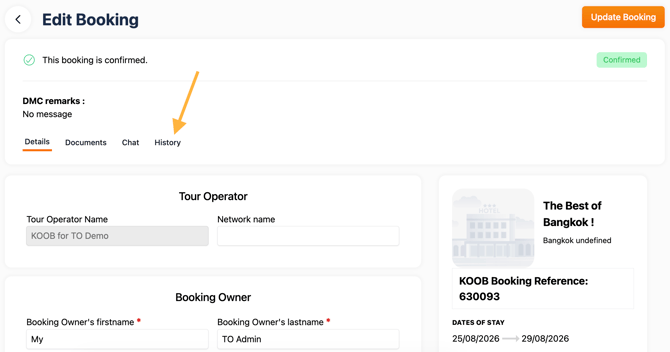
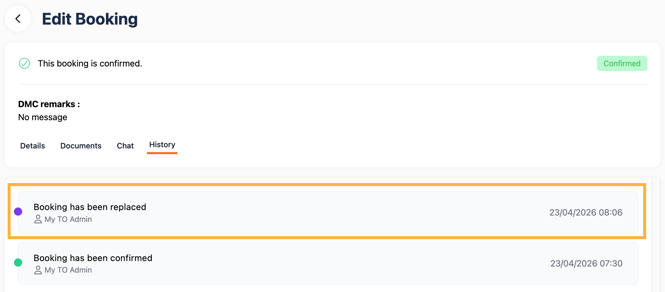
All modifications are saved in the History tab
Cancelling the experience
- ⚠️ Review cancellation policies first
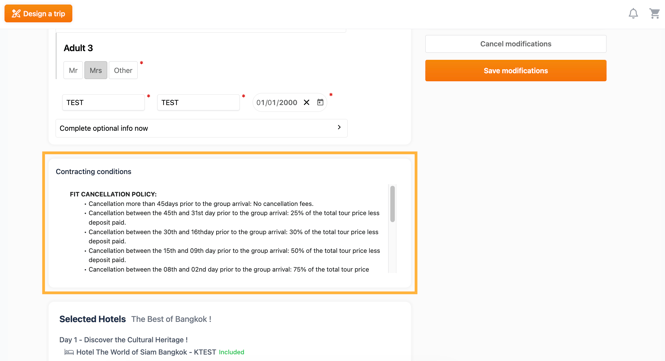
-
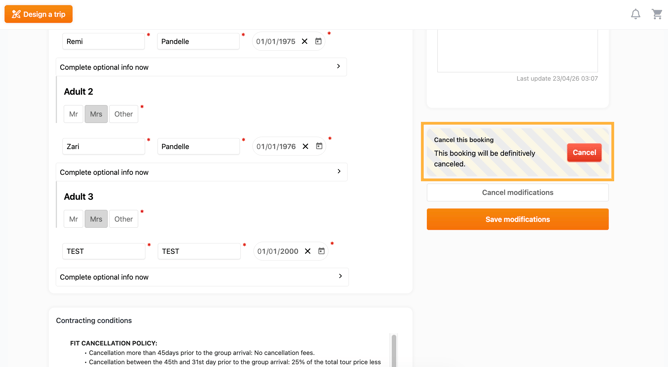
Click “Cancel Booking” from the booking details
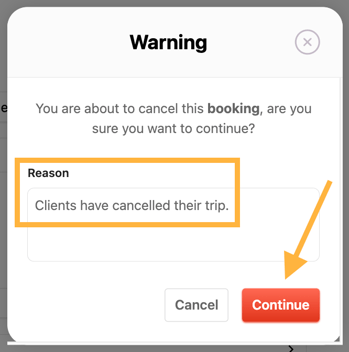
- Enter a reason for the DMC, click on Continue
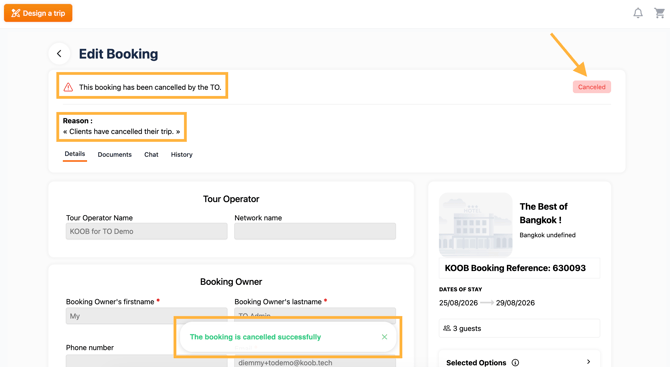
- The booking is successfully cancelled.
-
KOOB notifies the DMC per mail
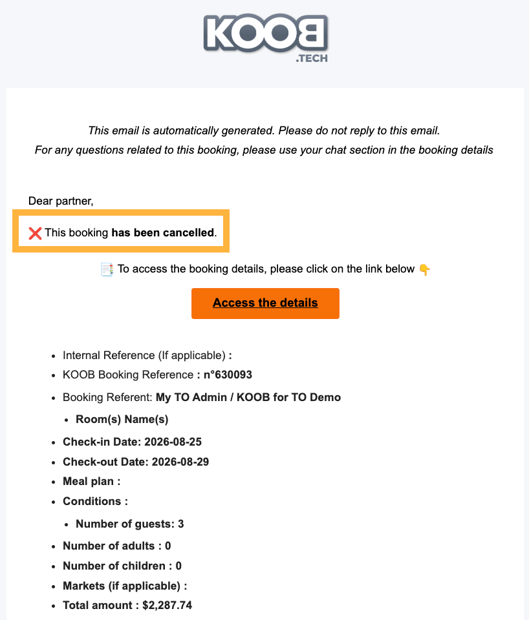
⚠️You have cancelled the booking Experience with the DMC.
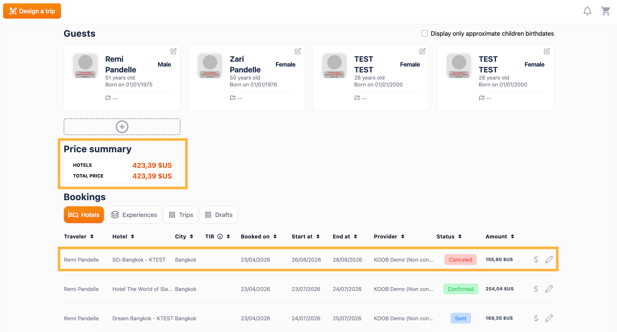
- In the Price Summary, the Experience line has automatically disappeared.
- If any hotels were included in the cancelled program, don't forget to cancel them too in the hotel section of the Customer Folder.
- More information : How to cancel a Hotel booking?
Communicating with the DMC
Use KOOB’s built-in tools:
-
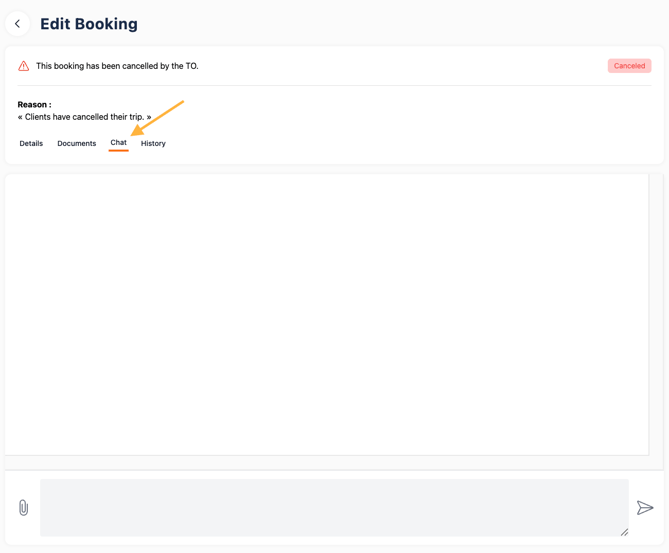
💬 Chat tab – Send direct messages to the DMC
-
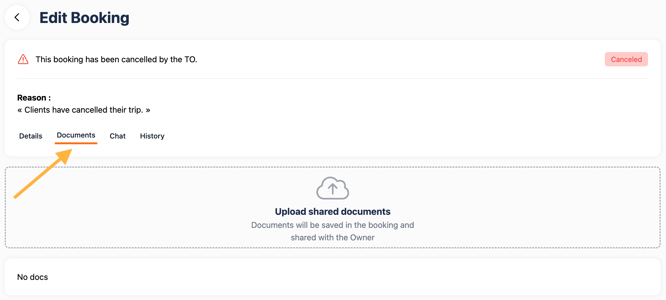
📎 Documents tab - Upload PDFs, guest info, or preferences
-
🕒 History tab – Track booking changes / status.
💡 Tip: The DMC is instantly notified of any chat message or booking update.
More information : How to use the messaging system for hotels and experiences?
Quick Reference Table 📌
| Booking Step | Action |
|---|---|
| 🔎 Search & Filter | Refine experiences using specific criteria |
| 📌 Availability Check | Identify real-time booking status |
| 🎨 Customization | Add optional services and choose accommodations |
| 🛒 Checkout | Finalize details, accommodations, and client info |
| 📋 Manage Booking | Monitor status updates and communicate with the DMC |
VIDEO TUTORIAL
Takeaways
✅ Efficiently browse and book experiences from scratch
✅ Quickly identify availability statuses (Free Sales, On Request, etc.)
✅ Customize experiences with accommodations and extra options
✅ Ensure accurate traveler information and preferences
✅ Manage bookings smoothly via clear status updates and direct DMC communication
FAQ
Q: Can I modify accommodations offered in an experience package?
🟢 Yes, select "Marketplace" to explore alternative hotels or choose external booking.
Q: What happens if an experience is "On Request"?
🟠 The booking is pending DMC confirmation; expect a short wait for validation.
Q: How do I add special requests (dietary, early check-in)?
✏️ Include notes clearly during traveler information entry.
Q: Can I add extra options after booking an experience?
✅ Yes, daily and global options can often be added at booking or adjusted afterward.
Q: How do I track my booking status after confirmation?
📋 Statuses (Confirmed, Pending, Refused, Canceled) are clearly indicated in booking details.
Related articles
- How to use the messaging system for hotels and experiences?
- How to navigate the Experiences Catalog?
- What are the different types of Experiences in KOOB?
- How to access the details of an Experience?
- How to update an experience booking linked to a client folder ?
📌 Need help? Visit the KOOB Knowledge Base or contact KOOB Support 🚀