
✅ Expand your product range with bookable extras like meals, guides, or special products.
✅ Set flexible pricing conditions based on pax ranges, children's rates, and seasonal availability.
🚀 Objective: Learn how to create and configure extras in KOOB to enhance the booking experience for Tour Operators (TOs) and maximize revenue.
Creating a new extra in KOOB
To add a new extra to your catalog:
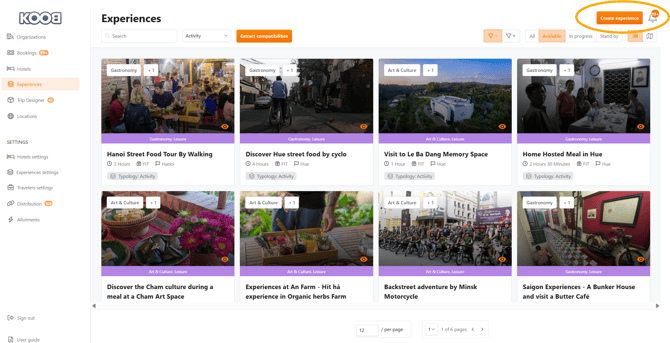
- Navigate to the Experiences Catalog in KOOB.
- Click on "Create experience" in the top-right corner.
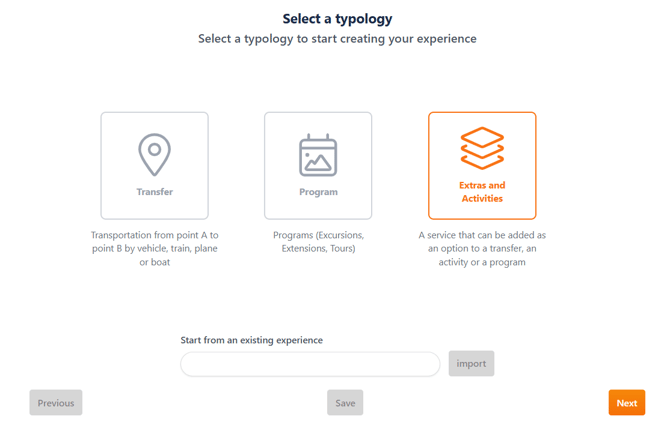
- Select "Extras and Activities".
- Choose "Extra" and click Next to proceed with setup.
📌 Tip: Extras can be linked to experiences or can't be sold independently.
Adding general information
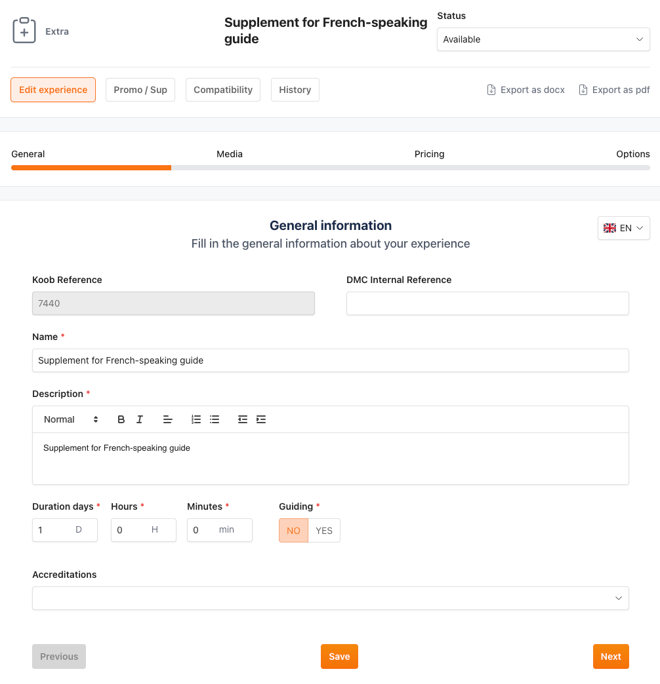
This section defines the basic details of your extra:
- DMC Reference → Internal reference for tracking.
- Name → The extra's official title.
- Description → A detailed overview of what the extra includes and its benefits.
- Duration → Define how long the extra lasts.
- Guiding → Select whether the extra includes a guide and specify the available languages.
- Accreditation → Add any applicable certification or quality labels.
✅ Example: A "Sunset Boat Ride" extra could include an EXTRA/OPTION 1-hour guided tour with a multilingual guide and a welcome drink.
Adding media (images & links)
Enhance your extra’s presentation by adding high-quality visuals.
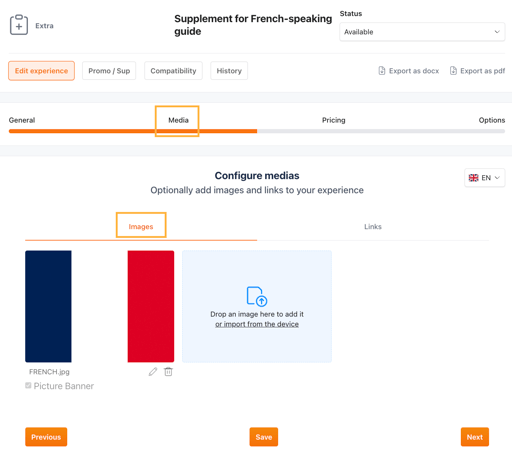
- Upload images:
- Click "Import Image" to upload photos.
- Rename images for clarity.
- Set a thumbnail image for display.
- Add external links:
- Click "+ Add a Link" to insert related links (e.g., official website, YouTube video).
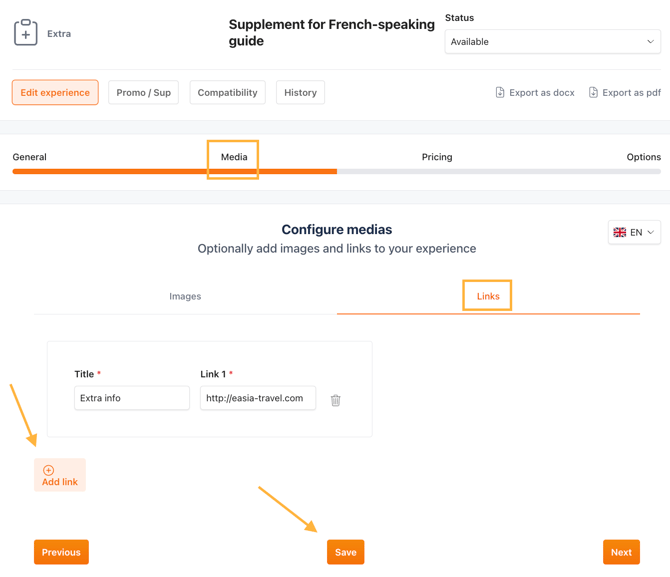
- Click "+ Add a Link" to insert related links (e.g., official website, YouTube video).
📌 Tip: Upload at least 3 images for a better visual experience for TOs.
Configuring pricing
Pricing setup ensures clarity and flexibility for bookings.
Steps to set pricing:
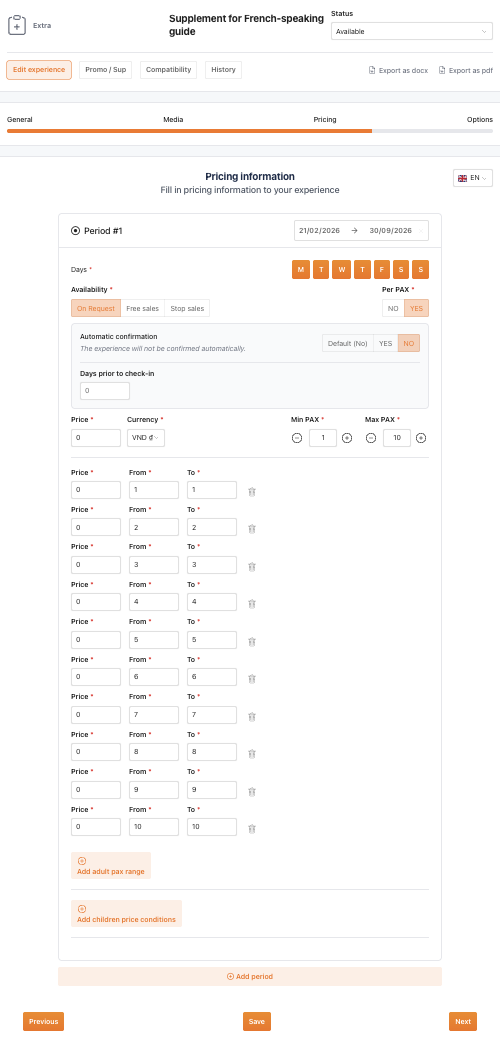
- Click "Add Period" to define a valid calendar period.
- Set the days of the week when the extra is available.
- Choose the availability type:
✅ Free Sales → Instant confirmation.
⏳ On Request → Requires manual confirmation from the DMC.
❌ Stop Sales → Not available for booking. - Automatic confirmation window: When you select On-request availability for a price period, the Automatic confirmation window appears with three options:
- Default (Yes/No) → Follows the auto-confirmation settings at the organization-level.
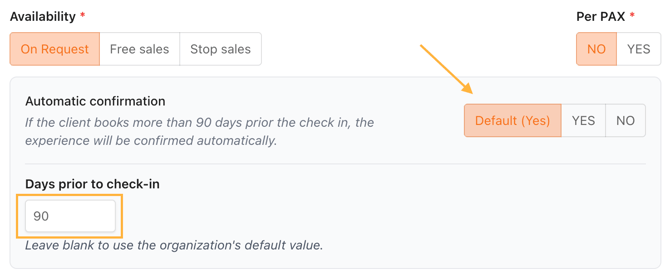
- Yes → On-request bookings can be automatically confirmed if booked XX days before the check-in date.
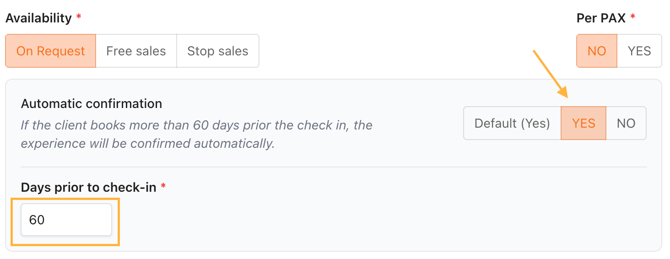
- No → On-request bookings will not be automatically confirmed, regardless of the organization-level settings.
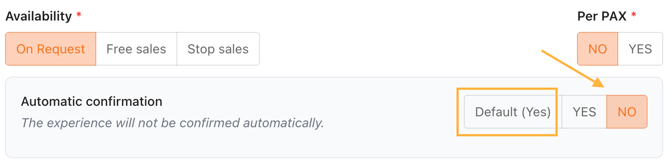
- Default (Yes/No) → Follows the auto-confirmation settings at the organization-level.
Enter pricing details:
- Per Pax (Yes/No) → If selected, prices will be calculated per person.
- Base Price → Enter the rate for the extra.
- Currency → Set the applicable currency.
- Min - Max Pax → Define booking limits.
- Adult Pax Range → Set different prices based on group sizes.
- Children’s Price Conditions → Enter age-based pricing.
✅ Example:
| Pax Range | Price per Person |
|---|---|
| 1-2 pax | $50 USD |
| 3-5 pax | $45 USD |
| 6+ pax | $40 USD |
📌 Tip: You can also create negative extras (e.g., "-$20 Discount for Triple Room on a Program") for price reductions options.
Adding bookable options
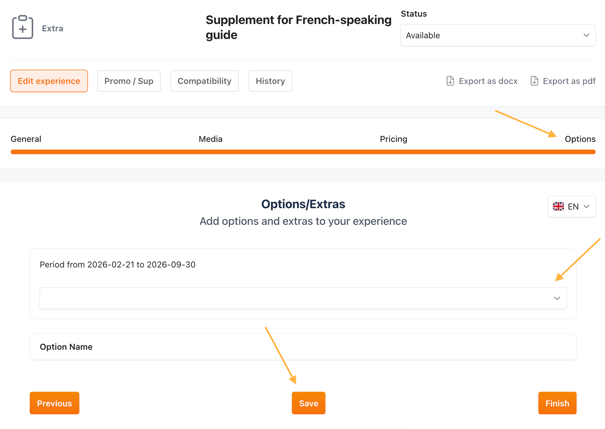
Extras can be enhanced with additional bookable options.
Steps to add options:
- Click the search bar in the option section.
- Select relevant extras that TOs can book alongside the main extra.
✅ Example:
A "WiFi Router Rental" extra can include an "Unlimited Data Package" option for an additional fee.
Translating an extra/option into multiple languages
KOOB allows you to translate extras into different languages to ensure accessibility for international tour operators.
How to translate an extra
-
Save the activity in English (mandatory).
-
Click on the language flag at the top right of the activity sheet.
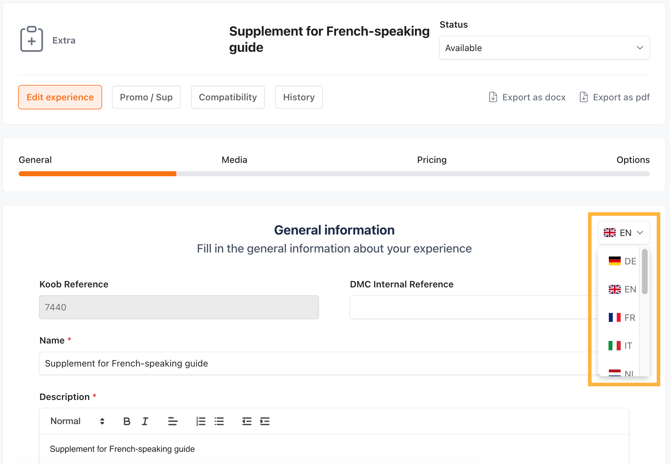
Modify the following sections for the selected language:
-
-
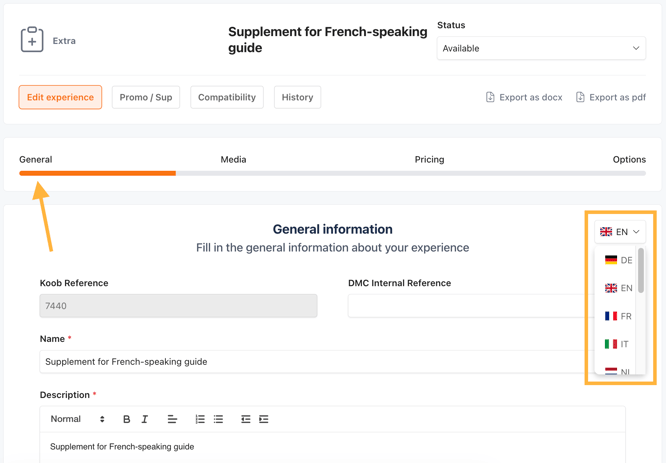
General Information (Name, Description, etc.)
-
-
-
Media (Image descriptions, links)
-
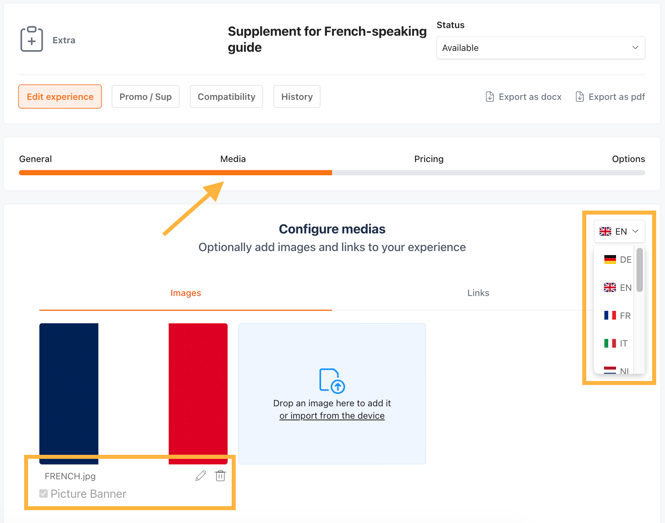
📌 Note: If a translation is missing, KOOB will automatically display the English version as the default language.
✅ Tip: Double-check translations and save changes before switching languages to prevent data loss.
Applying promotions & supplements
You can adjust extra pricing dynamically using discounts or surcharges.
Steps to create a promotion/supplement:
- Click the Promo/Sup tab (top left).
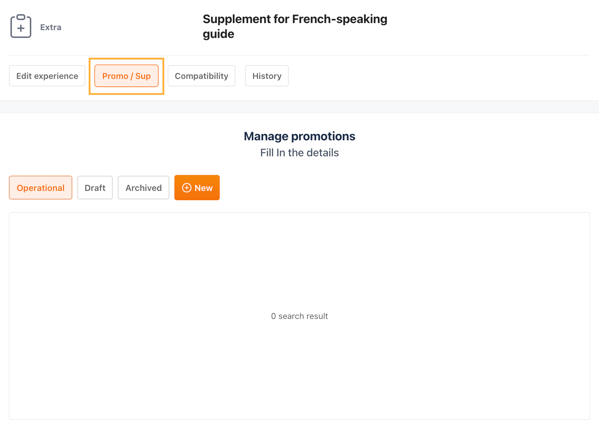
- Click "New" to create a new promotion/supplement.
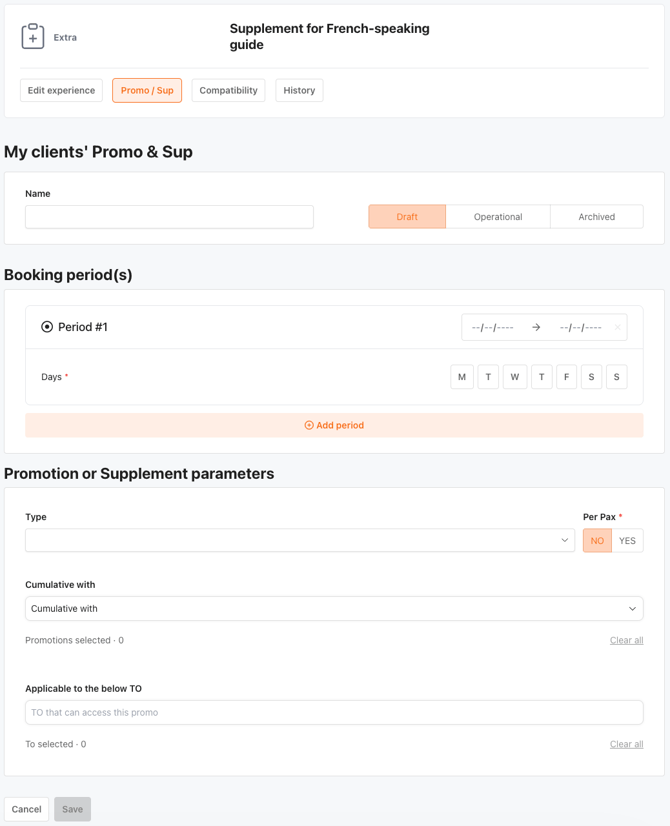
- Define:
- Name → Title of the promo/surcharge.
- Period → The validity period.
- Days → Select applicable days.
- Type → Choose between a percentage discount, fixed discount, or surcharge.
- Per Pax → Decide if the promo applies per person or per product.
- Cumulative with → Select if this can be combined with other deals.
- TO Access → Restrict promotions to specific TOs.
- Set the status to Operational to activate the promotion.
📌 Note : Expired deals are automatically archived but can be reactivated if needed.
History
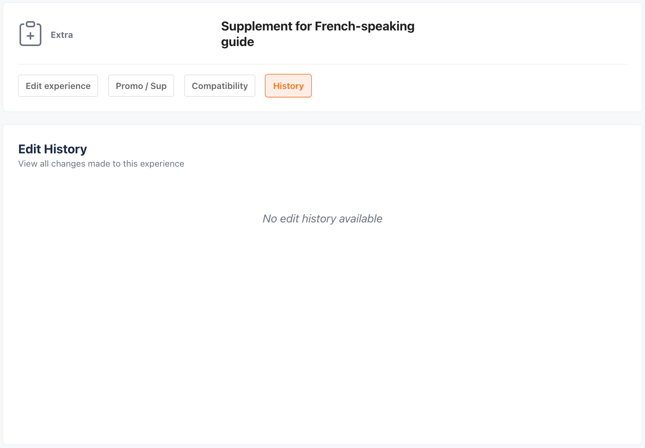
History log to track all updates and changes over time:
Exporting Extras as Word/PDF
KOOB allows you to export extras as documents for offline use.
Steps to export:
- Open an extra.
- Click the export button (top-right).
- Choose Word or PDF format.
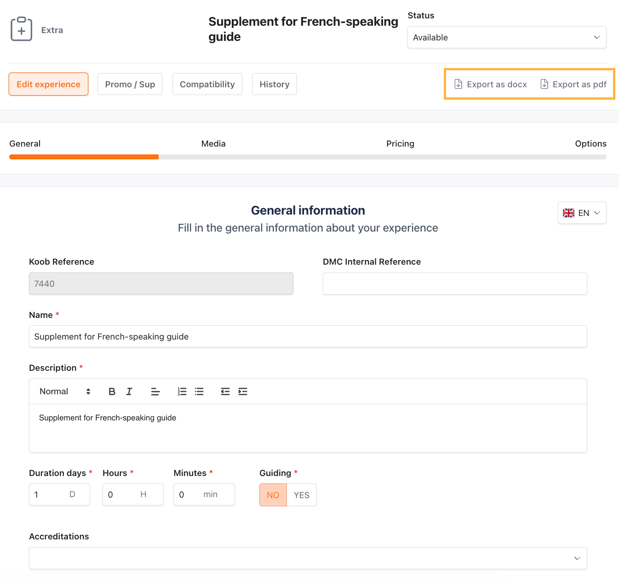
📌 Note : Useful for partner presentations or internal record-keeping.
Takeaways
✅Easily create and manage extras to enhance the TO booking experience.
✅Set flexible pricing conditions for different pax ranges and child rates.
✅Link extras with compatible experiences to optimize product bundling.
✅Apply discounts and surcharges to dynamically adjust pricing.
✅Use media and descriptions to provide detailed and visually appealing extras.FAQ
FAQ
Can extras be booked independently?
⚠️NO ! Extras can be standalone products or bundled with experiences.
How do I apply a discount on an extra?
✅ Use the Promo/Sup tab to create a discount in amount or percentage.
What happens if I mark an extra as "On Request"?
⚠️ The extra will require DMC manual approval before it can be booked.
Can I add multiple pricing periods for an extra?
✅ Yes! You can set different rates for different seasons or booking windows.
What if an extra is no longer available?
⚠️ Set the availability to "Stop Sales" to prevent bookings or put is under Standby status.
Can I upload experiences in bulk?
⚠️ Currently, bulk uploading is not supported in Koob to prevent data consistency issues. However, if you need to upload multiple experiences at once, please contact your Customer Success Manager to discuss alternative solutions.
Related Articles
- How to add a new activity to my catalog ?
- How to add a new transfer to my catalog ?
- How to add a new program to my catalog ?
- How to add a new extra/option to my catalog ?
- How to set up Hotel, Experience, and Trip Distribution for a Tour Operator? (Detailed configuration)
- How to use the Bulk Edit distribution settings for my products?
- How to set margins and visibility for my distributed Experiences?
- How to set up currency exchange rates for my distribution?
📌 Need help? Visit the KOOB Knowledge Base or contact KOOB Support for assistance. 🚀