
✅ Set up a trip from the beginning with full customization
✅ Choose a single DMC for the trip to ensure smooth coordination
✅ Add experiences, accommodations, and transfers with KOOB’s guided system
✅ Modify trip details, number of travelers, and track saved versions
✅ Copy & paste experiences or accommodations for faster itinerary creation
✅ Finalize the trip by saving it as a draft, template, or confirmed trip
🚀 Objective: Learn how to build a fully customized trip using KOOB’s Trip Designer, ensuring seamless itinerary flow and compatibility.
📂 Create a Client Folder
Before designing a trip, you need to create a Client Folder. This folder is the base that links all trip versions, communications, documents, guest information, and bookings.
-
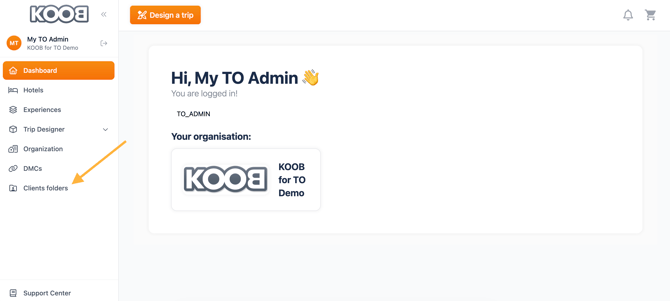
Go to Client Folders in the left-hand menu
-
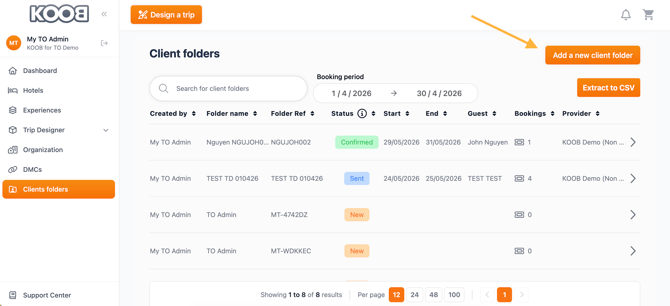
Click ➕ Create a new client folder to open the creation window
-
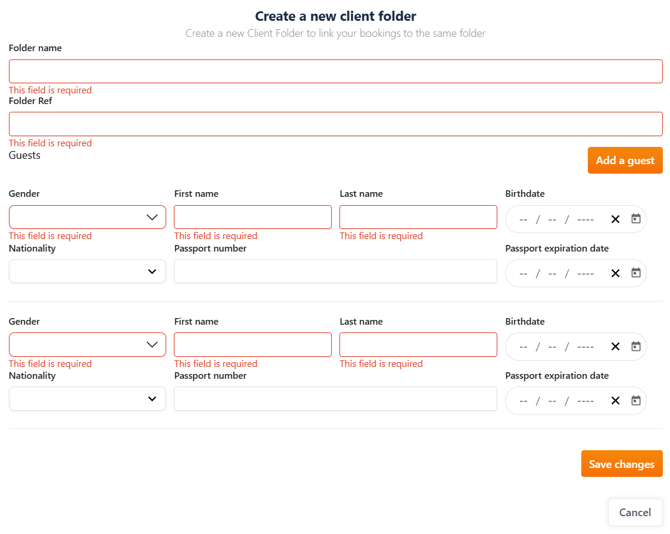
Fill in the following fields:
| Field | Description |
|---|---|
| 📁 Folder name | The internal name to identify this Client Folder (e.g., "ALVAREZ IN THAILAND") |
| 🔖 Folder Reference | Reference code used for internal tracking |
| 👤 Main traveler details | Add names, nationality, date of birth, passport information |
-
Click Save Changes to create the folder
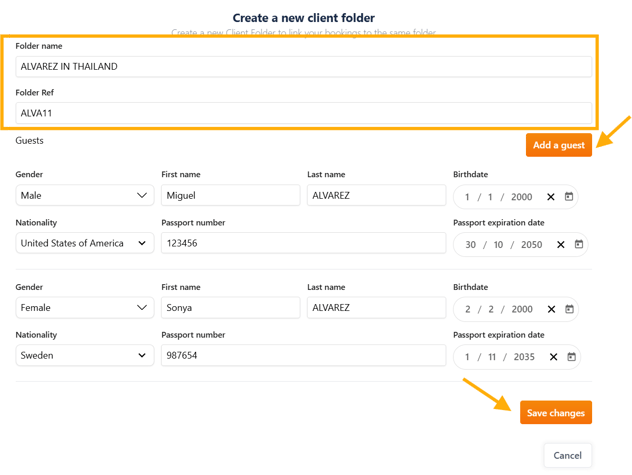
- Click Continue to access the client folder
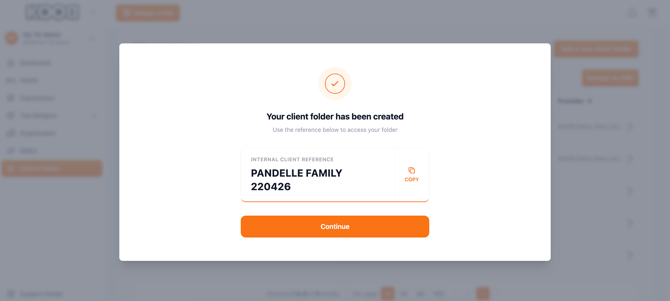
-
You’ll be redirected to the Client Folder page, where you can now launch the trip creation process
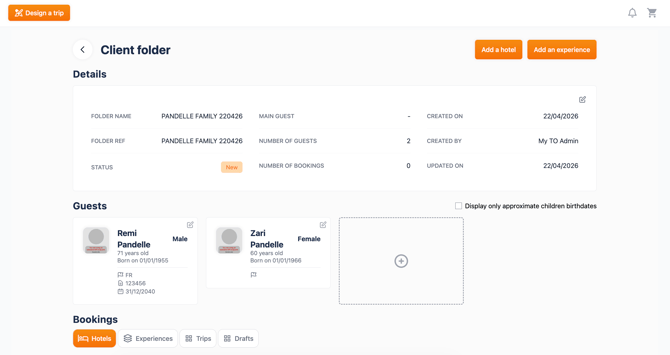
🎨 Design a Trip from Scratch
Once the Client Folder is created, you can initiate the trip building process using KOOB’s Trip Designer.
-
Inside the Client Folder, click on 🟠 Design a trip (top-left of the screen)
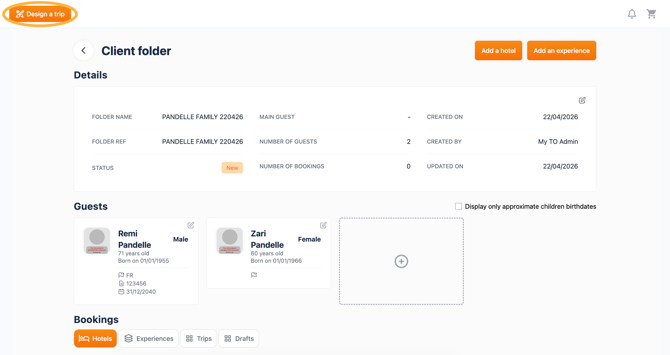
-
In the pop-up window, select 📌 From Scratch to start with a fully blank itinerary
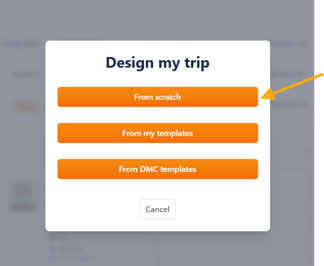
A configuration pop-up appears.
✅ This step allows KOOB to preload the trip with base parameters and retrieve relevant content (pricing, availability, etc.).
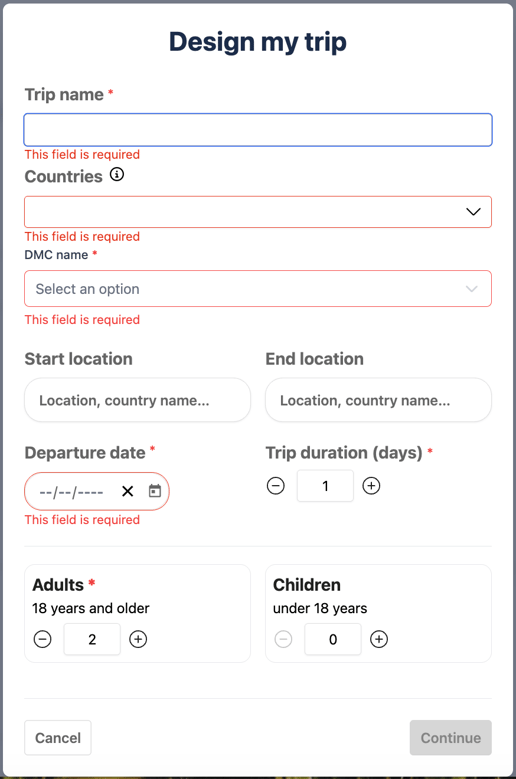
| Field | Description |
|---|---|
| ✏️ Trip Name | Give your trip a clear and recognizable name (e.g., “ALVAREZ IN THAILAND”) |
| 🌍 Country |
Select the countries for this itinerary |
| 💼 DMC name |
Select the DMC for this trip |
| 🏙️ Start Location | First city on-site (exclude international departure) (optional) |
| 🏁 End Location | Final city of the itinerary (exclude outbound flights) (optional) |
| 📅 Departure Date | Trip start date on-site (used to determine pricing validity) |
| 📆 Duration | Total number of trip days (KOOB adjusts it automatically later if needed) |
| 👥 Adults & Children | Number of travelers (at least 1 adult required) |
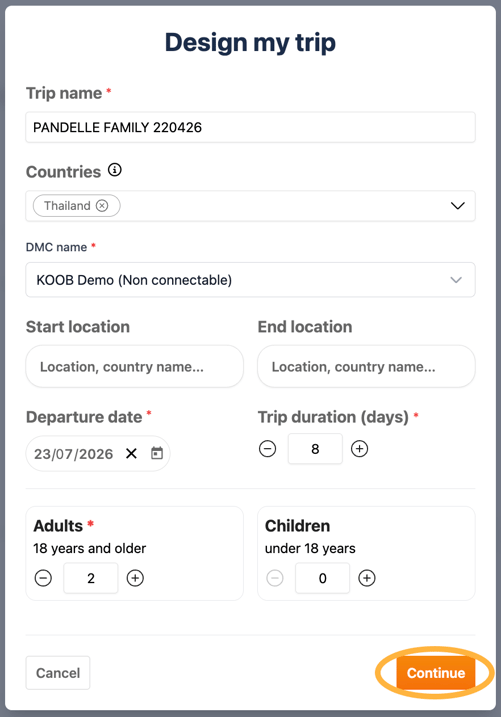
💡 Tip: The Departure Date is essential — it determines which period-specific prices are fetched from the TO contract. KOOB applies your DMC margin dynamically based on this date.
-
Once all fields are filled in, click Continue to access the Trip Designer interface
-
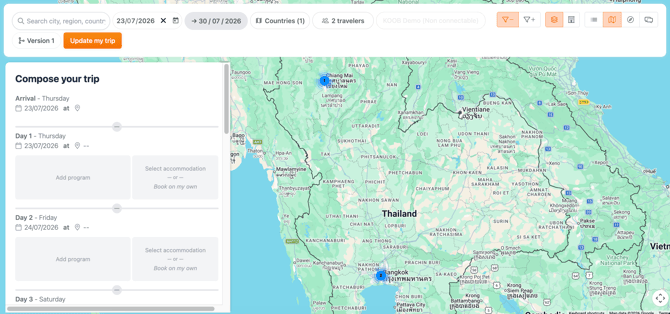
The timeline and map will load automatically, ready for you to begin assembling the itinerary
🧭 Designing the itinerary in the Trip Designer
Once you’ve clicked “Continue” from the setup pop-up, the Trip Designer interface loads with your trip parameters already pre-filled.
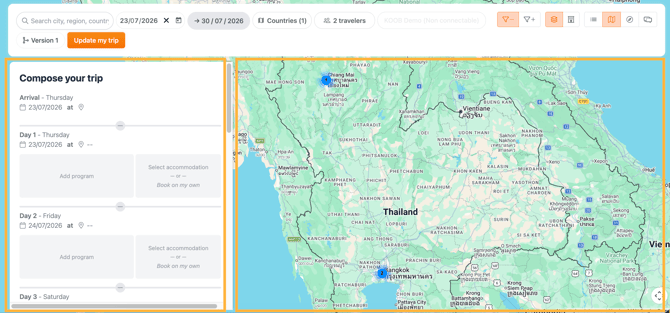
You’ll now see two distinct zones:
-
Left panel (Timeline) → where you compose your itinerary day by day
-
Right panel (Interactive Map) → where you visualize experiences and hotels geographically
Timeline interface (left panel)
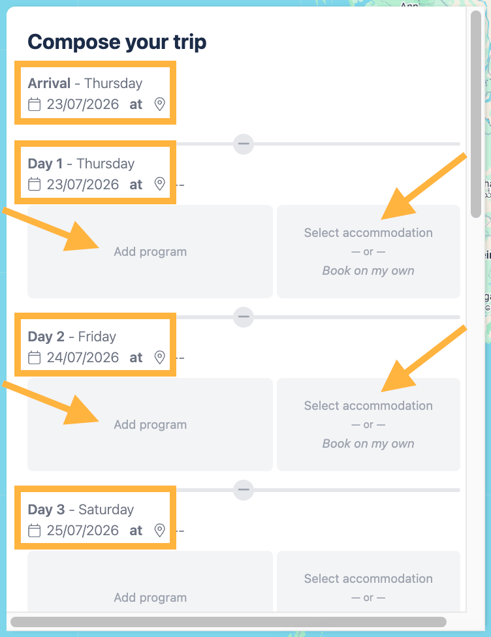
Each day is automatically labeled with:
-
The date and day of the week
-
Fields to add:
-
Programs
-
Accommodations
-
Optional services
-
This is where you design your Trip by adding components and by clicking on the "Add Program" or "Select Accommodation/Book on my own" zones in each day.
💡 KOOB dynamically adjusts your trip duration when programs exceed the initially defined number of days.
🗺️ Map interface and filters (right panel)
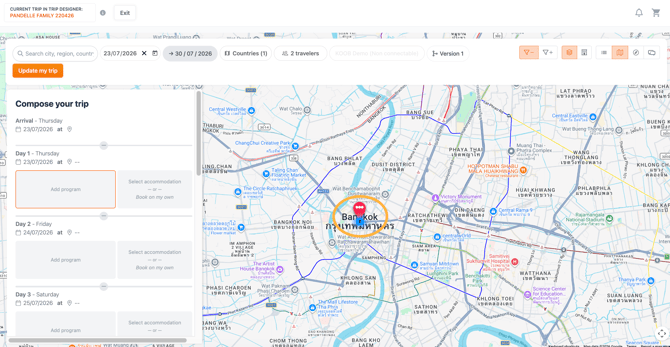
On the right, the interactive map gives you access to:
-
Map-based exploration of experiences and hotels
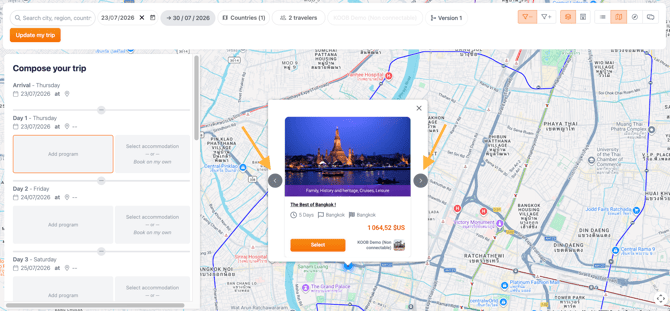
💡 Tips MAP :
- Zoom in to locate nearby experiences and points of interest
- Use the arrows to consult the different programs in this city or departing from this city.
- Click on the name of the Program to open the detailed factsheet in another window.
-
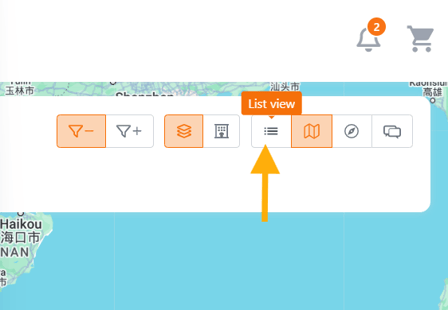
A toggle to switch to List view for catalog-style browsing (recommended for better filtering)
💡 Tips:
Since hotel locations are shown precisely on the map, while programs are displayed only at the city level, we recommend:
- Searching and selecting programs using the List view
- Searching and selecting accommodations using the Map view
-
A top filter banner to narrow your search
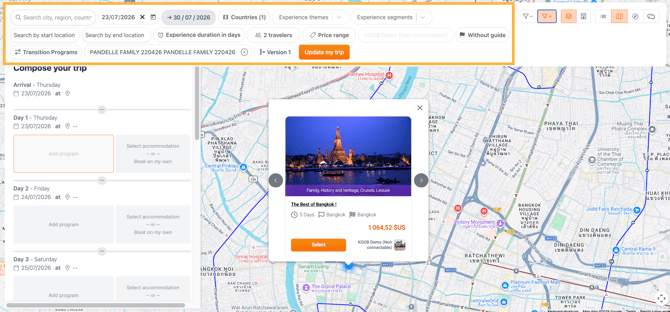
🔍 Experience filters in the catalog and Map view
You can apply multiple filters to find the best program:

| Filter | Description |
|---|---|
| 🔤 General search | Search by city, region, title, or keywords from program description |
| 🌍 Countries | Country filter (default is set from trip setup) |
| 🏙️ Start / End location | Filter based on starting and ending city of the program |
| 🎭 Experience themes | Filter by themes (Adventure, Nature, Gastronomy…) |
| 🎯 Segments | Target audience or format (Join-in, Leisure…) |
| ⏳ Experience duration | Set min/max number of days |
| 💰 Price range | Set min/max price range – calculates based on selected pax |
| 👨🏫 With or without guide | Toggle to show only guided or unguided programs |
| 🧭 Transition Programs | Filter to display only programs that connect two destinations (cross-border or inter-destination transfers) |
| 🏢 DMC Name | (Locked) Displays the supplier/DMC linked to each product |
💡 Tip: The results refresh in real-time with each new filter. The thumbnail of each experience shows the DMC, theme, segment, and duration.
💡 Important Recommendation
When designing a trip, follow these steps:
- Add all programs
- Add all options (global, suggested, and secondary)
- Add all hotels
- Review and reselect room types (if needed)
- Finalize the trip
➕ Adding a Program in the Trip timeline
- Click on the day slot where you want to add the program
-
Switch to the List or Map view (List view is recommended)
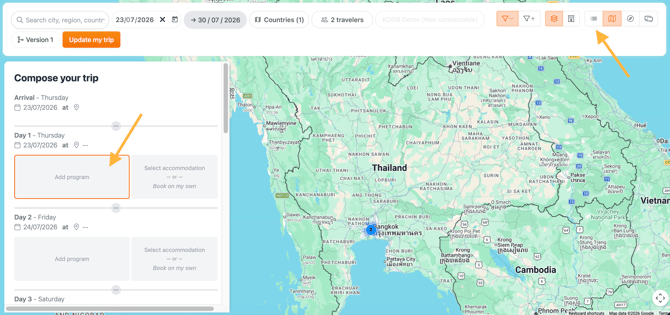
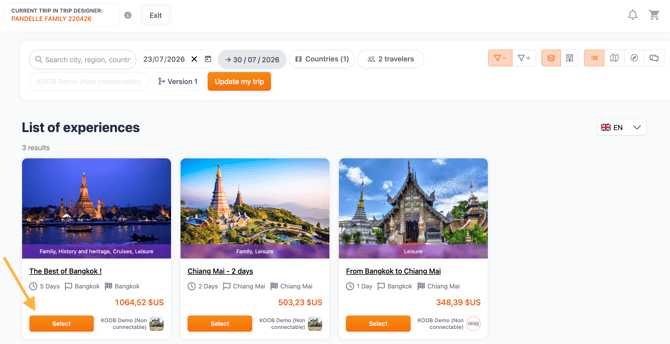
- Search for the desired program
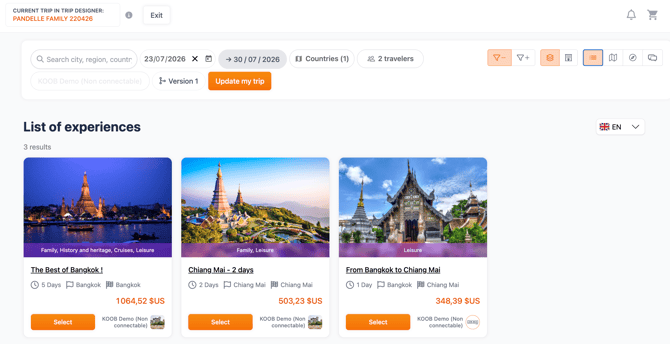
💡 Tips
- Use the filter detailed in the previous section to facilitate your search

- If you need to see what's included in the Program you are about to add, click on the name of the Program to open the detailed factsheet in another window.
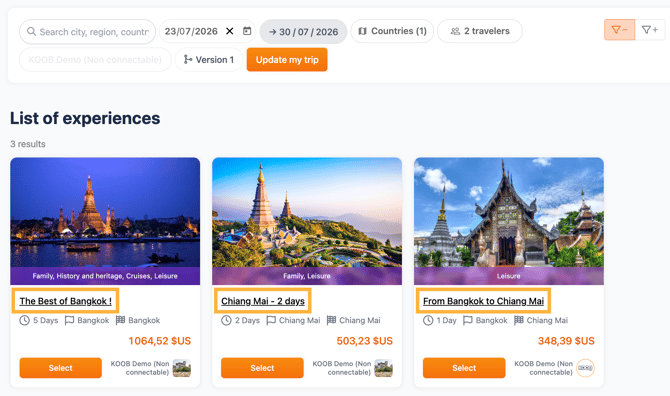
- Click “Select” to add it to your itinerary
-
You will be redirected to the timeline.
KOOB will:
-
Insert the program into the timeline
-
Automatically adjust the number of days if needed
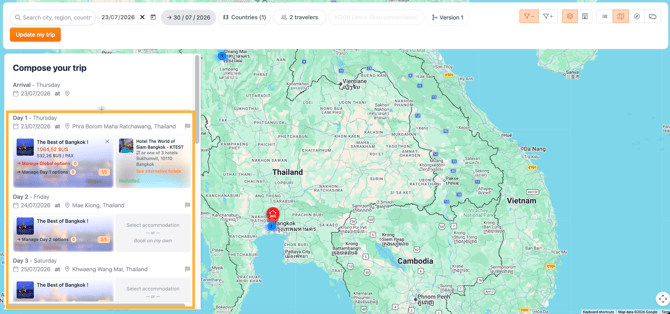
📌 Example: You select a 5-day trek in Northern Vietnam but your timeline is set up on only 2 days duration. KOOB will auto-extend the itinerary by 3 more days if necessary.
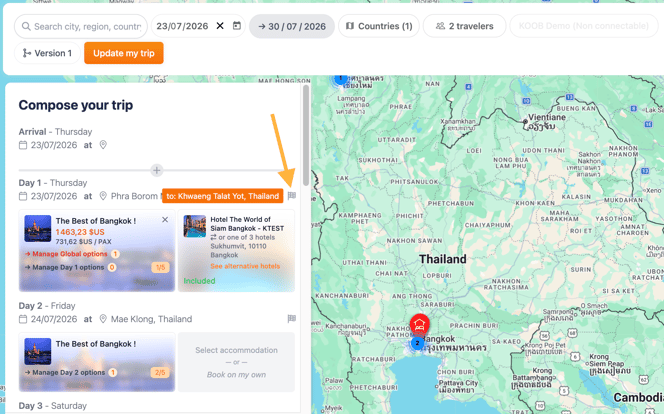
- A tooltip displaying the end location of the day appears when you hover over the small flag:
🧰 Managing options for each program
KOOB supports three types of experience options:
| Type | Description |
|---|---|
| 🧭 Global options | Apply to the whole program (e.g., English-speaking guide for the full trip) |
| 📆 Day-by-day options | Apply to a specific day only (e.g., tuk-tuk ride on Day 3) |
| 🌐 Cascading options | Dependent on a primary choice – if you select a base option, others appear (e.g., "Free afternoon in Chinatown" ➡️ "Tuk Tuk Chinatown tour") |
To display and manage options:
📌 Global options
-
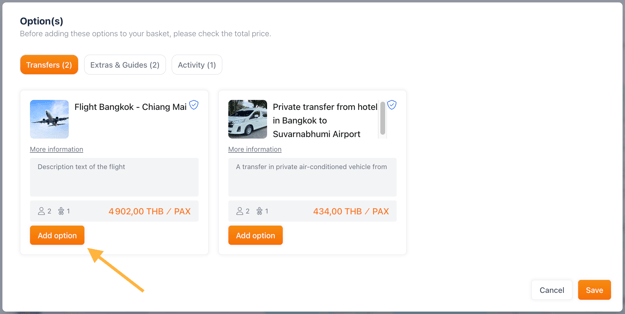
Click “Manage Global Options”
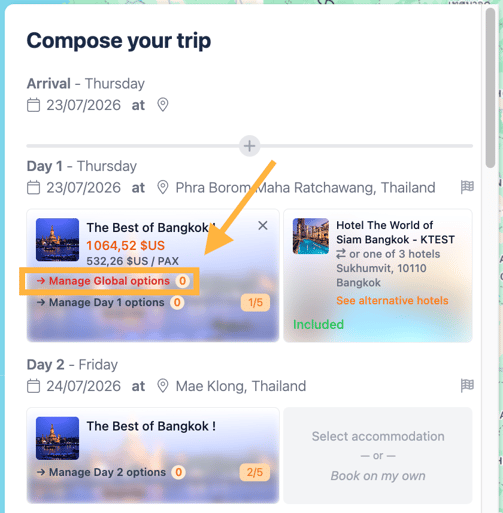
- Options are categorized by typology.
- Click "Add option" on the desired option and "Save"
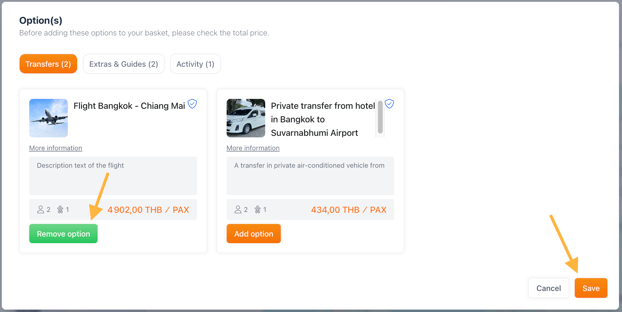
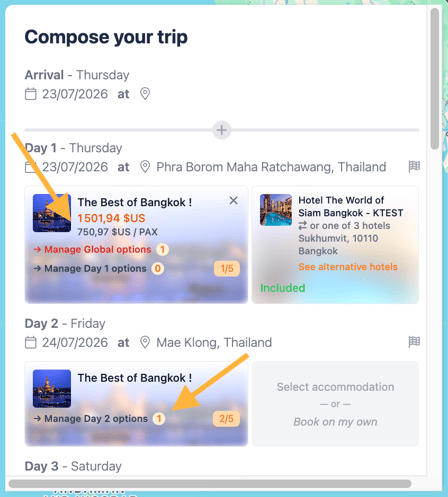
- The tariff is automatically updated, and the indication (1) appears next to “Manage Global Options”, indicating that you have added a global option to the program making up this trip.
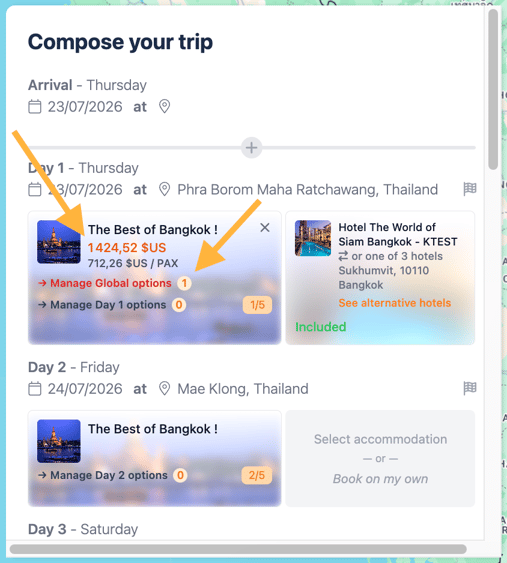
📌 Note: Global options are always displayed on day 1 of the programs you add to the timeline. In fact, they are linked to the program added and not to the day.
📌 Day options
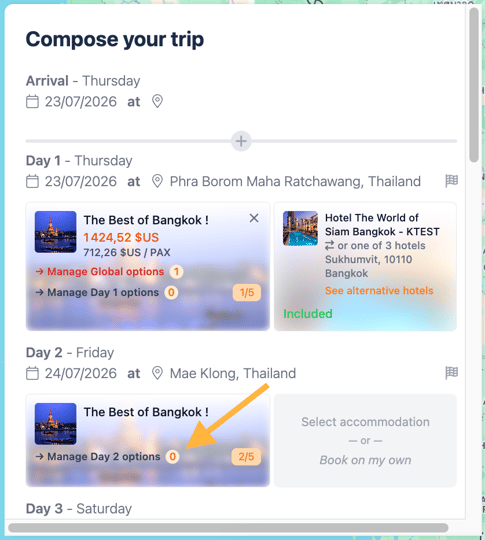
- Click “Manage Day X Options”
-
Select desired options and quantities in the pop-up
- To access the detailed factsheet of the option, click on "More information"
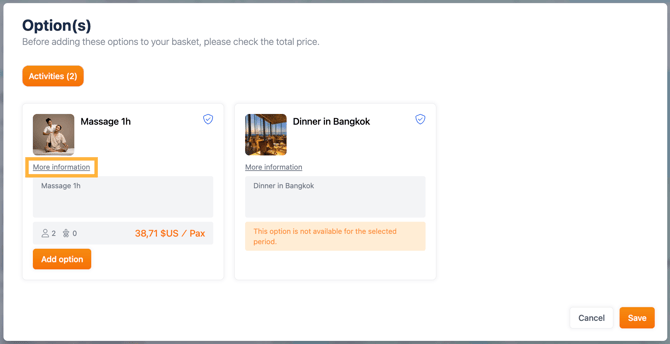
- Click "Add option", select the amount of pax for this option (if the option is per PAX).
- Click "Save"
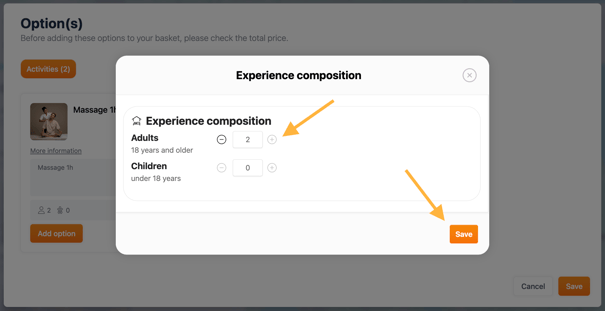
- Click "Save" again
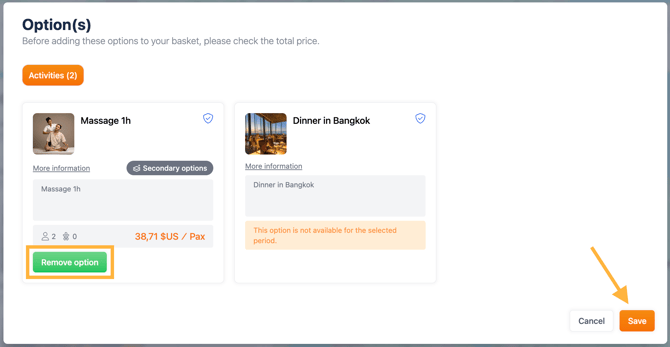
- The tariff is automatically updated, and the indication (1) appears next to “Manage Day X Options”, indicating that you have added a daily option to this day.
📌 Cascading options (required or suggested add-ons)
Some experiences include cascading options - these are secondary options that become available (or required) only if a primary option is selected. This ensures a smooth itinerary flow, especially when experiences involve flexible configurations or combinations.
There are two types of cascading options:
| Type of cascading option | Description |
|---|---|
| 🛑 Required secondary option | Must be selected to make the main option functional. Cannot be skipped. |
| 💡 Suggested secondary option | Optional enhancements. Can be accepted or declined during customization. |
🧪 Example: Free afternoon in Chinatown 🏙️
Let’s say your itinerary includes an afternoon at leisure in Bangkok, with the program “Free afternoon in Chinatown”.
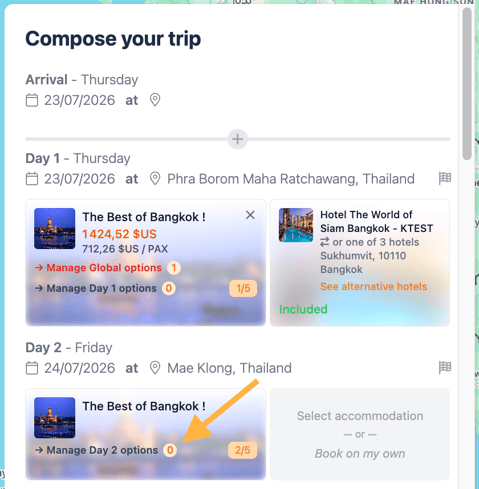
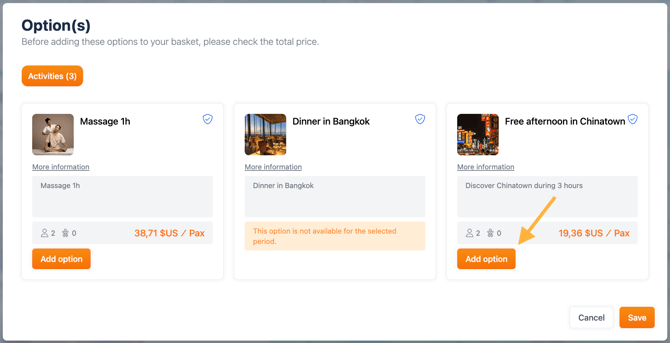
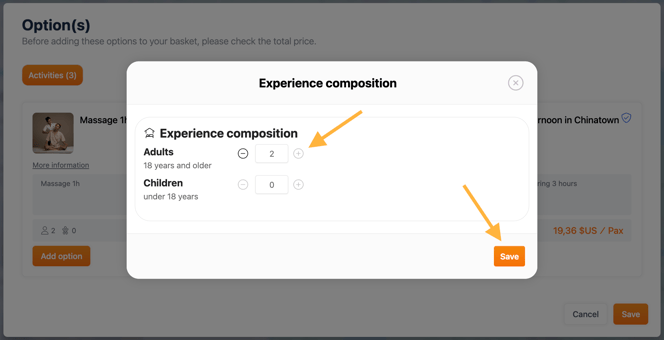
This module can include optional enrichments, such as:
-
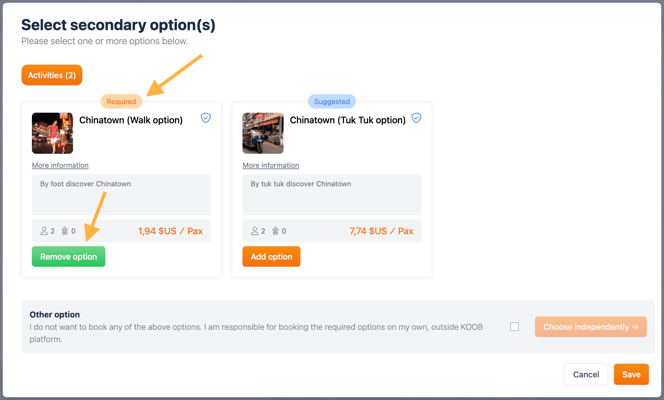
🛑 Required option: “Chinatown Walk” — a walking experience required for the timeline to be valid.
-
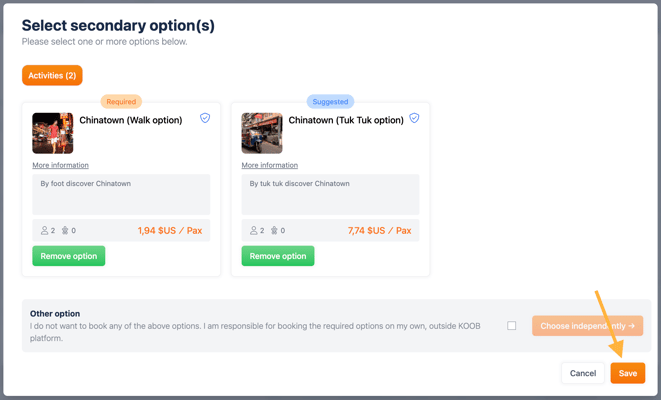
💡 Suggested option: “Tuk Tuk Chinatown ride” — a fun local transfer experience, which can be added optionally.
-
A pop-up will appear listing the cascading options.
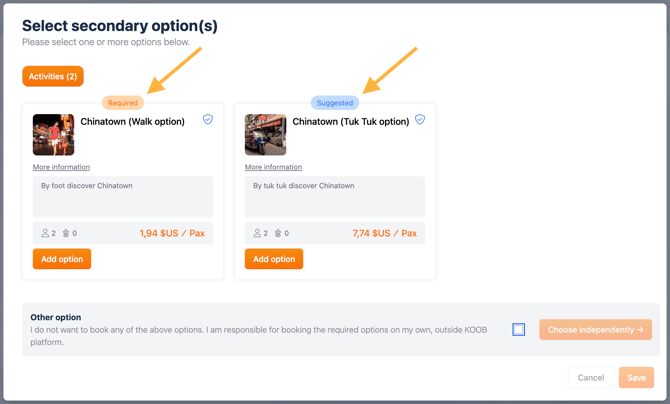
-
Select the required option to be able to add this option.
-
Suggested ones can be accepted (✅) or skipped.
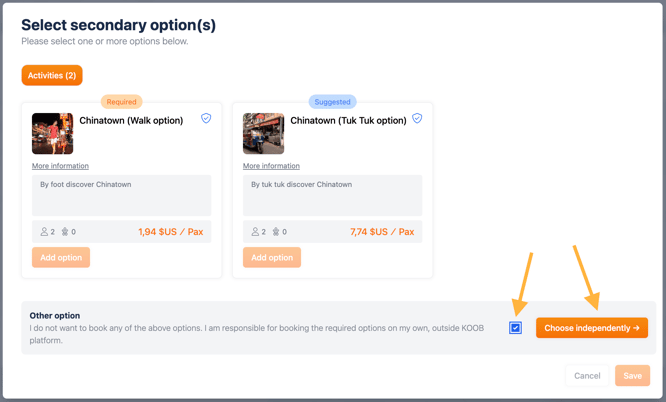
If you don’t want to select any of the suggested options:
-
Tick the checkbox "I do not want to book any of the above options".
-
Then click "Choose independently" to bypass the system’s suggestions.
💡 Tip: We strongly recommend following the DMC's pre-configuration, especially when it involves required transportation or operational logistics.
📌 Required options
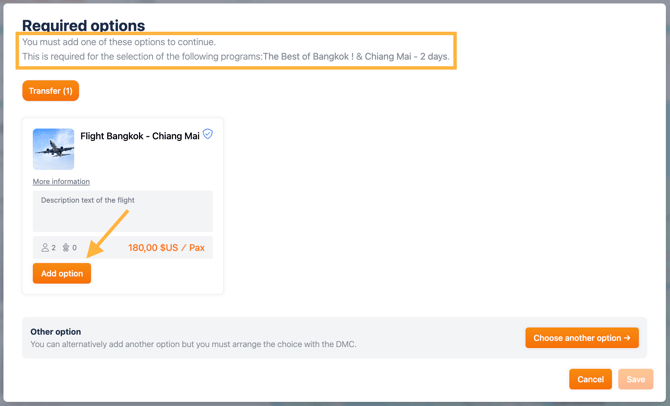
In some cases, option(s) may be required to combine 2 programs.
If this is the case, the DMC will have configured this option, and when a subsequent module is added to your itinerary, a pop-up window will appear to inform you that a mandatory option is essential to the combination.
Example:
-
You want to add a Chiang Mai program after a Bangkok program.
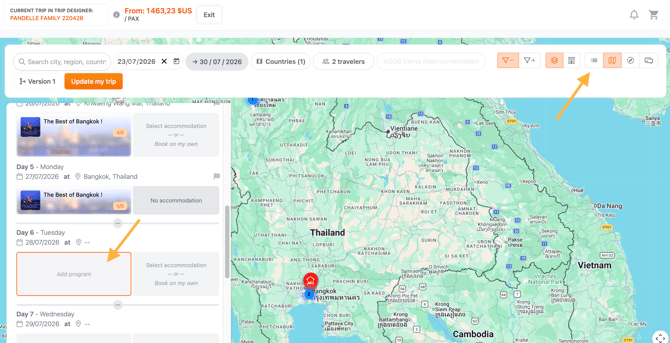
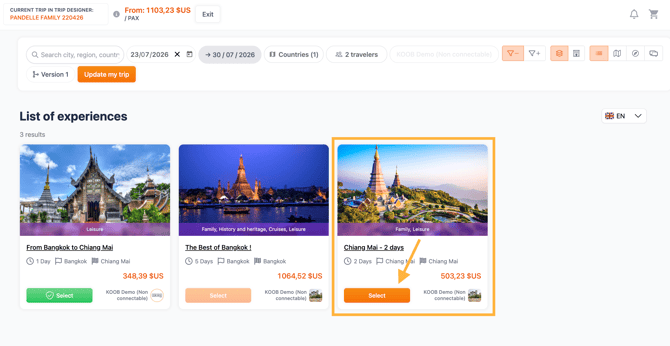
⚠️ KOOB alerts you that transfers are required to ensure a smooth coordination of the trip you are designing.
-
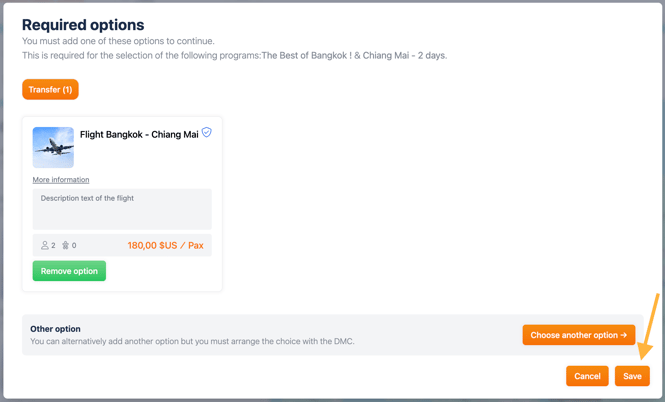
A pop-up appears with a ⚠️ message and the relevant add-on (e.g., "Bangkok to Chiang Mai transfer").
-
Click "Add option" and "Save" to ensure smooth continuity.
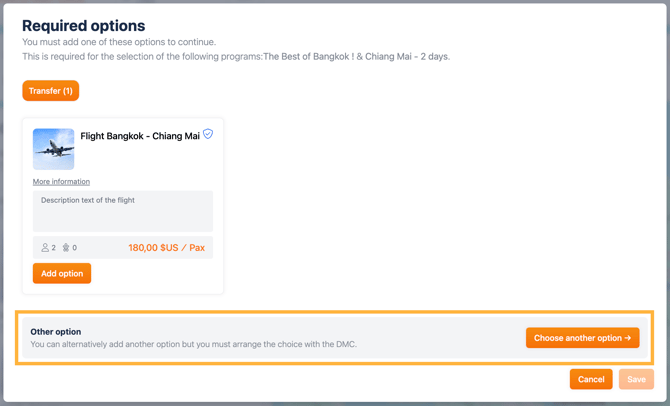
⚠️ If you wish to book these services yourself, click on "Choose another option." By doing so, you take responsibility for the combination, and the DMC cannot be held liable for any errors.
🏨 Adding accommodations to the itinerary
Each day in your itinerary can include one accommodation, which is selected and managed directly in the timeline. KOOB offers several types of accommodation configurations, based on how the DMC has set up the program.
🧾 Types of accommodation and their meanings
| Accommodation Type | Description |
|---|---|
| ✅ Hotel Included | A specific hotel is already included in the program and the total trip price. |
| ❌ Hotel Excluded | No hotel included in the base rate, but suggestions are provided to maintain itinerary flow. |
| 🚢 Night on board | The night is spent onboard (train, boat, cruise…). No need to add a hotel manually. |
| 🚫 No accommodation | No overnight stay required (e.g., early transfer, night flight, or transport leg). |
| 🆓 Free accommodation | The TO is free to select any hotel from the KOOB marketplace — the DMC has not suggested any. |
📍 Selecting a suggested hotel (when proposed by the DMC)
If the DMC has configured suggested hotels:
-
Click 🏨 "Select accommodation" in the corresponding day in the timeline.
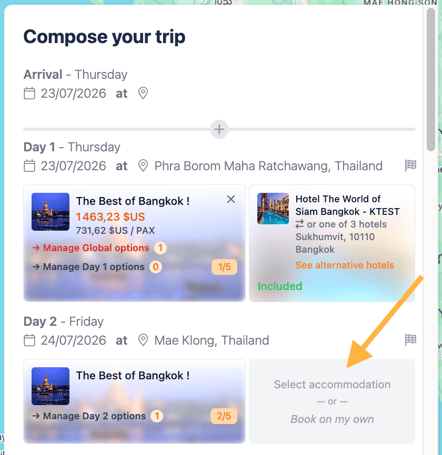
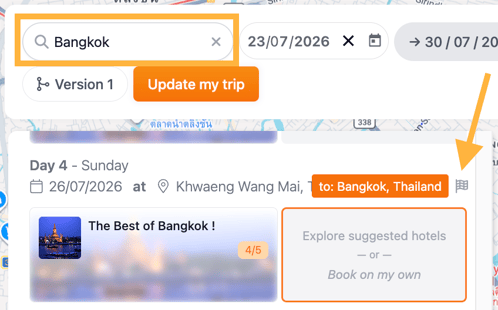
- The end location of each day is automatically prefilled in the search box, helping you quickly find hotels in the correct location.
-
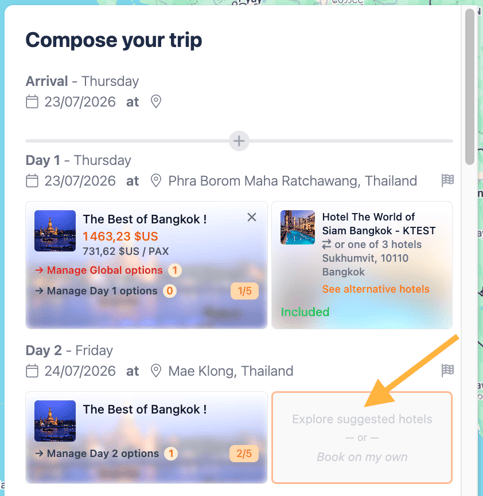
Click "Explore suggested hotels" to review details.
- A pop-up appears showing the DMC’s pre-selected hotel(s).
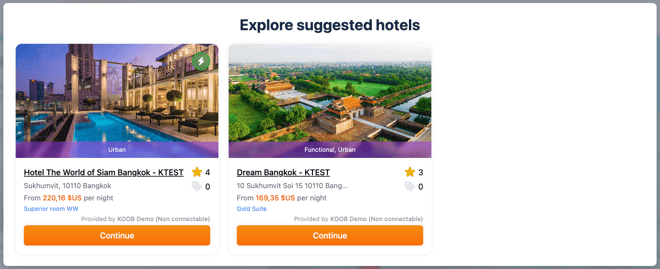
The “From” rate, displayed in orange on the thumbnails, corresponds to the price of the cheapest available room for the selected date.
KOOB also displays the room type in blue, indicating the room category that travelers will stay in.
The “Instant availability” lightning bolt symbol  is also displayed if the hotel offers instant reservations (DMC allotment or Live Inventory Channel Manager).
-
Click "Continue" to confirm the selection.
- Once you have selected a hotel, the lowest available price and its corresponding room type are displayed for each day in the itinerary.
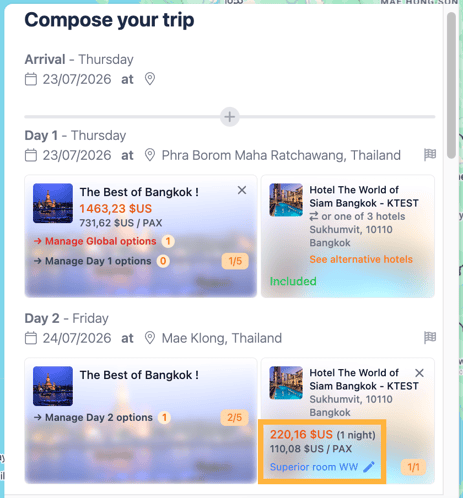
- You can change the room type by clicking the room name with the pencil icon:
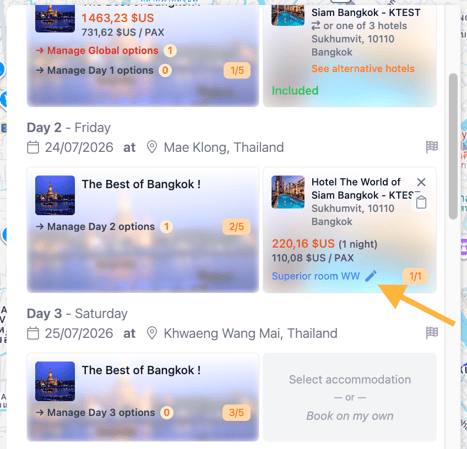
- A room selection pop-up will appear, allowing you to select another room type and confirm:
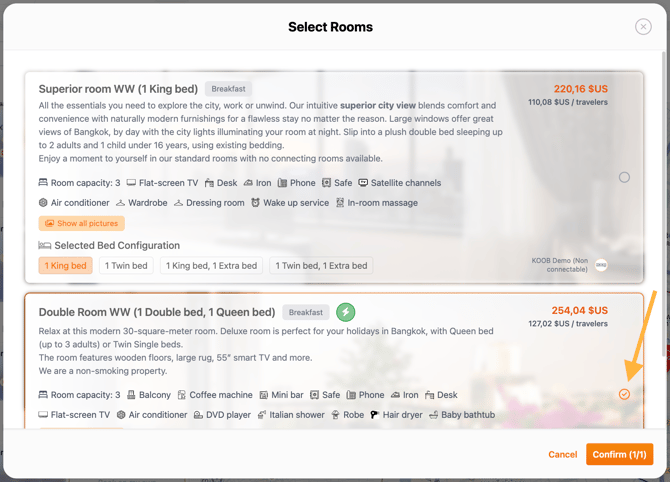
📌 Note: Suggested hotels are aligned with the program’s logistics (location, check-in/out times) to avoid compatibility issues.
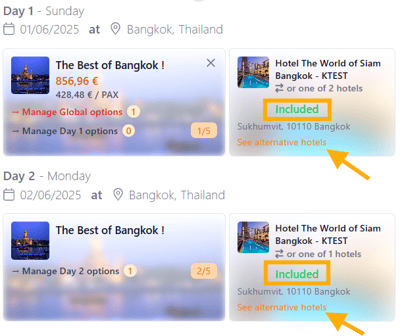
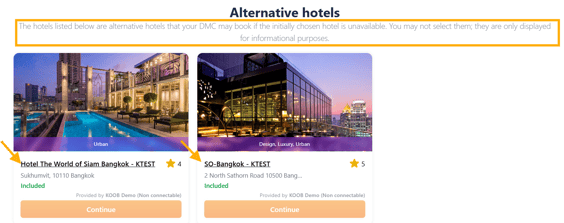
💡 Tip: The DMC may allow alternative hotels with no price difference. These will be shown with the 🟢 “Included” label. By clicking on "See alternative hotels", a pop up window opens, allowing you to access the Hotel factsheets by clicking on the name.
🔍 Exploring hotel alternatives
If you'd like to pick a different hotel than the one suggested by the DMC:
-
Choose the day and click on Select Accommodation
-
You can add hotels from the Map
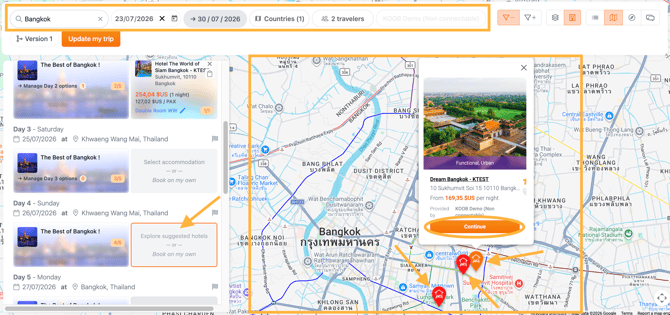
-
Or by clicking "Search hotels" (top right of the pop-up).
-
Use KOOB’s catalog to explore all compatible hotels in the destination.
-
Apply filters to refine your search.
Available filters include:
| Filter | Description |
|---|---|
| 📍 Start / End Location | Filter by hotel proximity to trip segments |
| ⭐ Category | Filter by hotel rating (3★, 4★, 5★…) |
| 💰 Price Range | Set minimum and maximum price per night |
| 🧑🤝🧑 Rooming composition | Allocate travelers across rooms (single, double, triple…) |
| 🌐 Language selector | Choose to view the hotel content in EN, FR, SP, DE, IT, NL, or PT |
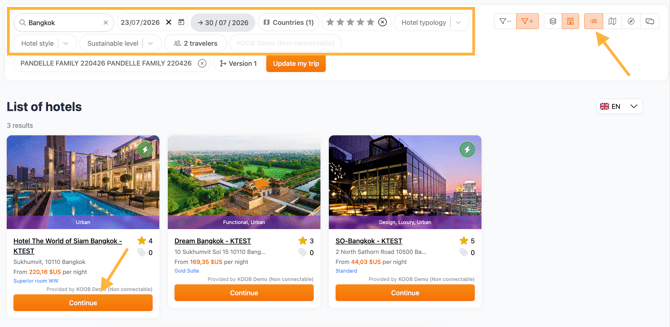
- Click "Continue"
- The price in the timeline is automatically updated.
📎 Viewing hotel factsheets
From the list view:
-
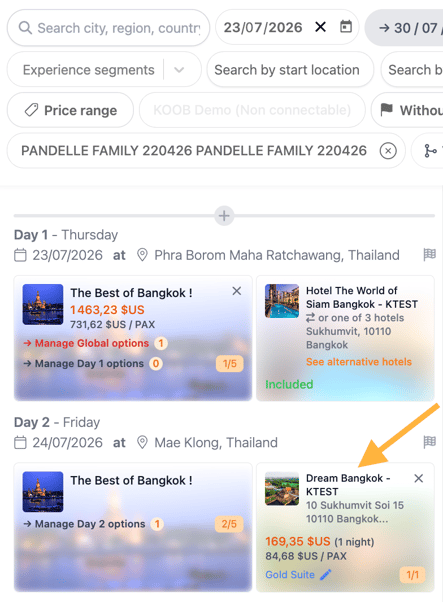
Click on a hotel name to open its full factsheet
-
You’ll find photos, description, sustainability commitments, and more.
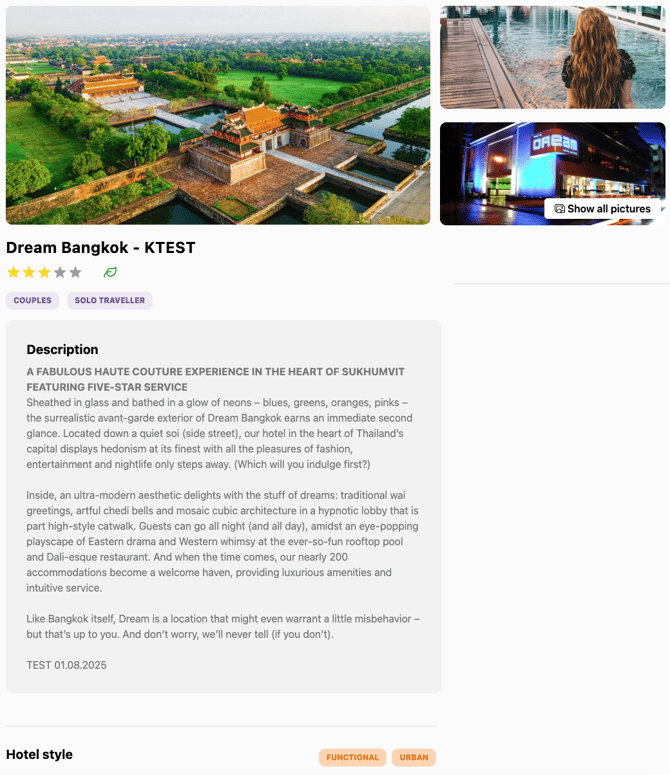
📋 Booking a hotel externally ("Book on my own")
If you prefer to manage the accommodation outside of KOOB:
-
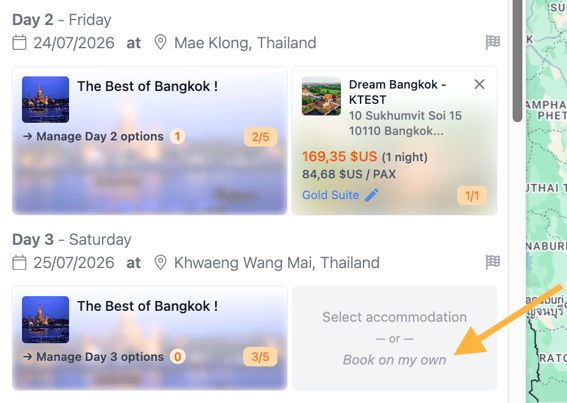
Click "Book on my own" for the selected day.
-
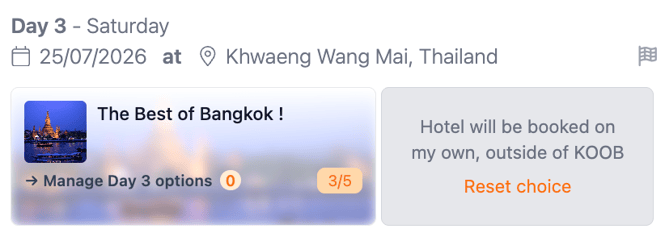
The itinerary will still show a placeholder for that night.
-
The DMC will not be responsible for logistics or issues related to external booking.
⚠️ This may affect compatibility or operations (e.g., transfers, timings).
Contact your DMC via the Chat to inform about your bookings (out of KOOB) to maintain a Trip smooth coordination for your clients.
📥 Copying and pasting accommodations
If your travelers are staying multiple nights at the same hotel, save time by duplicating it:
-
Select the next day in the itinerary to paste the same hotel by clicking on "Select Accommodation"
- Click the 📋 copy/paste icon on the hotel tile in the timeline.
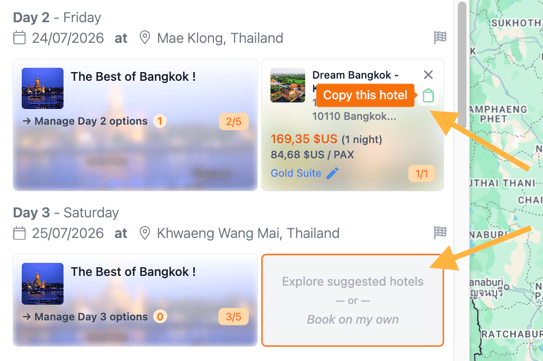
💡 Tip: Perfect for extended stays or multi-night packages in resorts or lodges.
🌐 Switching the language of experiences and hotels
KOOB lets you display experiences and hotels in multiple languages, so you can build and review trips in the language that best suits your clients.
You’ll find the language selector in the top banner of the screen:
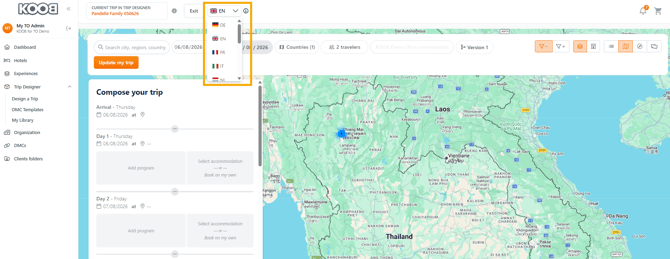
Available languages include:
-
🇬🇧 EN (English – default)
-
🇫🇷 FR (French)
-
🇪🇸 SP (Spanish)
-
🇩🇪 DE (German)
-
🇮🇹 IT (Italian)
-
🇳🇱 NL (Dutch)
-
🇵🇹 PT (Portuguese)
How does it work ?
-
Click the 🌍 language dropdown and choose your preferred language.
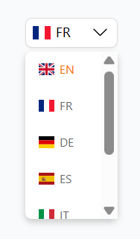
-
KOOB will display the content (titles, descriptions, highlights) in that language if it’s available.
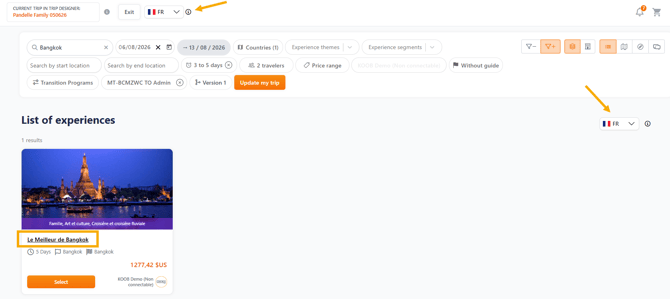
- When hovering over the (i) icon, a tooltip will appear: "Once the trip creation process is underway, the language can no longer be changed."
-
If a translation is not available for a hotel, KOOB will automatically display the English version, which is the platform’s default language.
📌 Note:
- The language can only be edited when the timeline is empty
- Once you add experiences or any content, the language will be locked and cannot be changed
💰 Price banner and real-time updates
KOOB dynamically calculates and displays the total trip price per person in the top banner as you add experiences, hotels, and options.
This “Price From” banner is based on:
-
🏨 The cheapest room category selected for each hotel
-
🧭 The experiences and their associated options
-
⚙️ Any mandatory or optional modules added to the trip
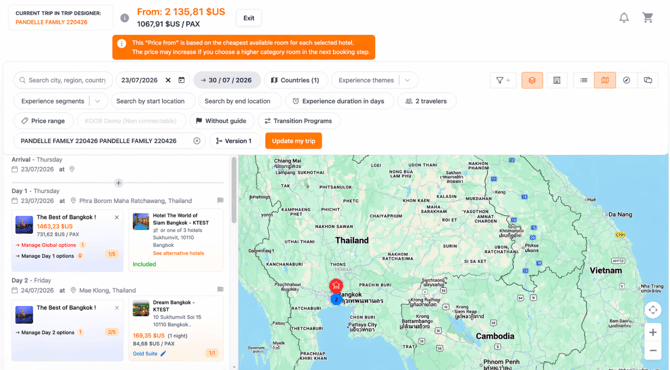
💡 Tips
- This price helps you immediately understand the minimum cost for the selected configuration.
- The final price may increase if the TO selects higher room categories or adds extra services at checkout.
🧠 KOOB Compatibility system
As you build the itinerary, KOOB automatically assesses whether the experiences, hotels, and days are logistically compatible. This avoids operational errors and ensures the trip is realistic.
Compatibility color codes:
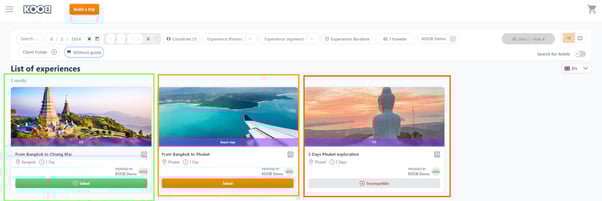
| Color | Meaning |
|---|---|
| 🟢 Green | Best choice — strongly recommended by DMC and fully compatible |
| 🟠 Orange | Compatible but not optimal (e.g., longer transfer time, or required options) |
| 🔴 Red | Incompatible — cannot be selected due to location or time conflicts |
💡 Tip: If you see a 🔴 module, try adjusting the itinerary (e.g., add an extra day or modify the previous experience) to unlock availability.
🧭 Using the Trip Viewer tools
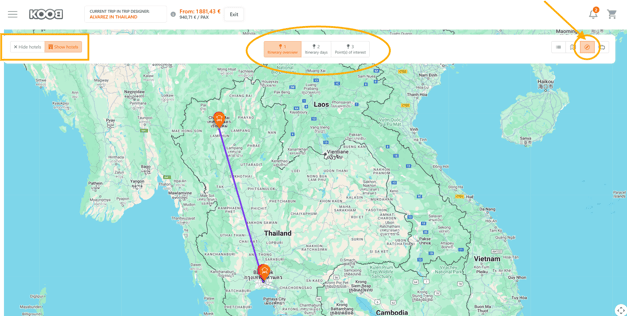
Click the 🧭 compass icon in the top-right of the Trip Designer to access visual tools:
Three viewing levels are available:
| View | What it shows |
|---|---|
| 🌍 Itinerary Overview | A full route map, with start/end locations and program modules |
| 📅 Day-by-day view | A chronological view of experiences and accommodations per day |
| 📍 Points of Interest | Key landmarks, sites, and hotel locations included in the trip |
🌍 Itinerary Overview (Level 1) allows you to view the route as a whole, with the starting point, the finishing point, and the programs that constitute the trip.
To display the hotels on the map, click on "show hotels".
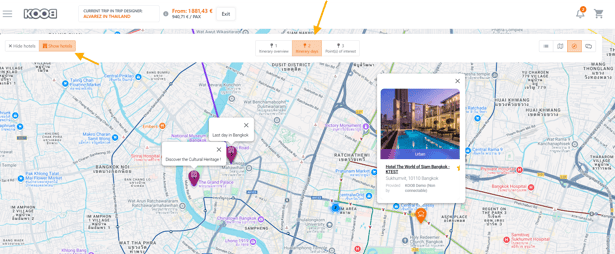
📅 Day-by-day view (Level 2) allows you to view the route day by day. Here, for example, are days 10 and 11 of the program. By clicking on it, the name of the day is displayed.
When you see a coloured circle with a number, this means that you have several different information points grouped together. To display them, simply click on them.
📍 Points of Interest (Level 3) displays the points of interest that compose a day in the program.
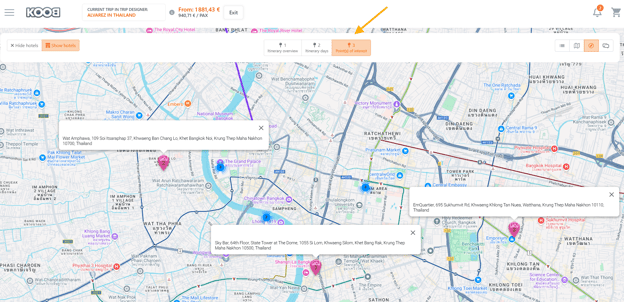
💡 Tip: This is ideal for presenting a professional summary to your client or for internal itinerary review.
💬 Co-design: request assistance from your DMC via chat
At any stage of your trip creation, you can request assistance from your DMC using KOOB’s integrated chat and document-sharing system. This collaborative space enables seamless co-construction, clarifications, and adjustments — all without leaving the Trip Designer.
💡 When to use the Co-Design feature ?
-
You’re unsure whether two modules are logistically compatible
-
You want help connecting cities or regions with correct transfers
-
You’d like the DMC to review or adjust accommodations
-
You need advice on upgrades, pricing, or local recommendations
-
You need help completing an itinerary with missing services
💬 How to start a conversation with the DMC ?
-
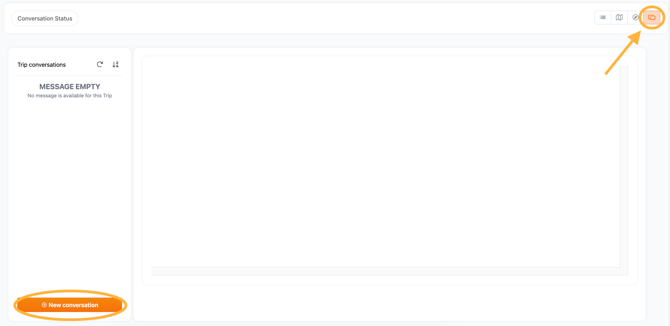
Click the 💬 chat bubble icon in the top-right corner of the Trip Designer
-
Click ➕ New Conversation
-
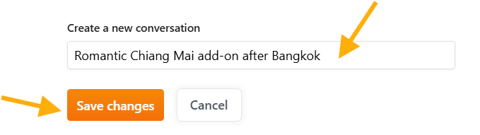
Enter a clear and specific title (e.g. “Romantic Chiang Mai add-on after Bangkok”)
-
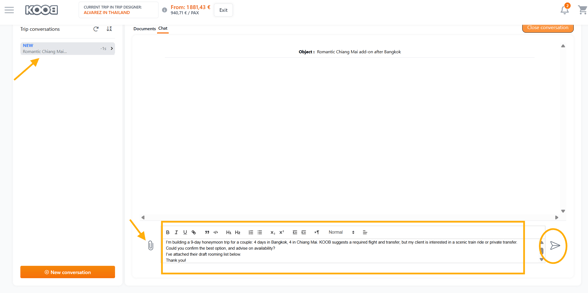
Type your message with context and specific questions
-
You can attach documents (PDF, Word, Excel, JPEG/PNG) if needed
→ Example: guest list, flight schedules, special request notes
-
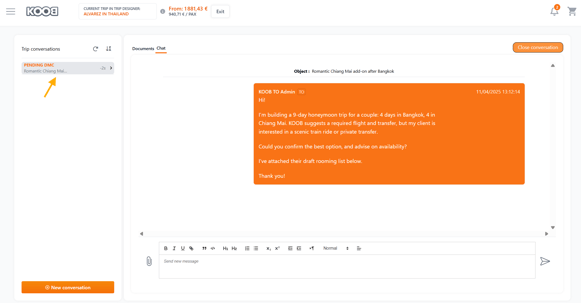
Click Send to notify the DMC — they’ll receive an instant alert
📁 Example message (Bangkok + Chiang Mai itinerary)
“Hi! I’m building a 9-day honeymoon trip for a couple: 4 days in Bangkok, 4 in Chiang Mai. KOOB suggests a required flight and transfer, but my client is interested in a scenic train ride or private transfer. Could you confirm the best option, and advise on availability? I’ve attached their draft rooming list below. Thank you!”
🧵 Organize conversations by topic
There is no limit to the number of chat threads you can create. To stay organized, it’s recommended to group conversations by theme. For example:
| Conversation Title | Purpose |
|---|---|
| 🏨 Hotel options in Phuket | Questions about alternatives or upgrades |
| 🗺️ Chiang Mai module timing | Clarify dates, durations, or activity overlaps |
| ✈️ Bangkok transfer assistance | Help with required flight or night train |
| 📑 Visa & entry requirements | Confirm documentation needed |
| 📷 Activities for photographers | Curate thematic experiences based on interest |
💡 Tip: This makes it easier for both you and the DMC to track and respond efficiently.
🔄 Chat conversation statuses
KOOB automatically tracks conversation progress with status indicators visible in the conversation dropdown:
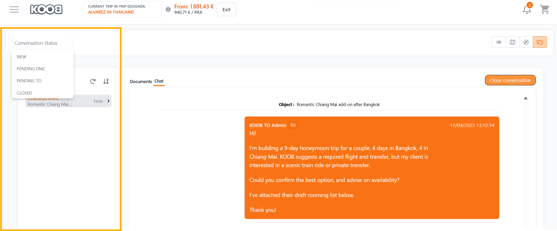
| Status | Meaning |
|---|---|
| 🆕 New | You’ve started a new conversation |
| ⏳ Pending DMC | Message sent, waiting for the DMC’s reply |
| ⏳ Pending TO | DMC replied, awaiting your response |
| ✅ Closed | Conversation closed by the TO after resolution |
📌 Note: Only the Tour Operator can close a conversation. Click “Close Conversation” to archive once your issue is solved.
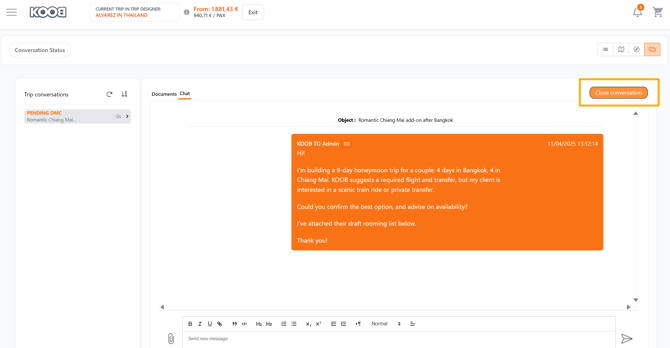
💡 Tip: A closed conversation can be reopened anytime by sending a new message in the same thread.
📥 Sharing documents with the DMC
To share files related to your trip (e.g., names, passport scans, dietary needs), you can upload them directly inside the conversation pop-up.
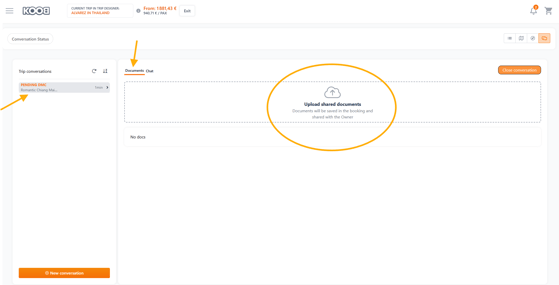
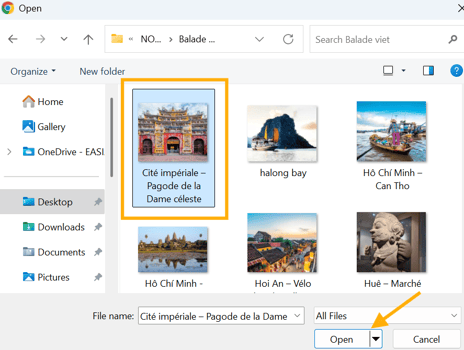
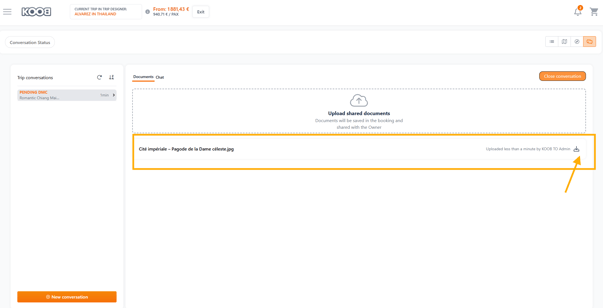
Supported formats:
-
📄 PDF, DOCX, XLSX
-
🖼️ JPG, PNG
📌 Example: For a family trip with children, you may send:
-
A special rooming configuration table
-
Scans of passports for visa pre-processing
-
Dietary requirement notes (vegetarian/gluten-free)
💡 Tip: This centralizes all communication and documentation for the trip in one organized space.
✅ Finalizing your trip
Once your itinerary is complete and all components are added:
You can choose one of three actions in the top-right of the Trip Designer:
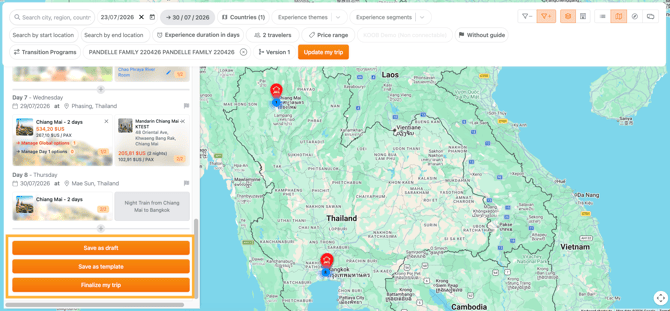
| Action | When to use it |
|---|---|
| 💾 Save as Draft | Store your trip version in the Client Folder or Draft Library. Ideal if you need to refine it later. |
| 🧩 Save as Template | Reuse this itinerary structure for other clients in the future. Add a name and upload a visual image to store in My Templates. |
| ✅ Finalize Trip | Proceed to booking, confirm hotel rooms, guest info, and send the booking to the DMC. |
📌 Note: You can rename the trip, assign an image (for template), and validate pax info before booking.
🟠 Finalizing your Trip
-
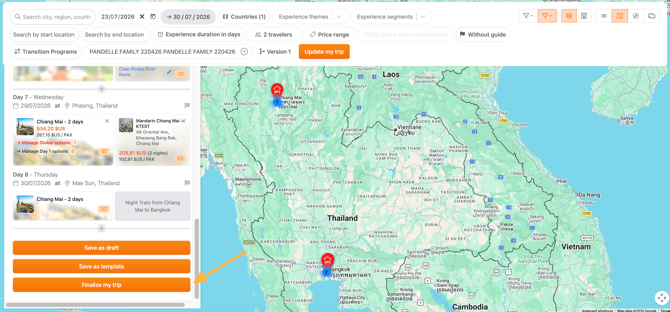
Click on Finalize My Trip from the Trip Designer.
-
If your trip is not created from a Client Folder, KOOB will automatically create a new Client Folder and save your trip there
What you'll see on this screen ?
-
🧍♂️ Booking owner → Information about the main contact for the trip.
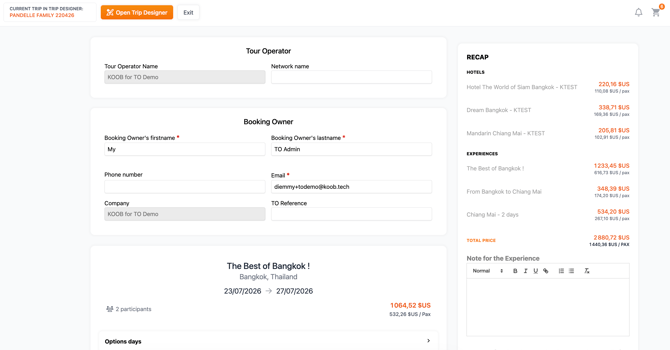
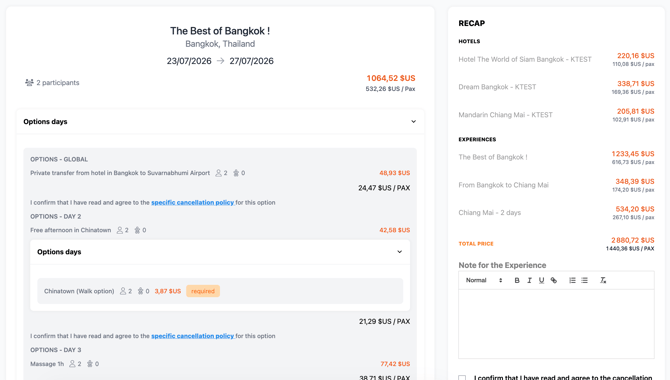
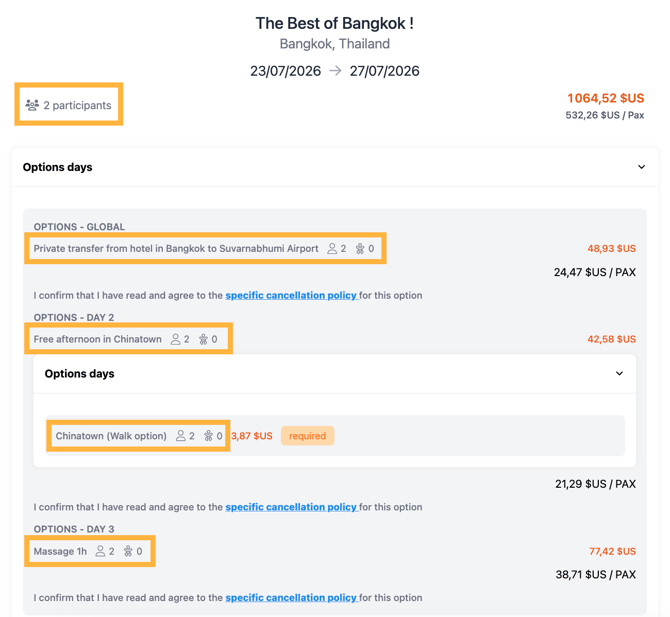
- 🗺️ Tour summary and options → Itinerary recap, including day-by-day details.
-
👥 Number of participants → Based on the room and experience composition.
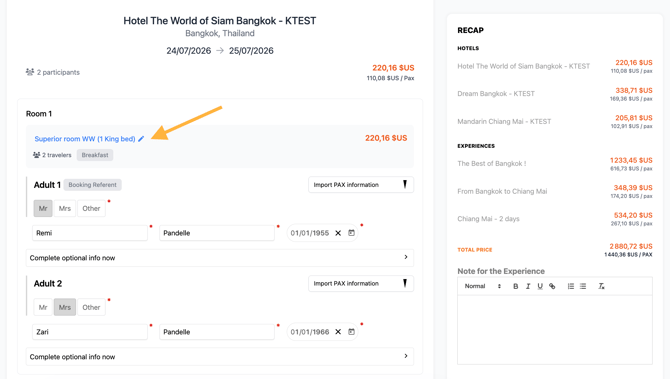
At this stage, you can review and adjust your room selections:
-
Click a room name to open the selection pop-up
-
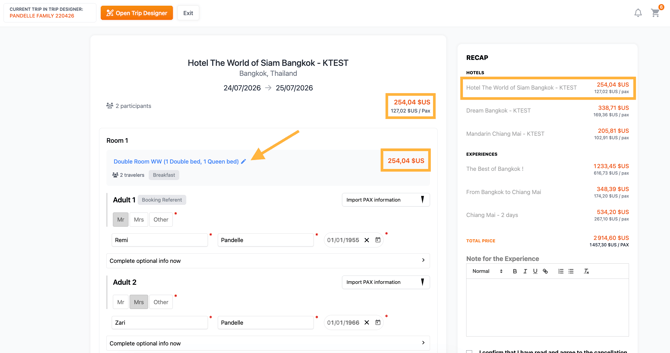
Choose your preferred room category
-
The 💰 price updates instantly in the top-right banner
-
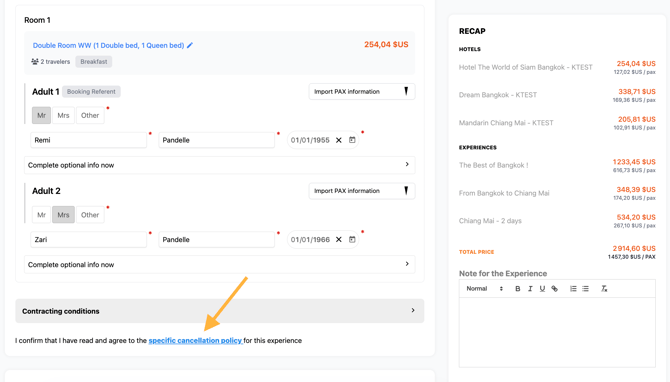
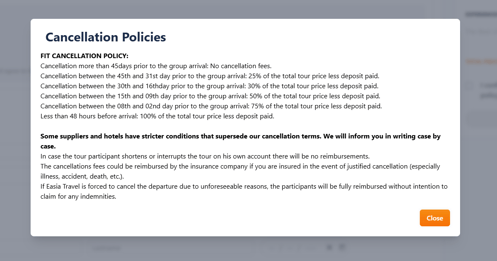
✅ Access cancellation conditions via clickable links for each service
|
📌 Example:
|
💡 Tips
- Clear visibility on cancellation terms avoids surprises for both you and the client.
- Carefully check all selected services and pricing before proceeding. Use the scrollable recap on the right to verify totals.
Import the guests for Experiences and Hotels
-
Confirm guest information (auto-retrieved from the client folder)
- Fields required:
- Gender (dropdown)
- First Name & Last Name
- Date of Birth 📅
- Fields required:
-
- Optional (but recommended) fields:
-
-
-
🛂 Passport number
-
📆 Passport expiration date
-
🌍 Nationality
-
-
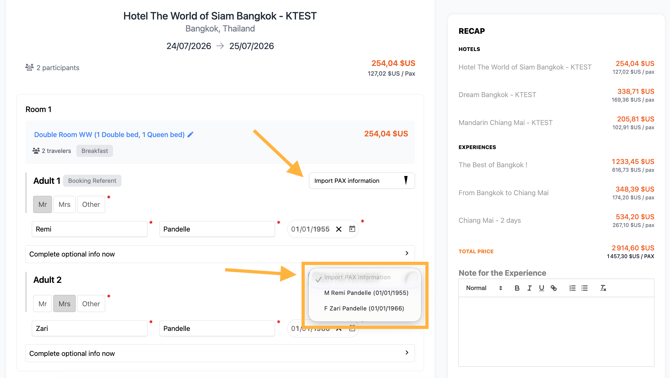
📌 Note: If the booking is launched from a Client Folder, most guest data will be automatically retrieved and pre-filled from the folder.
💡 Tip:
- If you are not starting from a Client Folder, you can use “Save PAX information” and “Import PAX information” to save time and avoid manual entry:
- On the summary page, start with the first service
- Hover over the (i) icon to see the tooltip: "The PAX information will be automatically save in a new client folder. You can then user the Import PAX information menu to avoid manual entry."
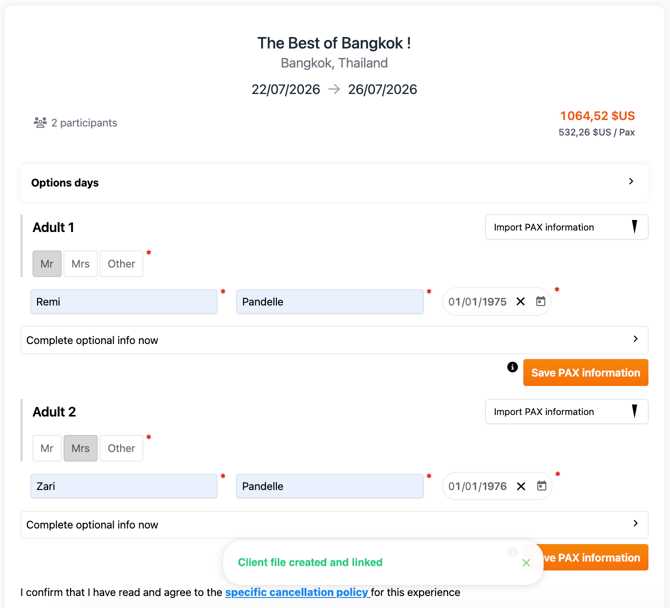
- After entering the mandatory details for each PAX, the “Save PAX information” button becomes available.
- Click “Save PAX information” to store the data
- ⚠️ Important:
- Save only once per PAX to avoid duplicate entries
- Once saved, KOOB will display a confirmation message
- For the next services (e.g., hotels) on the summary page:
- Use the “Import PAX information” dropdown
- Select the saved PAX instead of re-entering details manually
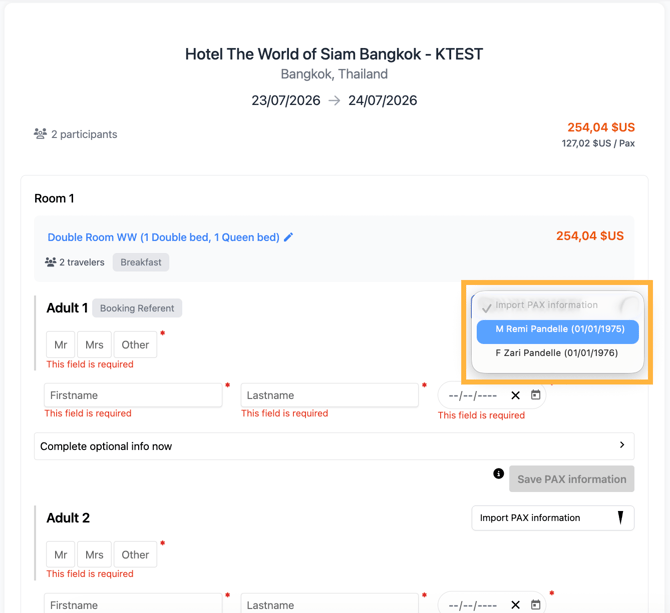
- Always double-check the guest list when booking for multiple travelers, especially for visa-sensitive destinations or family groups with minors.
Before booking, you must review and accept the cancellation conditions for every component:
Each hotel, experience, or option displays its cancellation policy below its section.
- Carefully read and check the corresponding box ✅ to validate.
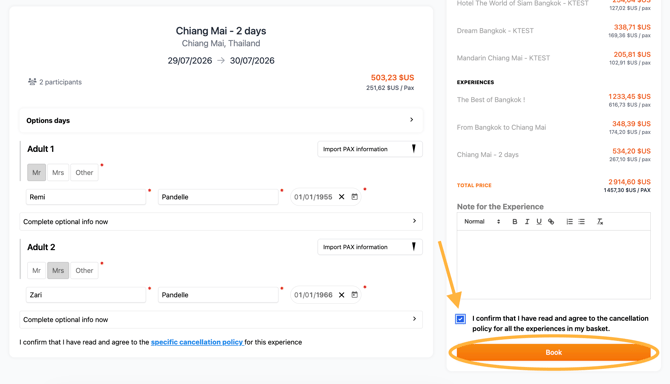
Once all conditions are accepted:
-
Click Book to send your confirmed booking to the DMC.
- You will see this page to review the status of all your bookings
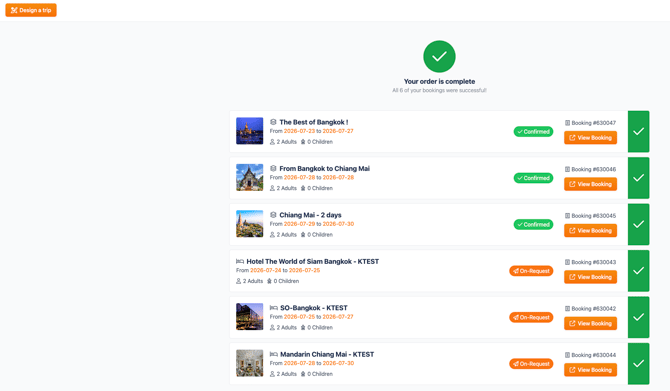
-
KOOB automatically generates and dispatches booking requests for:
-
🏨 Hotels
-
🧭 Experiences
-
🧩 Trip options
-
The DMC and Hotels will now handle confirmations and you can track updates directly in KOOB.
📁 Tracking your booking in the Client Folder
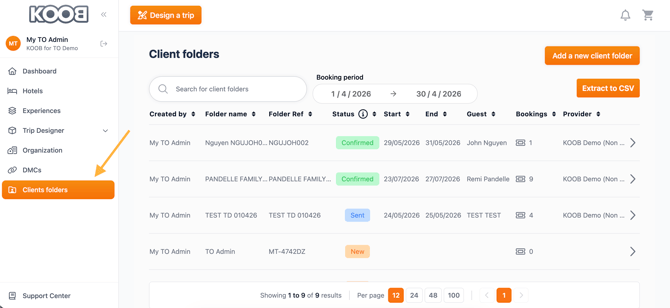
Once the booking is placed, everything is centralized in your Client Folder:
📌 How to access:
-
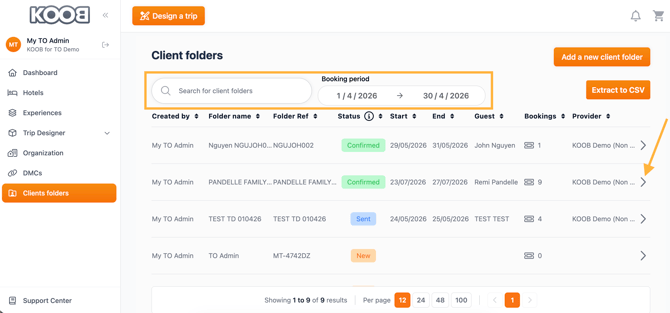
Go to Client Folders from the KOOB menu (left-hand panel).
-
Use the filters or search bar to locate the folder by:
-
✏️ Name
-
🔖 Reference code
-
📅 Booking period
-
-
Click on the arrow icon to open the folder.
🗂️ What's inside the Client Folder?
| Section | Content |
|---|---|
| 👥 Client details | Traveler names, information |
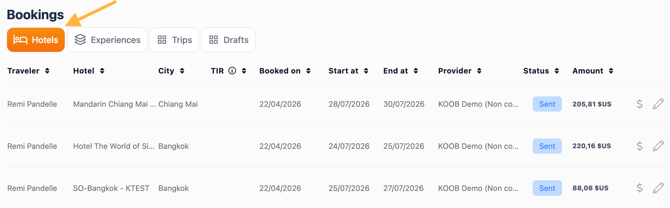
| 🛏️ Hotel bookings | List of booked accommodations, with status |
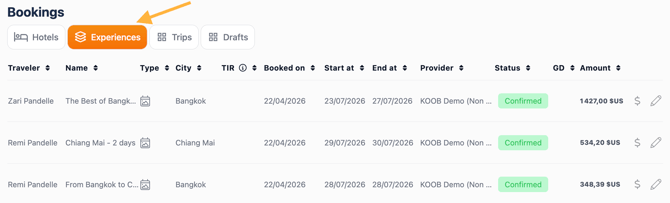
| 🧭 Experience bookings | All confirmed activities and options |
| 💬 Trip conversation | Messages exchanged with the DMC (chat threads) |
| 📄 Travel Diary | Itinerary in a structured visual format (can be downloaded) |
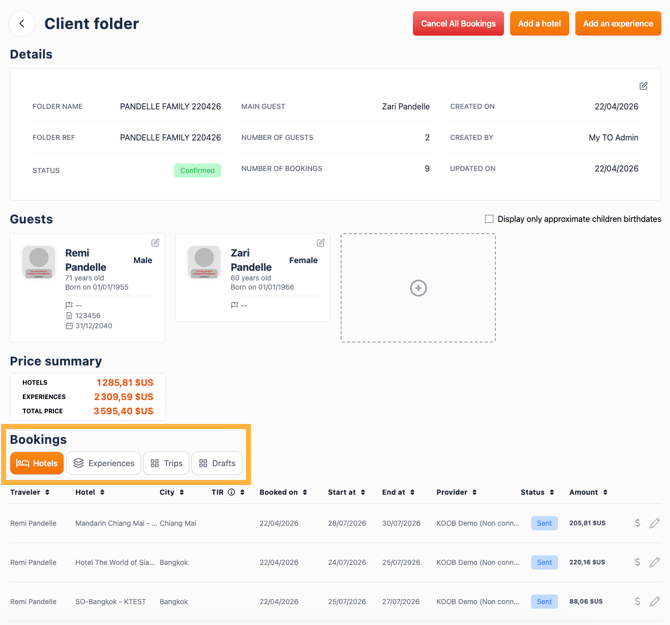
- Hotel bookings
- Experiences bookings
Useful articles - Booking Management :
- Trip details
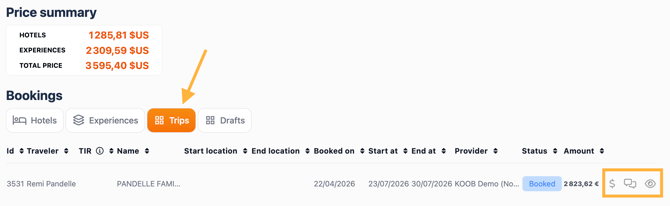
Other icons recap in the Trip section
| Icon | Function | Description |
|---|---|---|
| 👁️ Eye | View and download the Travel Diary | Opens the client-facing itinerary. You can review the full day-by-day breakdown and download the PDF version of the Travel Diary to share with your client. |
| 💬 Trip Conversation | Access trip conversations and documents | Opens the Trip-level Chat interface, where you can message the DMC about this trip. You can also attach and retrieve documents (e.g., passport copies, rooming lists, flight schedules) shared with the DMC. |
| 💲 Dollar | View and download the pricing sheet | Opens the detailed pricing breakdown for the full trip. This includes all hotels, experiences, and options — allowing you to review the total cost before generating a quote. |
💡 Tip: This folder becomes the hub for managing the full life cycle of your client's trip — from draft to booking to post-trip review.
VIDEO TUTORIAL
Takeaways
✅ KOOB’s Trip Designer gives you complete freedom to build custom trips
✅ One DMC per trip ensures smooth coordination
✅ Compatibility system (Green, Orange, Red) prevents operational errors
✅ Experience options (global, daily, cascading) enrich personalization
✅ You can update and track all versions for easy comparison
✅ Finalized trips are visible in the Client Folder with full booking status and documents
FAQ
Q: Can I create multiple versions of the same trip?
🟢 Yes, use the Version button to save and compare alternatives.
Q: Can I re-use this trip for another client?
🟢 Yes! Save it as a Template and apply it to a different folder.
Q: What if I want the DMC to take over and co-design?
🟢 Use the Chat tab to ask for assistance — the DMC can modify the draft directly.
Q: Where do I download the itinerary PDF?
🟢 In the Travel Diary view (Client Folder), click the orange 📄 icon to download.
Related articles
- What are the different sections of the Trip Designer?
- How to navigate and organize My Templates Library?
- How to ask the DMC to design a tailor-made trip for me ?
- How to request assistance from a DMC for trip planning in the Trip Designer?
- How to save a trip un My templates Library ?
- How to visualize the Travel Diary and download it as a PDF document for your clients?
📌 Need help? Visit the KOOB Knowledge Base or contact KOOB Support 🚀